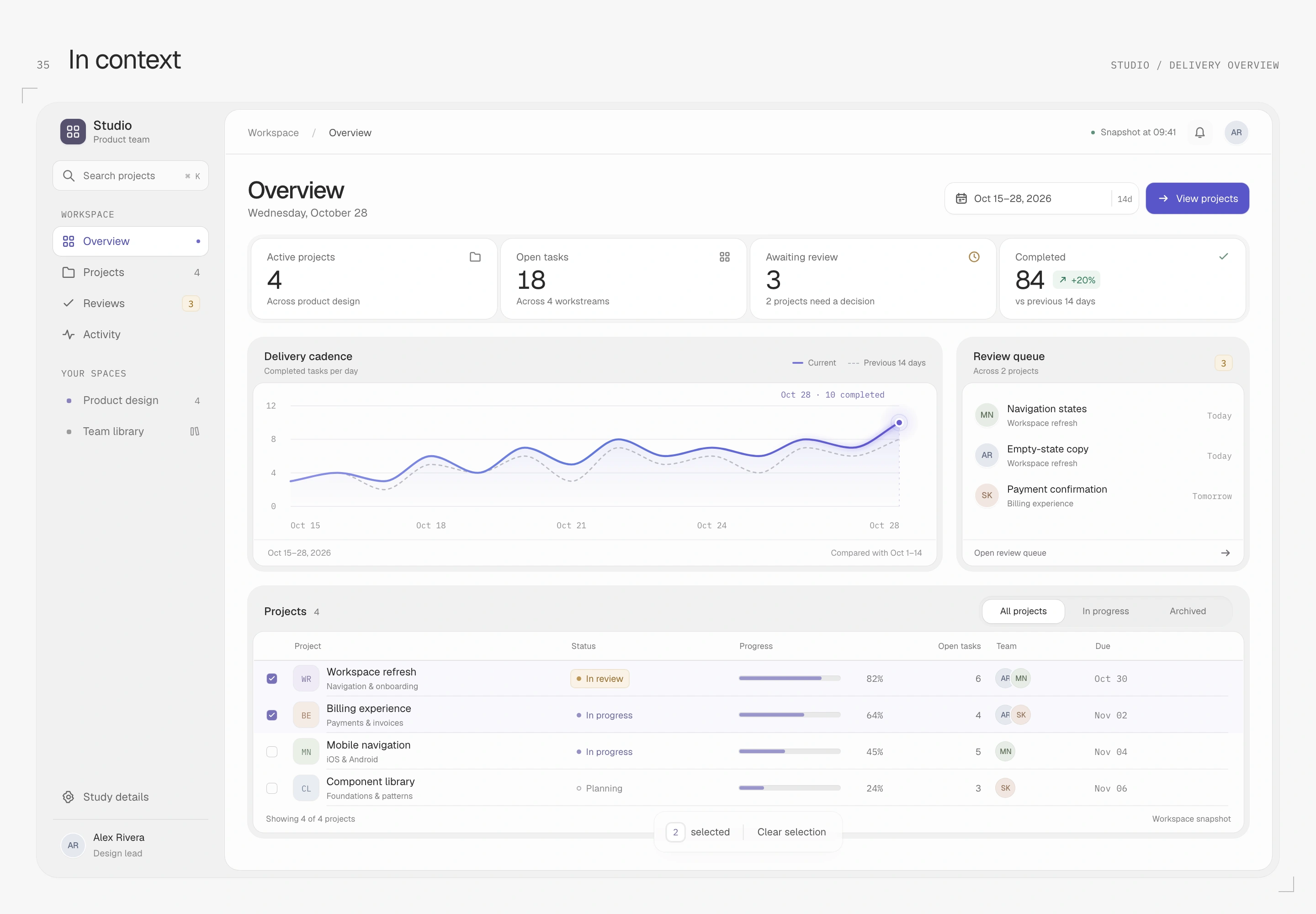
An interface can have all its cards, buttons and charts in place and still leave small distractions: a panel outline feels heavy, an image edge disappears, changing numbers push nearby text, or a menu is still playing the previous action. The “AI look” I want to discuss lives in these unfinished relationships.
I prefer restrained, near-white interfaces whose layers become apparent up close. Contours should remain recognizable, shadows should stay close to surfaces, and text, icons and space should share a rhythm. Feedback should keep up with the user's actions. Refinement comes from these choices working together.
The original studies below examine one detail at a time. Gray and white are the palette of these specimens, and the values describe their particular choices. Dimensions refer to original CSS pixels; enlarged details state their magnification. Open an image for the full output, then return to its actual display size when judging line and text weight.
Boundaries and depth
Narrow the same contour
My priority is a clear start to the panel without the edge becoming a heavy frame. These specimens give the outer contour to a ring: a zero-blur outer shadow traces the surface, while separate shadows establish depth. It still has a crisp edge, but width and opacity can be adjusted independently without taking up layout space.
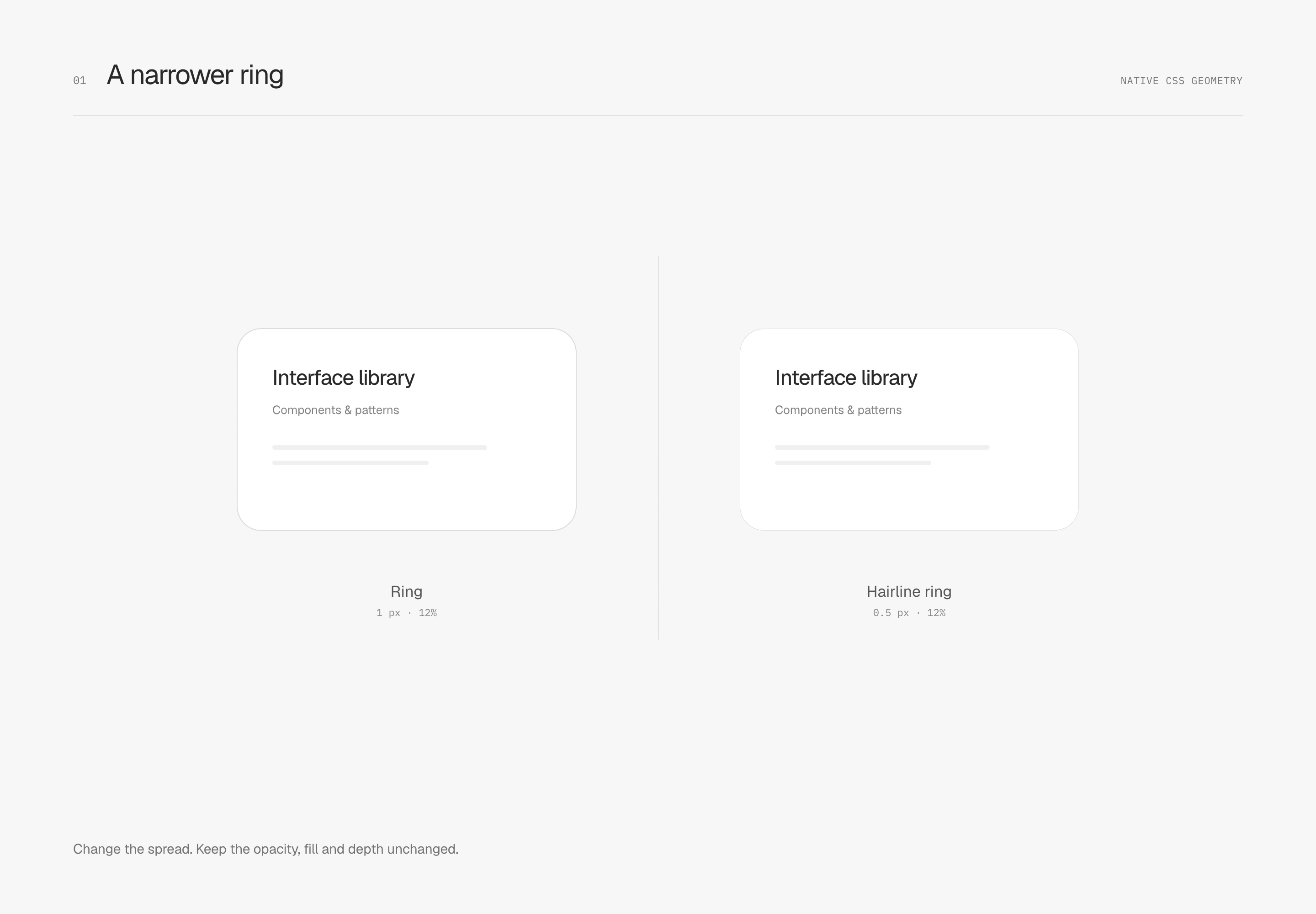
Here, hairline means narrowing that same ring. The first study changes only the spread from 1 px to 0.5 px. Dark color, 12% opacity, background and dimensions remain fixed, with no depth shadow. Halving the contour width also reduces its visual weight.
After narrowing, decide how clear it should be
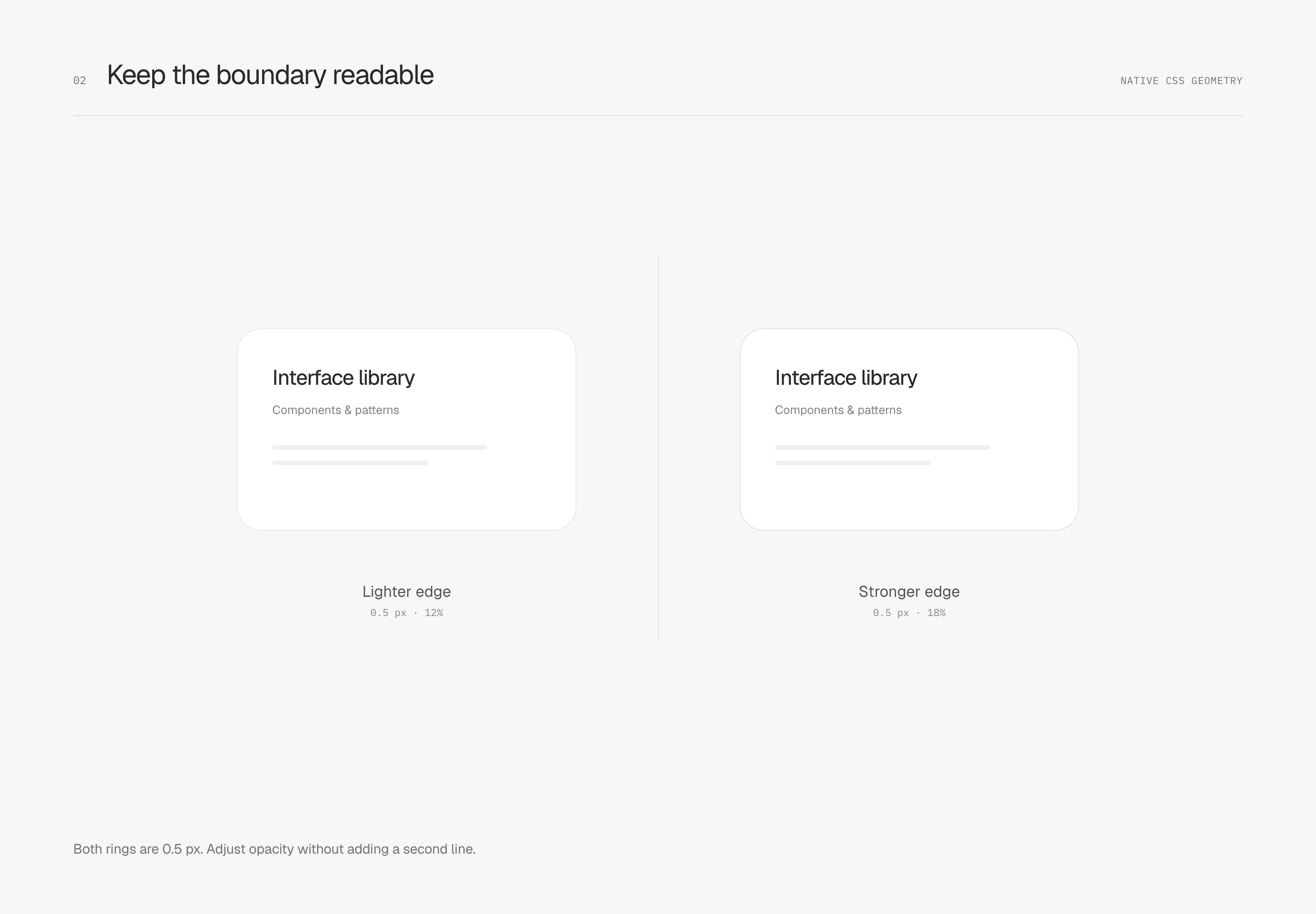
A slight increase in opacity can restore definition after the line becomes thinner. The second study fixes the width at 0.5 px and compares only 12% with 18%. Shape, fill and shadows stay the same. The right contour reads more clearly while retaining its narrow profile.
I use a 0.5 px neutral-dark ring at 12% opacity as the starting point for these solid surfaces. 18% demonstrates opacity compensation; it is not applied to every component. Large panels, white selection inserts and glass over changing backgrounds need different boundary strengths. Halving width does not imply a fixed multiplier for opacity.
Where 0.5 px is used matters too. border-width aligns to device pixels, while fractional box-shadow spread may appear through partial pixel coverage. They are different rendering mechanisms. In the WebKit 1× check for these specimens, a 0.25 px ring produced no discernible straight-edge contour, and a 0.5 px ring could appear uneven between left and right. Inspect thinner contours at actual size, across pixel densities and zoom levels.
Distribute contrast along the contour
Visual weight can vary around a shape. The earlier ring keeps a uniform tone; this study distributes edge contrast along the contour, allowing some parts to recede and others to become more defined. I prefer to keep this variation within the narrow edge while the central surface remains quiet.
Both boundaries are 0.5 px wide. The left uses 12% opacity all around; the right varies from 6% to 18%. Surface fill, dimensions and the shape behind them are identical. The light specimen uses a dark contour, lighter at the upper left and stronger at the lower right, continuing through straight edges and corners.
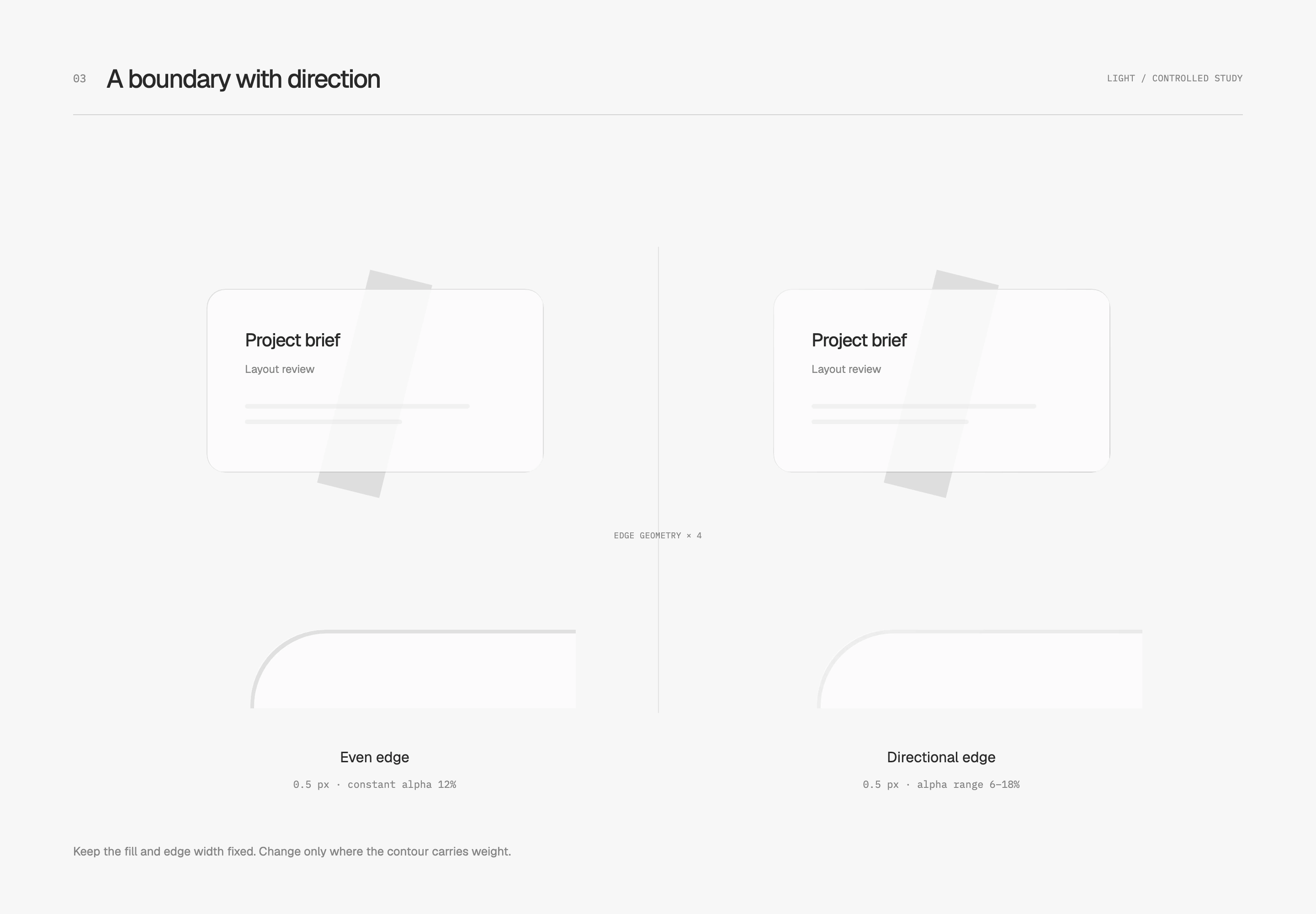
Mask compositing removes the center and leaves a narrow outer ring for the gradient to occupy. This continues the ring's role of defining the shape while giving the gradient control over contrast distribution. The diagonal gray strip behind the surface remains equally visible; the edge treatment does not darken the entire card along with it.
The dark specimen uses a light contour and reverses the contrast distribution: brighter at the upper left, fading toward the lower right, preserving the implied light direction. I judge it together with its base so that it describes the shape without surrounding it with an equally strong bright line.
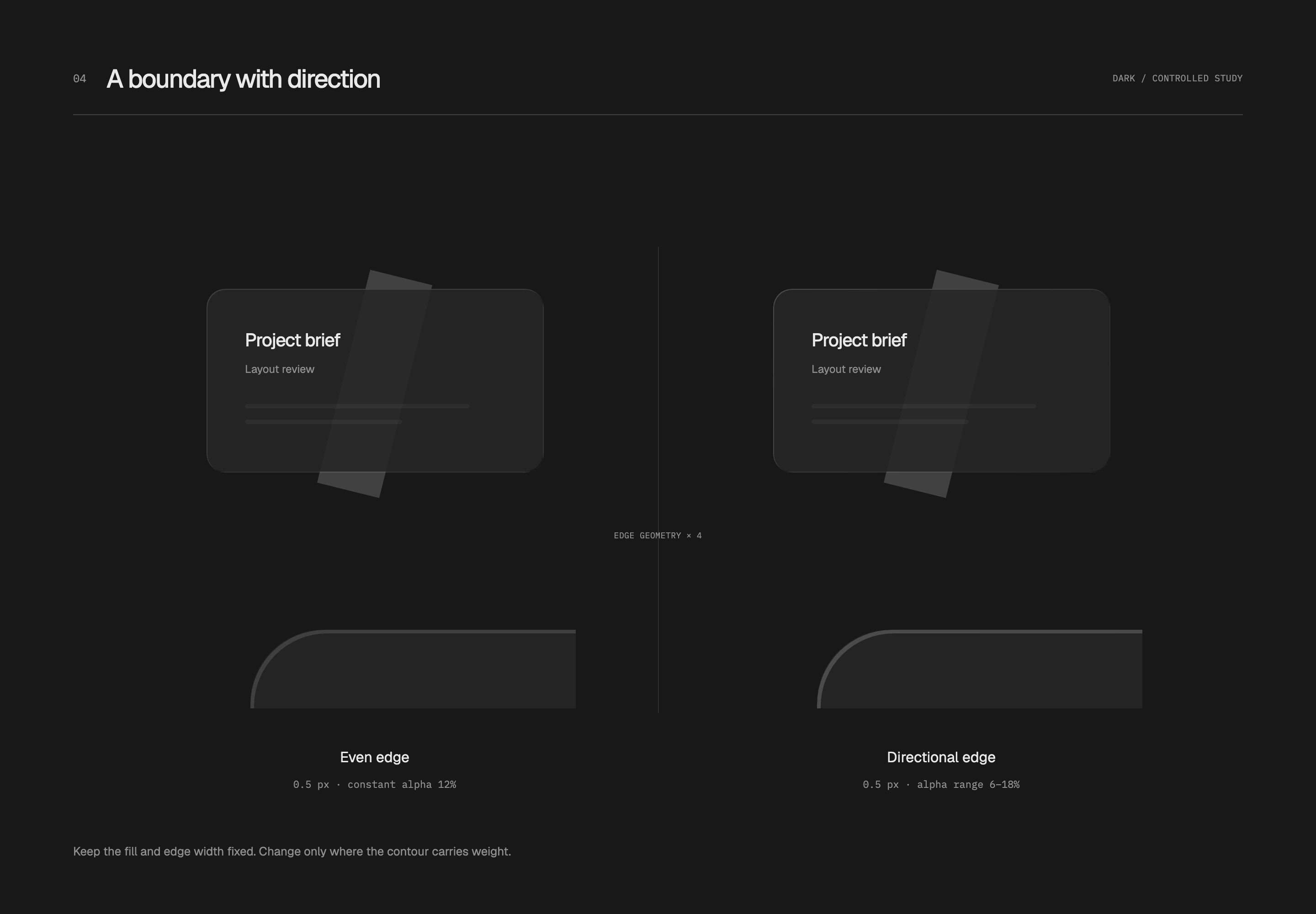
A fixed content surface can still use a uniform faint ring. Directional variation is better reserved for a few floating surfaces that need a material cue. Emphasizing the same corner on every card makes edges compete with content.
Let the contour define shape and shadows describe distance
With the ring defining the shape, depth shadows can step back. This specimen adds two layers: a near shadow offset 1 px, blurred 2 px and narrowed by a −1 px spread; a far shadow offset 3 px, blurred 8 px and constrained by a −3 px spread. Their opacities are 4% and 2%, respectively.
The near shadow establishes contact, while the far shadow softens back into the base. Judge this falloff together with the ring. A dark line building up along the lower edge usually calls for less near-shadow weight or a narrower extent. A gray haze around the entire card calls for checking the far shadow. I prefer a surface that feels settled, with clean space returning quickly beyond its edge.
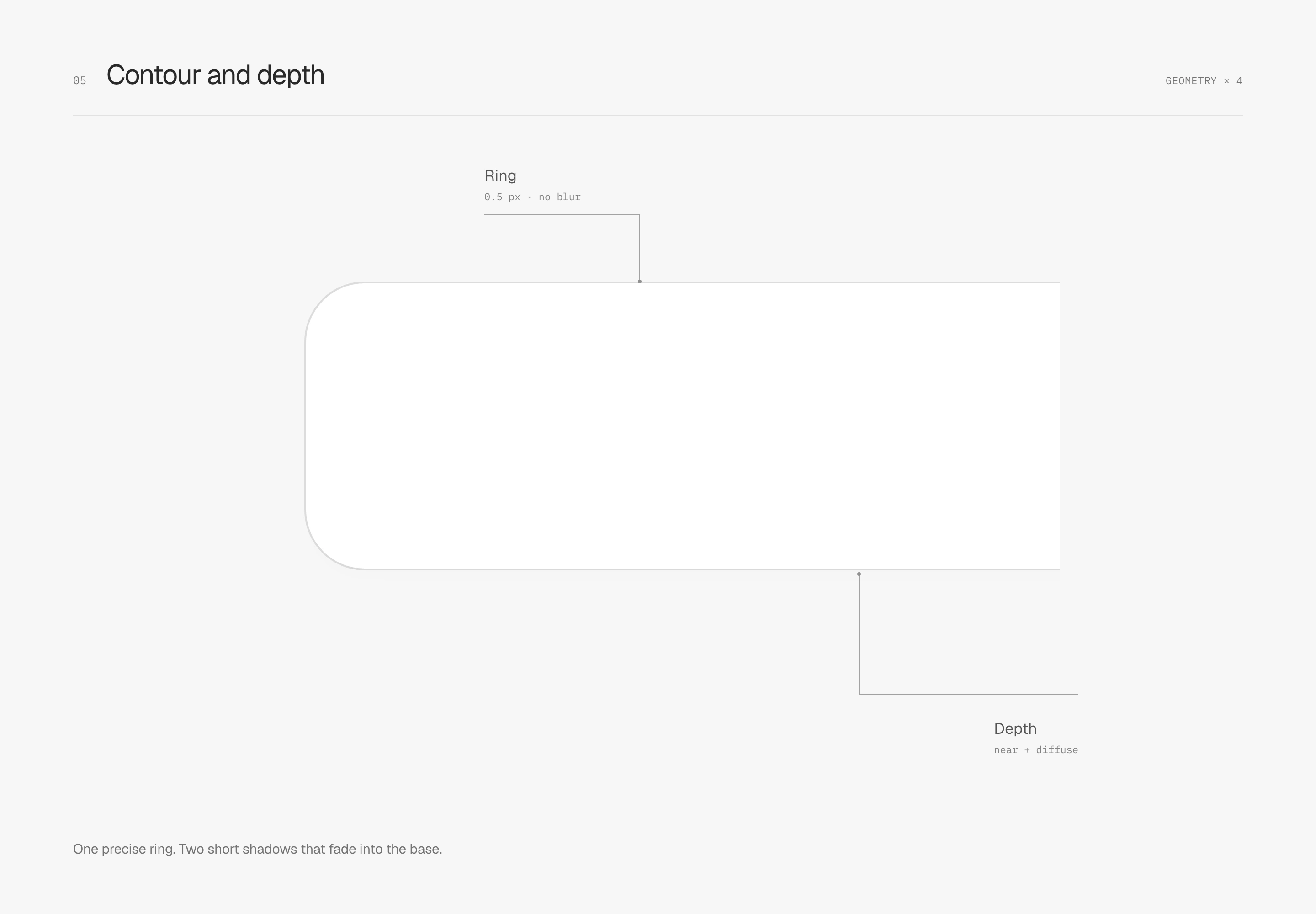
Solid surfaces no longer receive inner light by default. A near-white panel is already bright; adding white light to a darker track can create a hard luminous edge. I start with contour, fill and shadow, reserving light edges for details that genuinely need to communicate material.
On dark surfaces, establish lightness first
For a dark interface, I first make the upper surface slightly lighter. The illustrated base is #171717, the card is #242424, and a 0.5 px white ring at 12% opacity supplies the contour. Black depth shadows remain separate beneath it. Surface contrast establishes the card before the fine line completes its outline.
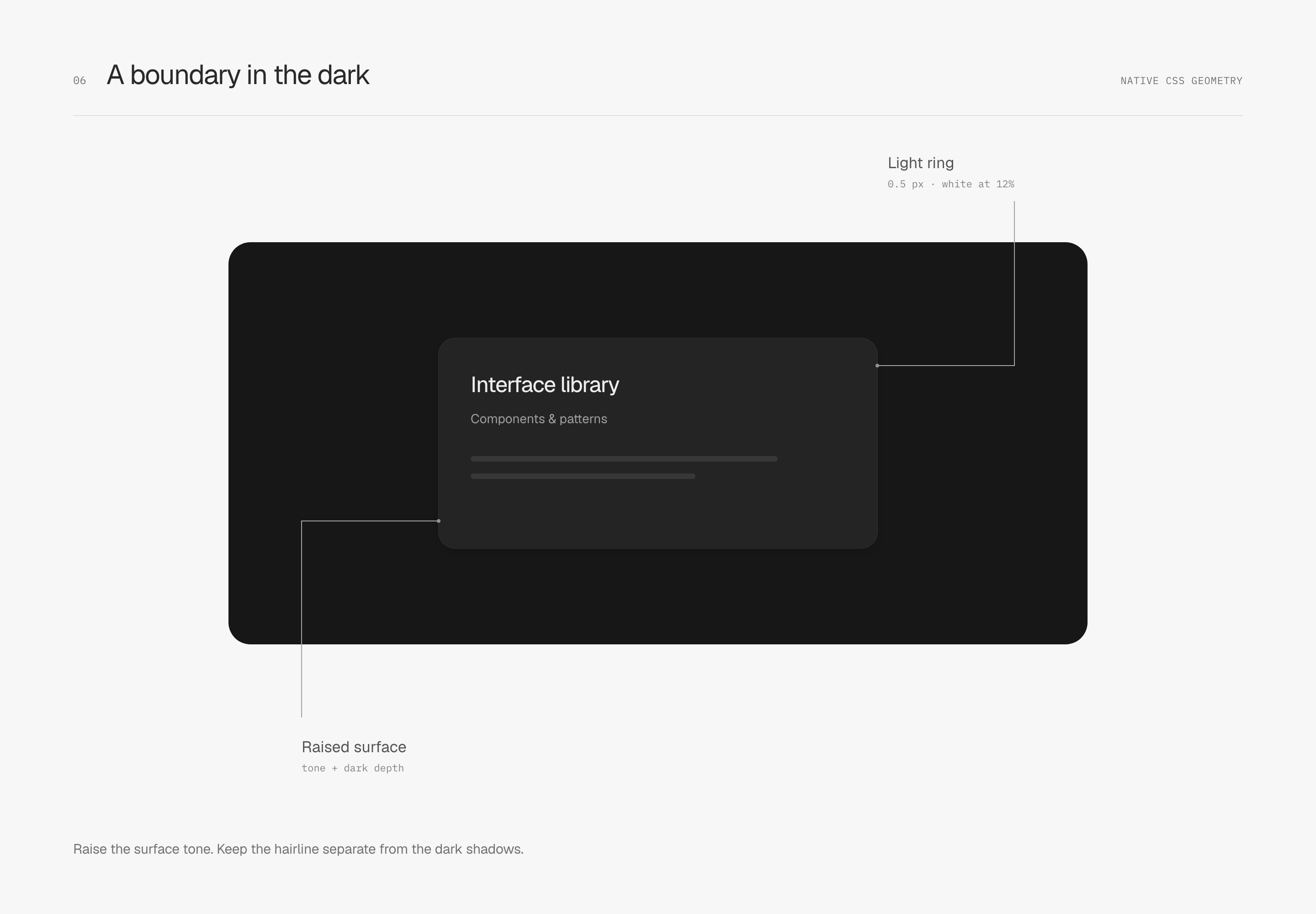
Surfaces and enclosure
Give similar whites different jobs
Surface hierarchy can begin with lightness. These light specimens use a #F7F7F7 canvas, an almost-neutral #F1F1F2 shell and a #FCFCFC content surface, reserving white for some action surfaces. The tint is minimal, and exposed area matters too: a narrow gray rim carries a different weight from a broad gray background.
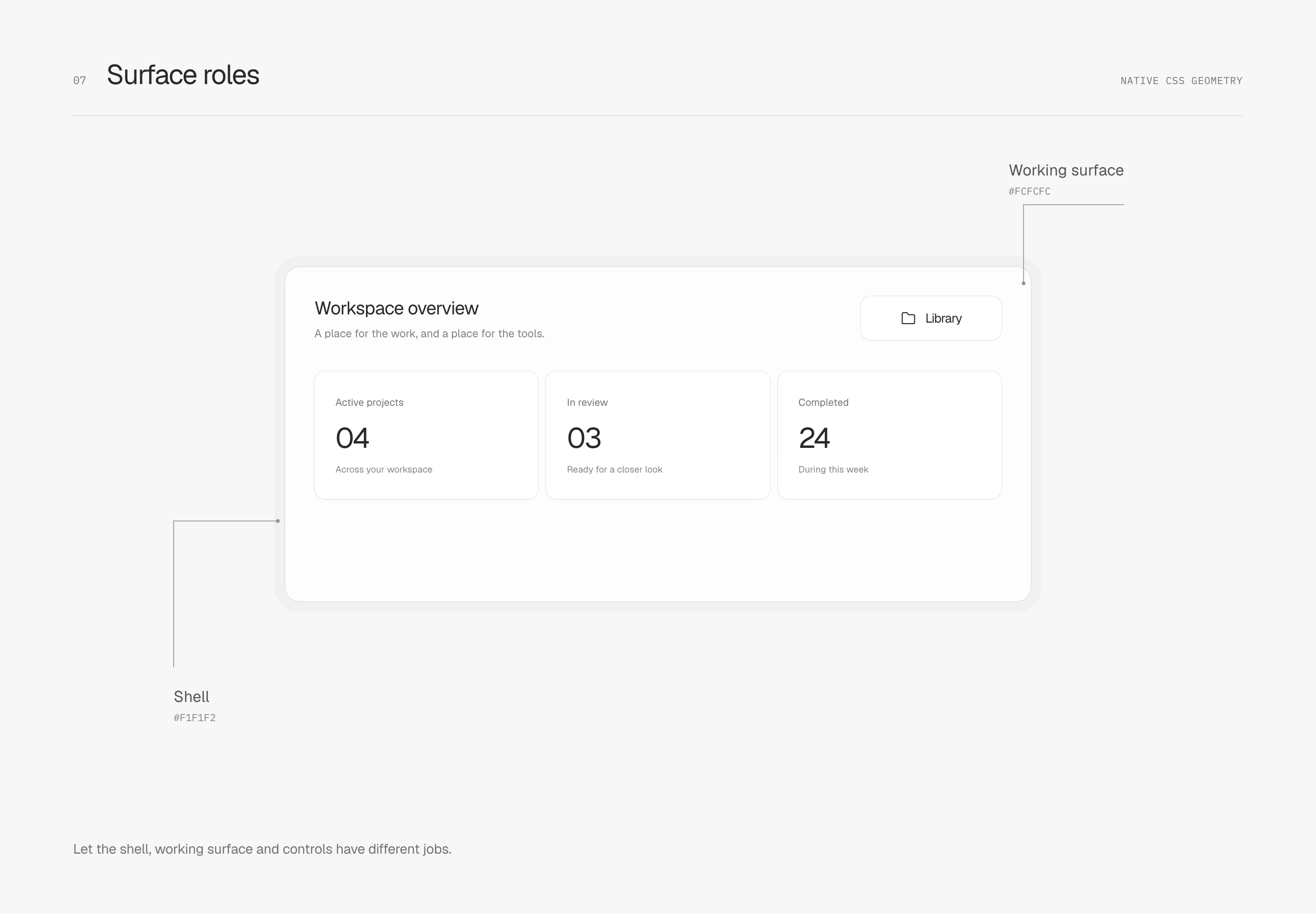
Text still needs a clear hierarchy. Names, numbers and the current option stand firmly in dark tones; descriptions recede one level. I like quiet surfaces without making information difficult to find.
Ease a gradient back into the flat surface
When a surface needs some tonal variation, I look at how the gradient begins and returns to the base. An eased gradient changes the rate of variation through space: slower near the flat regions and faster between them, making the endpoints less conspicuous. The image itself remains still.
Both examples use the same neutral color, a maximum opacity of 16%, and a transition spanning 20% to 80% of the panel. The left fades to zero at a constant rate; the right uses an eased distribution. Both use 33 color stops and have the same opacity integral. The difference lies in where contrast is distributed, without reducing its total amount.
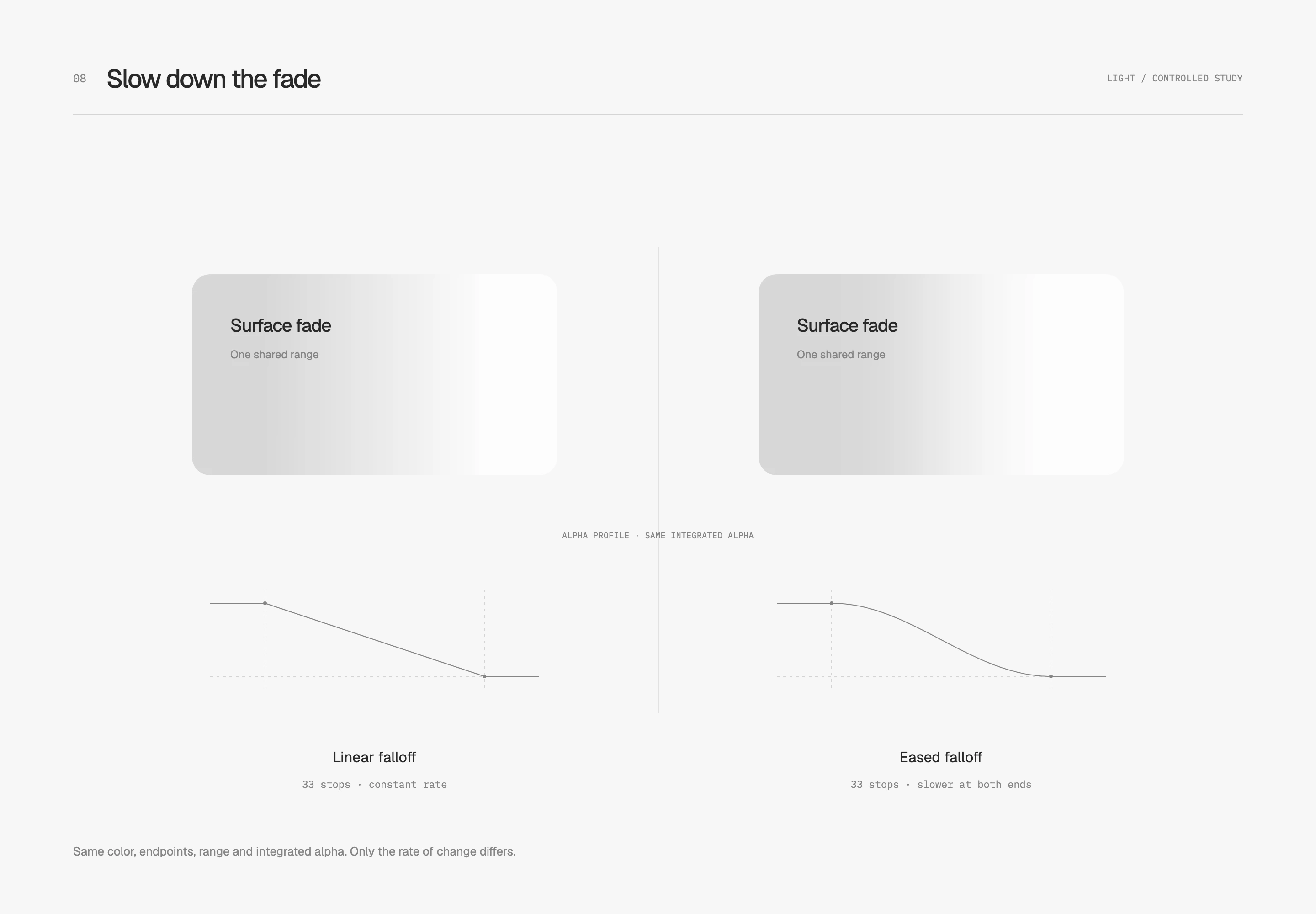
The linear gradient's rate of change stops abruptly when it reaches the flat region; the eased distribution slows progressively nearby. The dark comparison keeps the same relationship, letting the faint light merge back into dark gray.
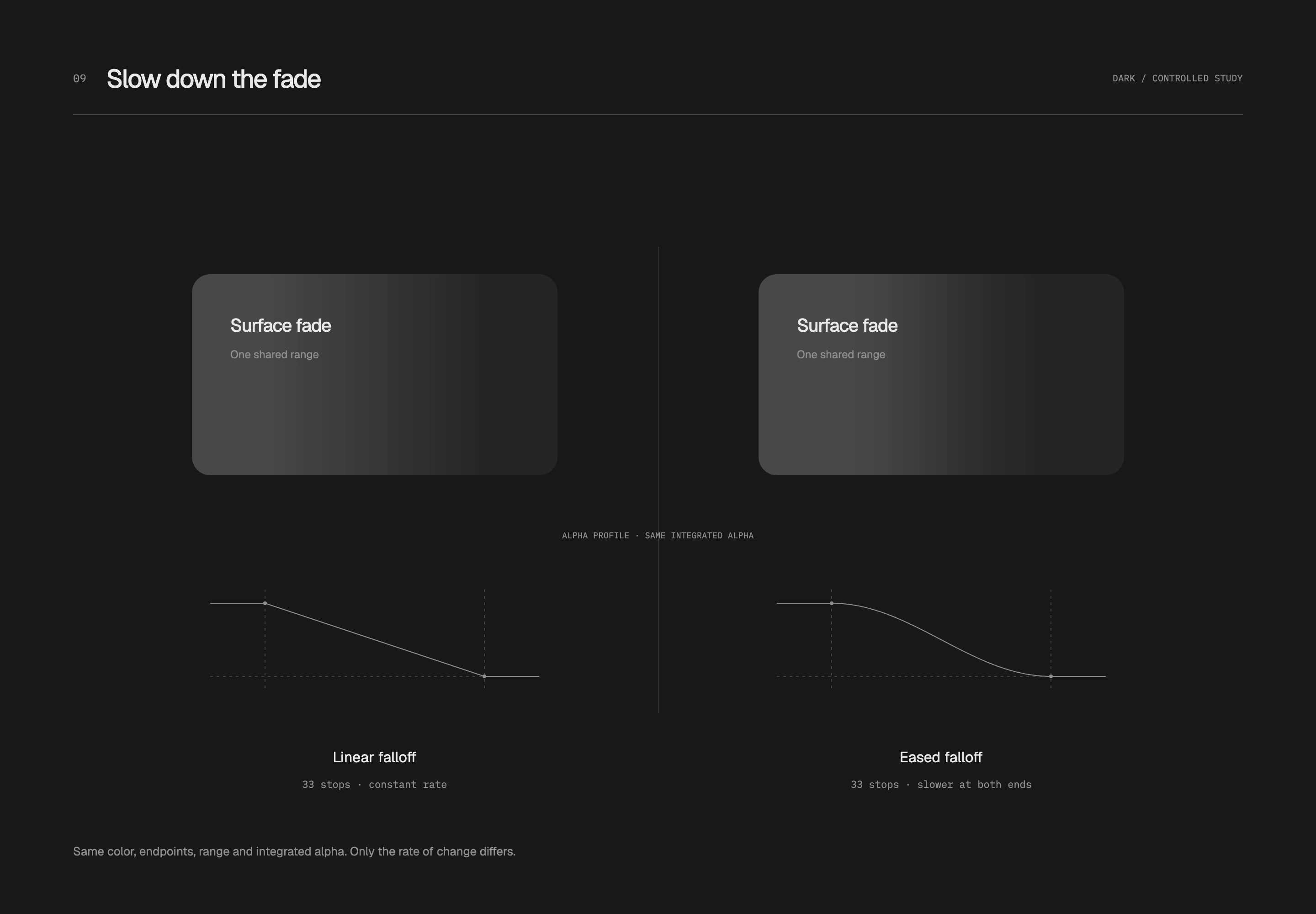
Intermediate stops approximate a smooth function; CSS still interpolates linearly between adjacent stops. The 16% value makes the difference easier to observe. In a restrained white interface, I would reduce its weight according to area and reserve it for small mask fades or material transitions. This study examines the falloff junction, not the number of stops as a universal cure for banding.
Measure the narrow gap and content space separately
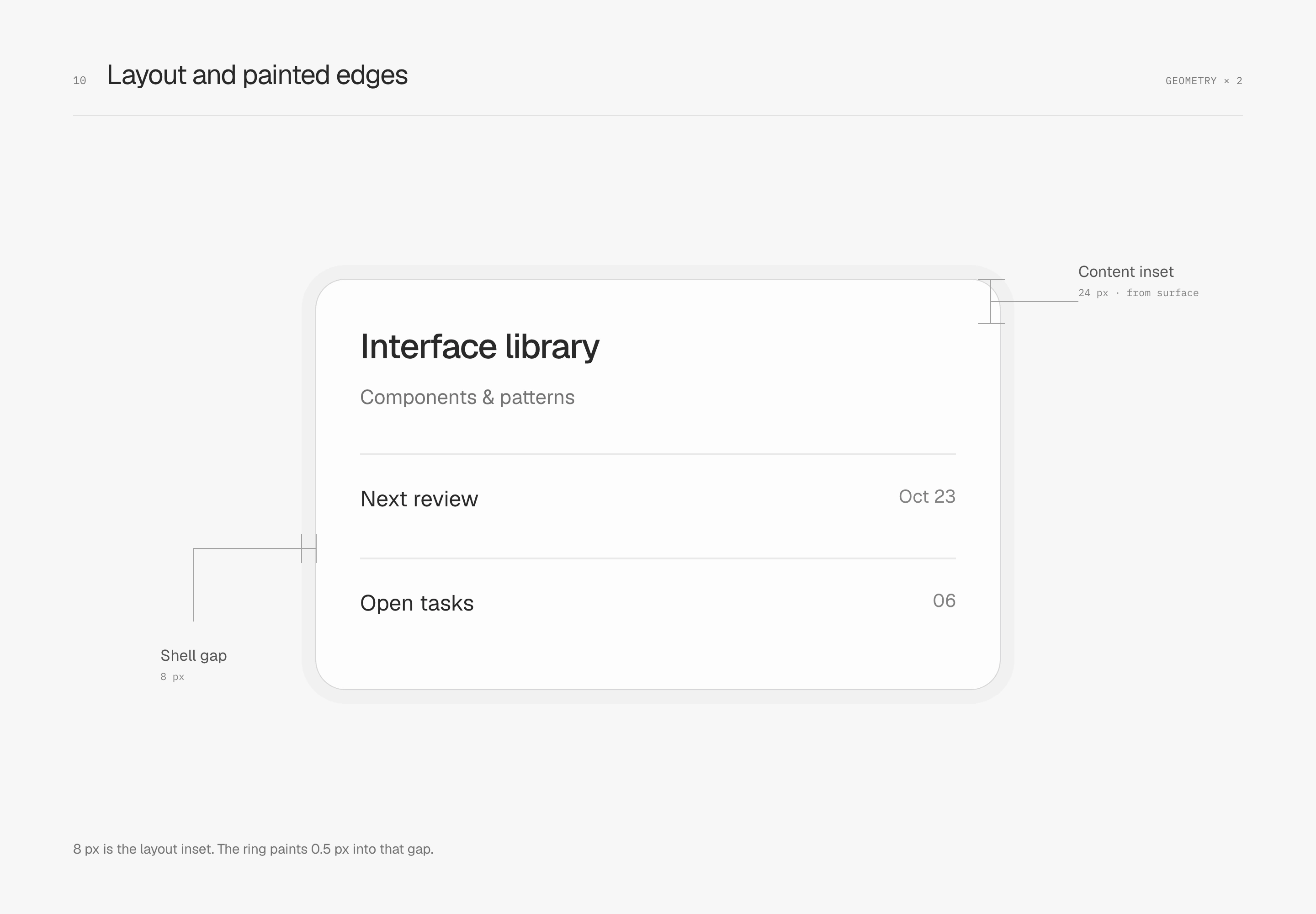
Enclosure involves two kinds of padding: the narrow gap from shell to panel and the space from panel to content. Here they are 8 px and 24 px. The first sets the closeness of the seam; the second gives headings and information rows room to breathe.
An outer ring takes no layout space. The panel still sits at 8 px of layout padding, but its 0.5 px ring paints outward into the gap, leaving about 7.5 px of visible shell along straight edges. The 24 px content padding starts at the panel surface boundary, with no physical border to subtract.
Let the corners follow the same offset
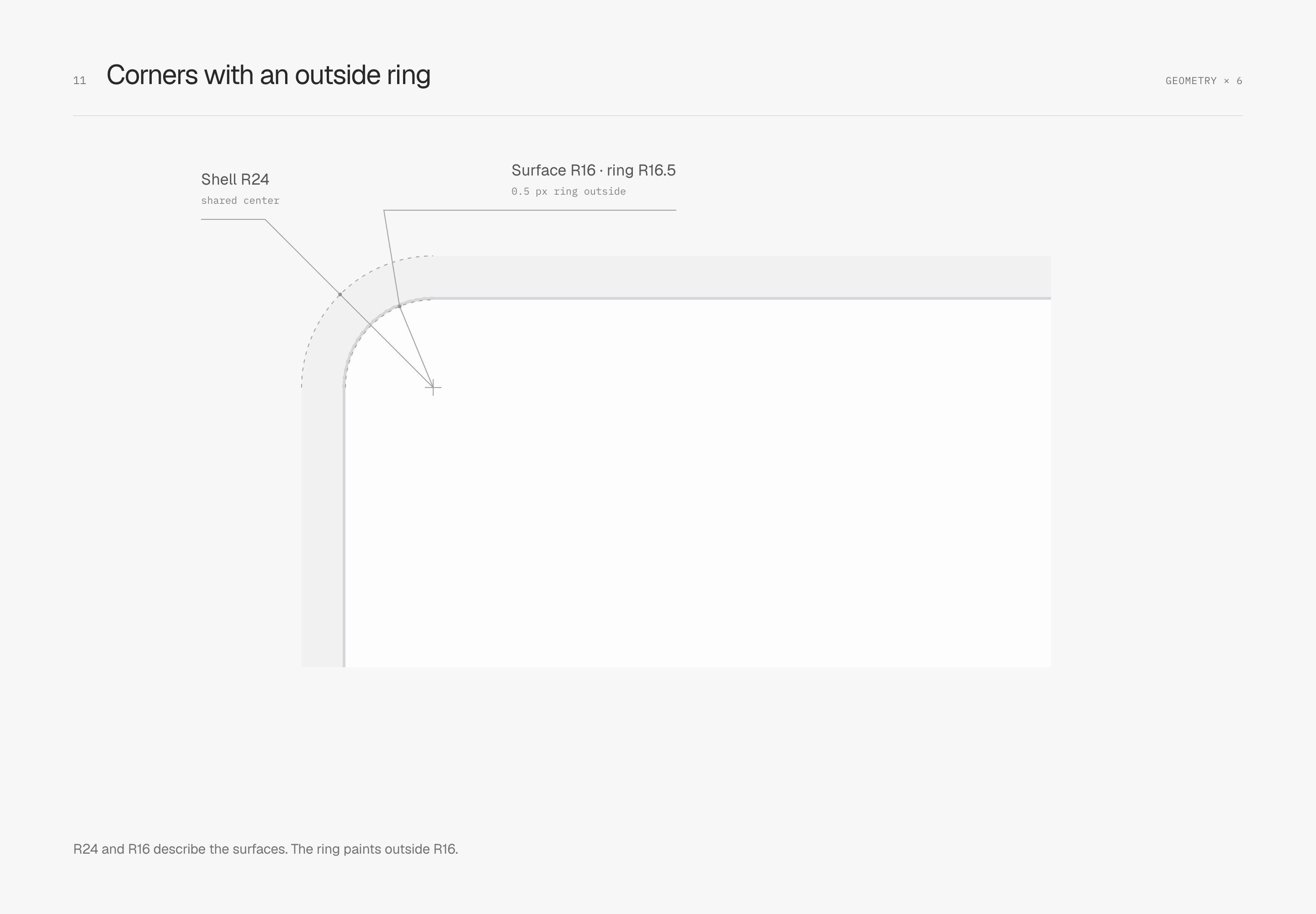
The nested radii in this evenly inset example are R24, 8 px padding and R16. Their arc centers coincide, keeping the gap continuous through the corner. This subtraction applies to the illustrated equal-offset geometry with no physical border; it is not a fixed formula for every container.
The panel's 0.5 px outer ring has a painted outer radius of R16.5. The surface itself remains R16, and content still begins from the original surface boundary. Be clear about which edge defines layout and which marks the painted extent.
Join curvature to the straight edge too
Radius determines how much space a corner occupies, but the junction has another property: how curvature changes as a straight edge enters a curve. A circular arc can have tangent continuity with a straight edge, matching its direction. Curvature, however, jumps from zero on the straight edge to a constant value on the arc.
Curvature continuity also addresses this change. The cubic Bézier curve on the right reaches zero curvature at the junction, joining the straight edge's curvature. Both examples keep the same bounding dimensions, fill, stroke and 32 px corner region. Only the corner curve changes.
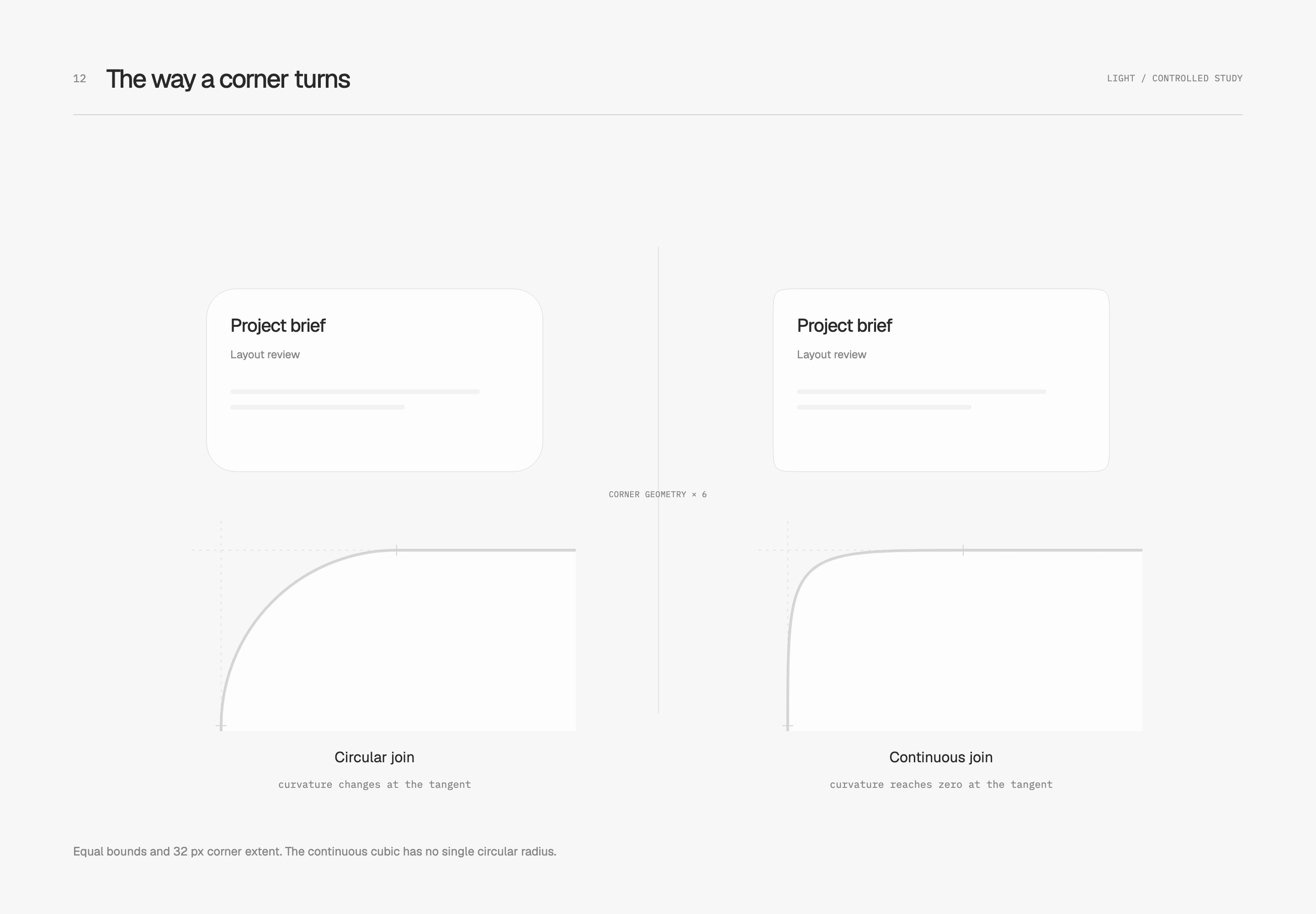
The 32 px means different things here: the left is an R32 circular arc; the right specifies where the curve starts turning, without a single center or fixed radius. The right is this specimen's simplified Bézier model. Within nested containers, its inner and outer gaps need fresh inspection; circular-radius subtraction cannot simply be carried over.
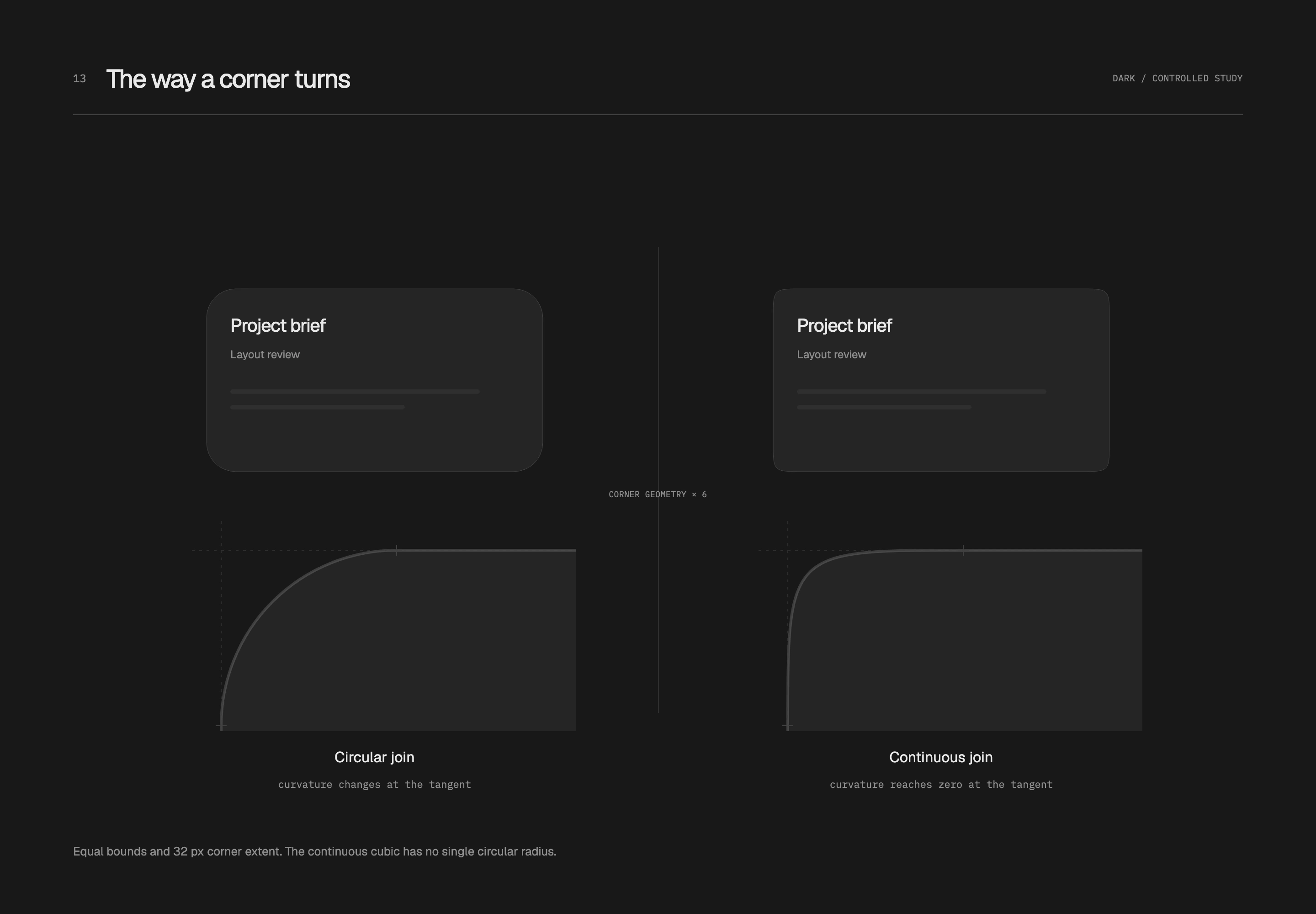
I return to the full silhouette to judge it. Although the right curve joins continuously, its bending is more concentrated and its appearance squarer. Whether it suits the interface depends on proportions, space and adjacent components. Here it explains a junction; the final workspace retains its original circular corners.
Finishing image edges
Overlay a faint contour inside the image
An image can be nearly white along one edge and very dark along another. In a panel, its light areas may merge into the background while its dark areas create a strong edge of their own. I like a faint inset outline to bring these differing edge weights under control.
This specimen overlays a 1 px pure-black contour at 10% opacity inside the image, keeping dimensions, crop and radius unchanged. The contour blends with the existing pixels, making its effect more visible on light areas. It finishes the image boundary; an external container can still be arranged separately.
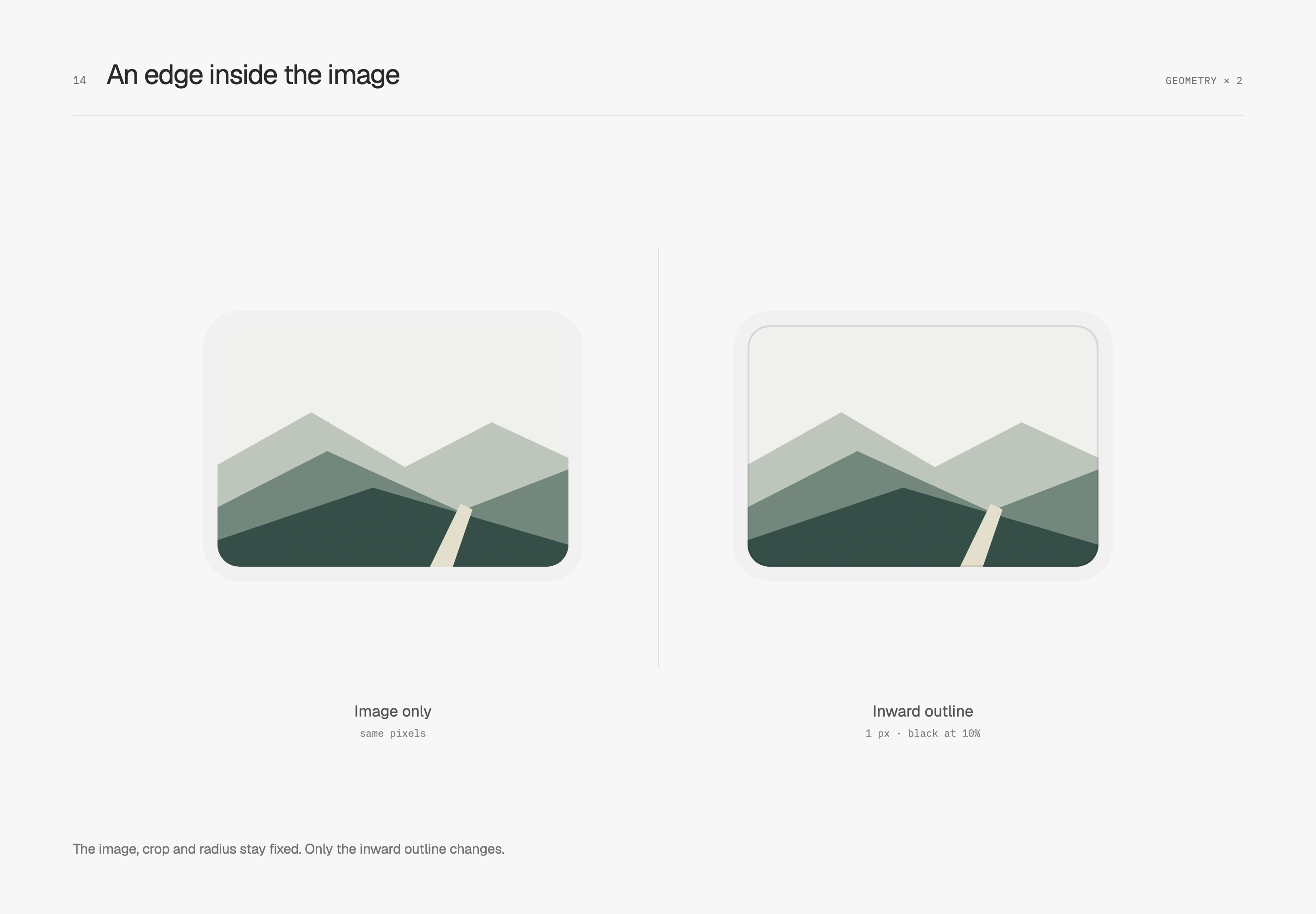
In a dark container, the specimen uses pure white at the same width and opacity to give dark image content a thin boundary. Both studies use the same original image so attention stays on the edge.
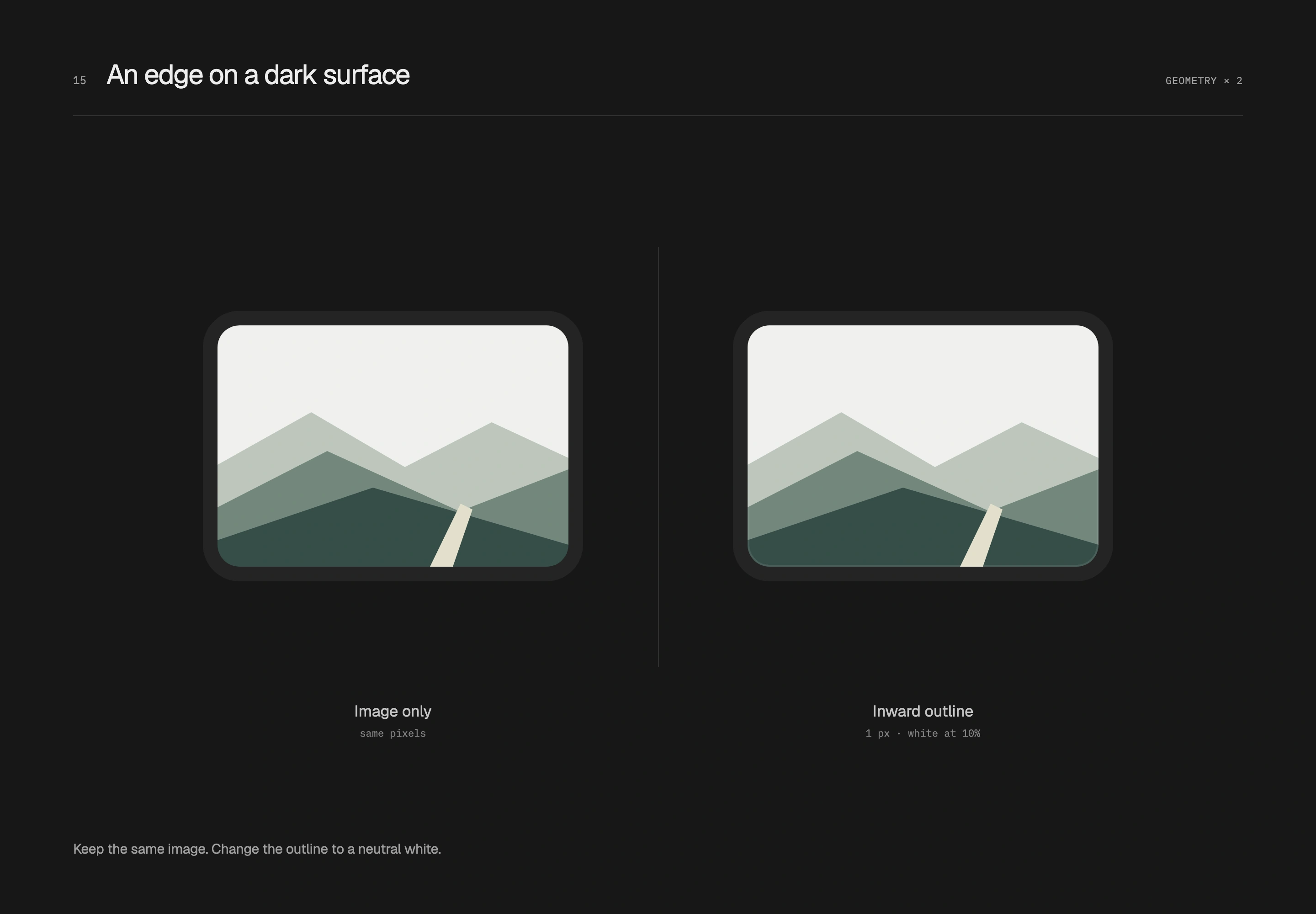
The image is R12, surrounded by 8 px of base inside an R20 container. The inset outline paints within the already-clipped image without taking extra space; outer-container spacing follows the existing layout. This works well for photos, screenshots and artwork with complete rectangular boundaries. Transparent logos and irregular illustrations can retain breathing room around their own silhouettes.
With overlapping avatars, first measure the space saved
Multiple participants can be placed apart or partially overlapped. An avatar group shows who is involved; an avatar stack uses overlap to shorten the group's width. I use stacks in compact information rows. When each face needs to be identified individually, separate portraits and names can have more room.
This study compares three original fictional portraits. All circular bodies are 32 px; the left uses 6 px gaps and the right 8 px overlaps. Photos, crops, inner strokes and 2 px outer separators stay fixed. Both groups start at the same position in matching display slots and share a vertical center.
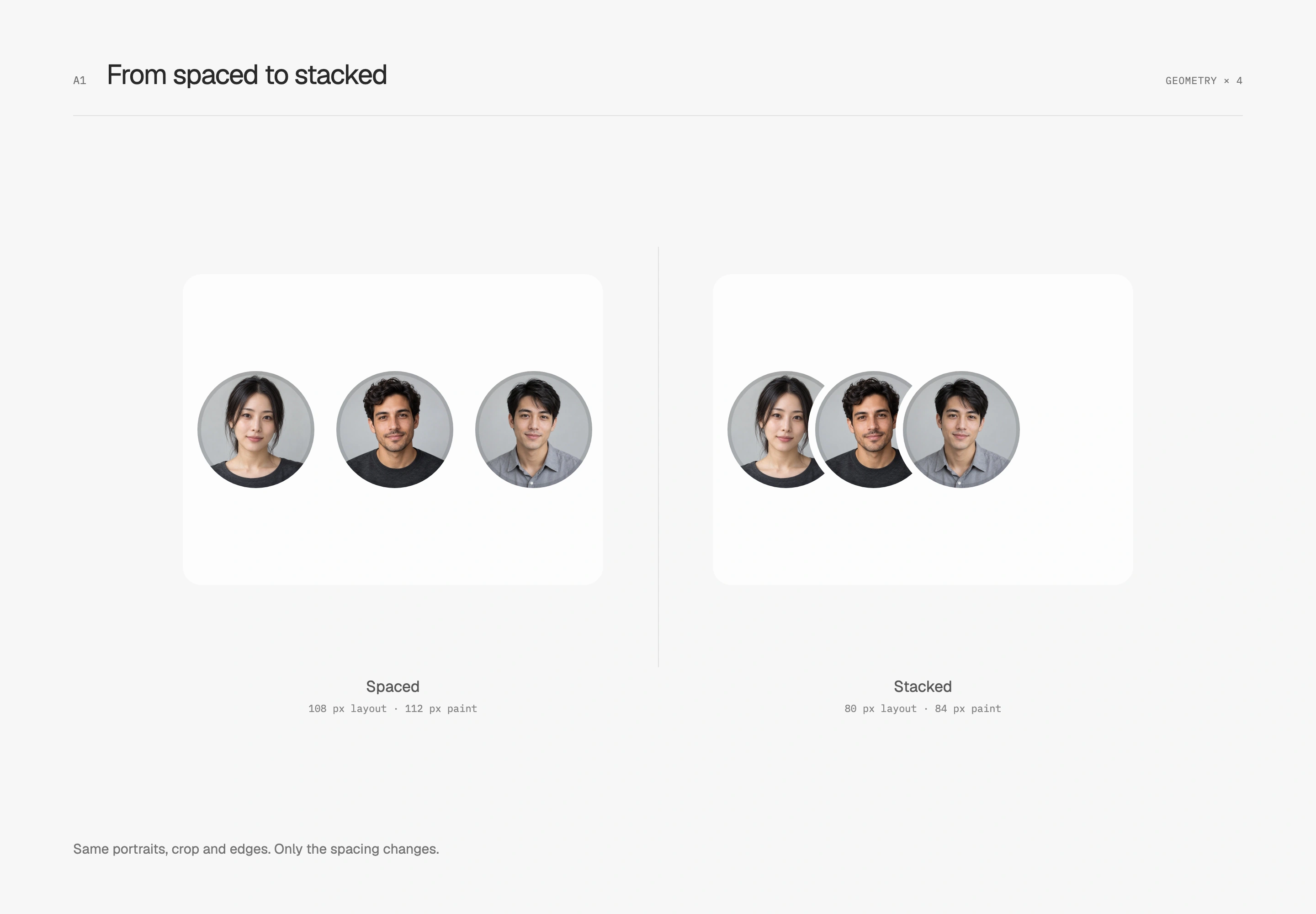
The three avatars' layout width therefore shrinks from 108 px to 80 px. Outer separators take no layout space but paint 2 px beyond each end, producing painted widths of 112 px and 84 px. These values belong to the illustrated three equal circles without physical borders. In a container, check that the outer rings are not clipped.
The dark version keeps the same arrangement and adapts edges to its host surface. This is a conceptual layout comparison. The final workspace already used a stack and retains its 22 px avatars with 5 px overlap; the row has not been enlarged for the demonstration.
Outer separation and inner image edges have separate jobs
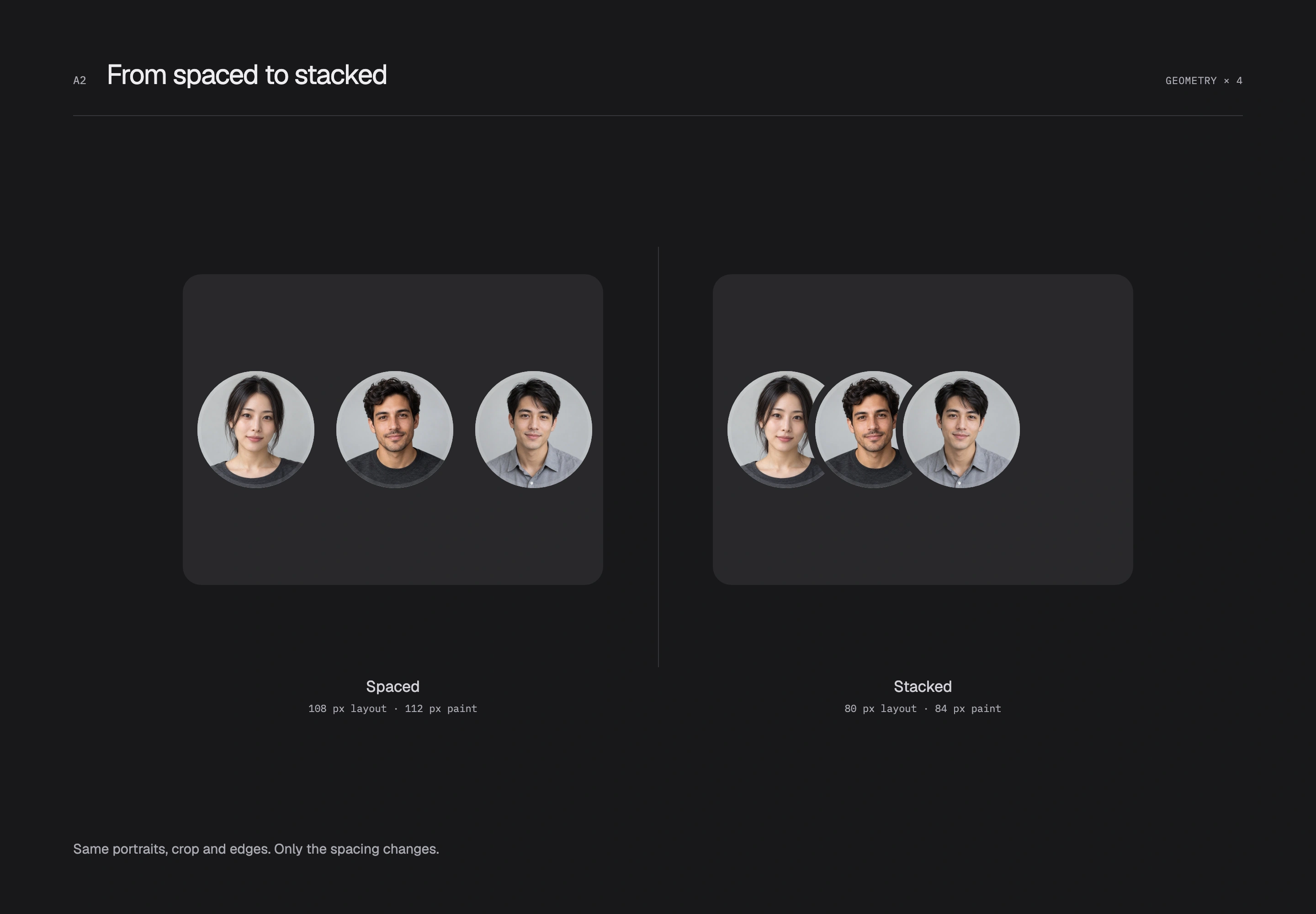
Overlapping photos can merge at the join. An outer separation ring uses the opaque host-surface color to obscure the overlap and leave a recognizable gap. It does not raise the avatar. I want that gap to blend back into the host while the individual arcs remain visible.
This is why separators must follow states. A white card, a selected data row and a dark surface have different backgrounds. A fixed white ring on a dark surface introduces a bright edge unrelated to its host. On transparent or patterned backgrounds, one color cannot reconstruct the content beneath; use a true mask knockout or a non-overlapping arrangement. The live study chooses spacing on patterned backgrounds.
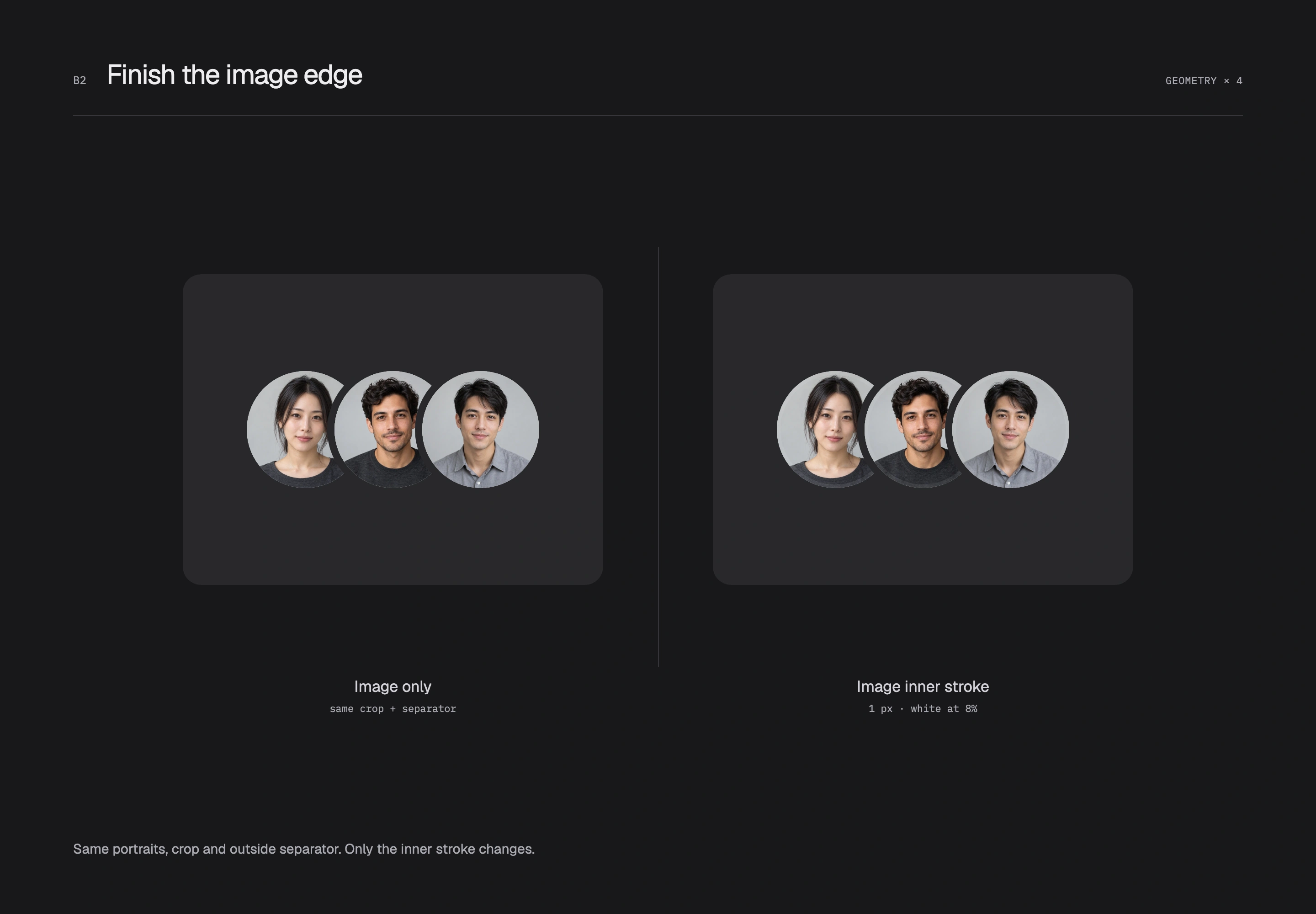
Inside each photo, the earlier inset-outline treatment supplies an image inner stroke. The next comparison fixes the stack and outer rings and changes only whether a 1 px pure-black inner edge at 10% opacity is present on the light surface. The line overlays the already-clipped photo without shrinking it or thickening its outer separator.
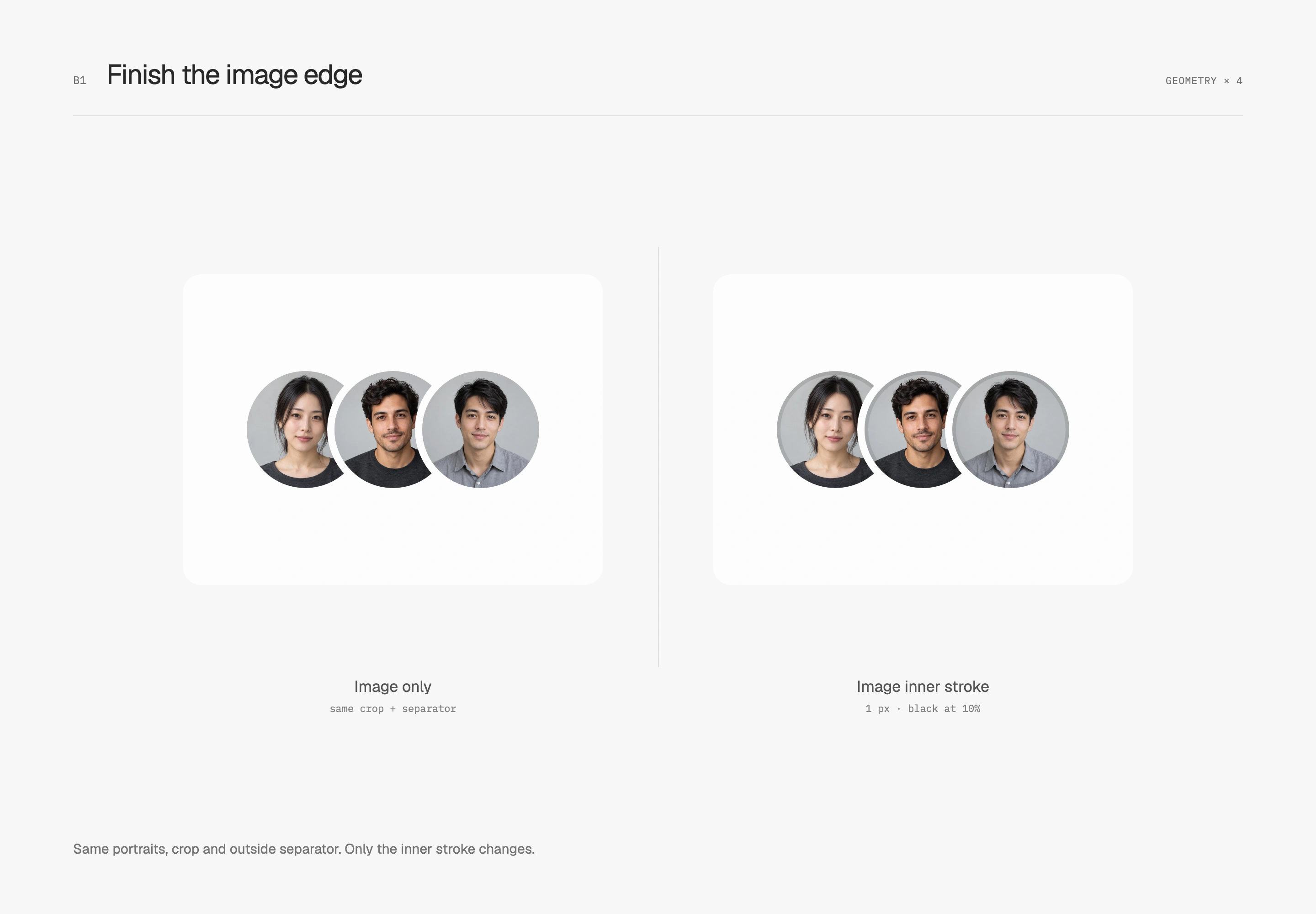
The dark inner-edge comparison uses 1 px white at 8% opacity. A decorative layer on the circular container paints above the photo; placing an inset shadow behind an opaque image may not produce the same visible result. I prefer this line to register only near the boundary, leaving faces and crops unchanged at the center.
Leave a useful entry point when people overflow
Visible avatars and the true participant count need separate handling. This prototype reserves four slots: seven people become three portraits plus +4, while four people remain four portraits. If a photo fails, initials or a fallback graphic retain the same dimensions. Neither numbers nor images should suddenly enlarge the circle.
When the full list needs to be available, I let the whole group open a participant list with room for readable names. Enlarging each overlapping small circle into its own hit area can make those areas cover one another. Separate action rows in the list make keyboard opening, closing and focus return more explicit. The live study lets you switch surfaces, arrangements, counts and failed images to inspect the separate roles of outer rings and inner edges.
Text, numbers and optical alignment
Let wrapping participate in the composition
A very short final word in a heading can leave the surrounding space weighted to one side. Balanced wrapping redistributes text within the available width to bring line lengths closer together. This comparison fixes the 220 px line width, copy, font size and tracking, changing only wrapping.
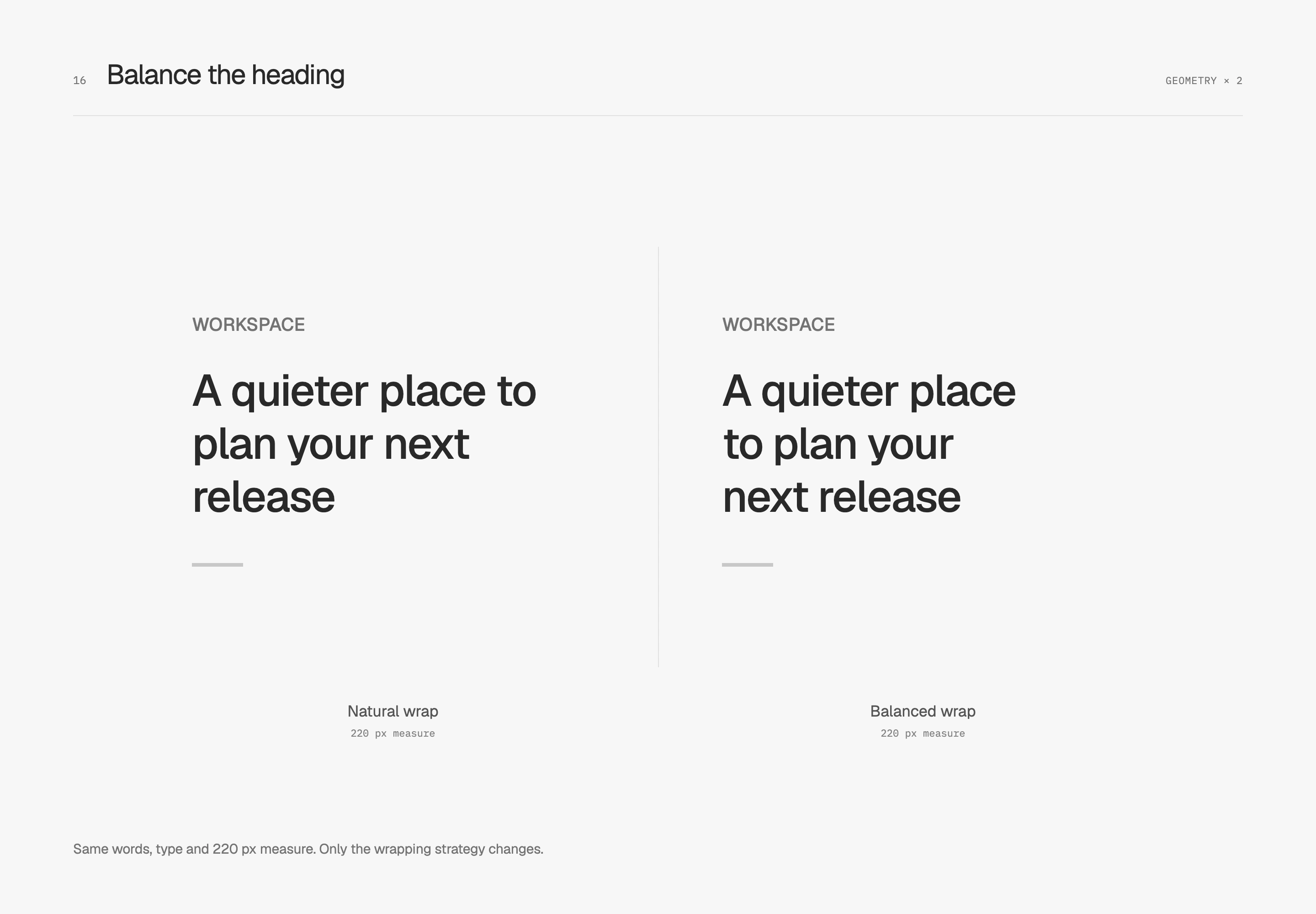
Short descriptions have a slightly different need: I preserve natural variation in line length while checking for a lonely last line. Pretty wrapping gives the browser an opportunity to rearrange breaks and reduce very short final lines. The study also keeps text and width identical.

These choices need the actual copy. A heading has semantic pauses, and a paragraph needs an appropriate reading width. English words and Traditional Chinese punctuation have different break rules, and browser results can differ too. I first give the container reasonable flexibility, inspect narrow screens and longer translations, then decide whether balanced or pretty wrapping helps.
Keep each digit steady when numbers update
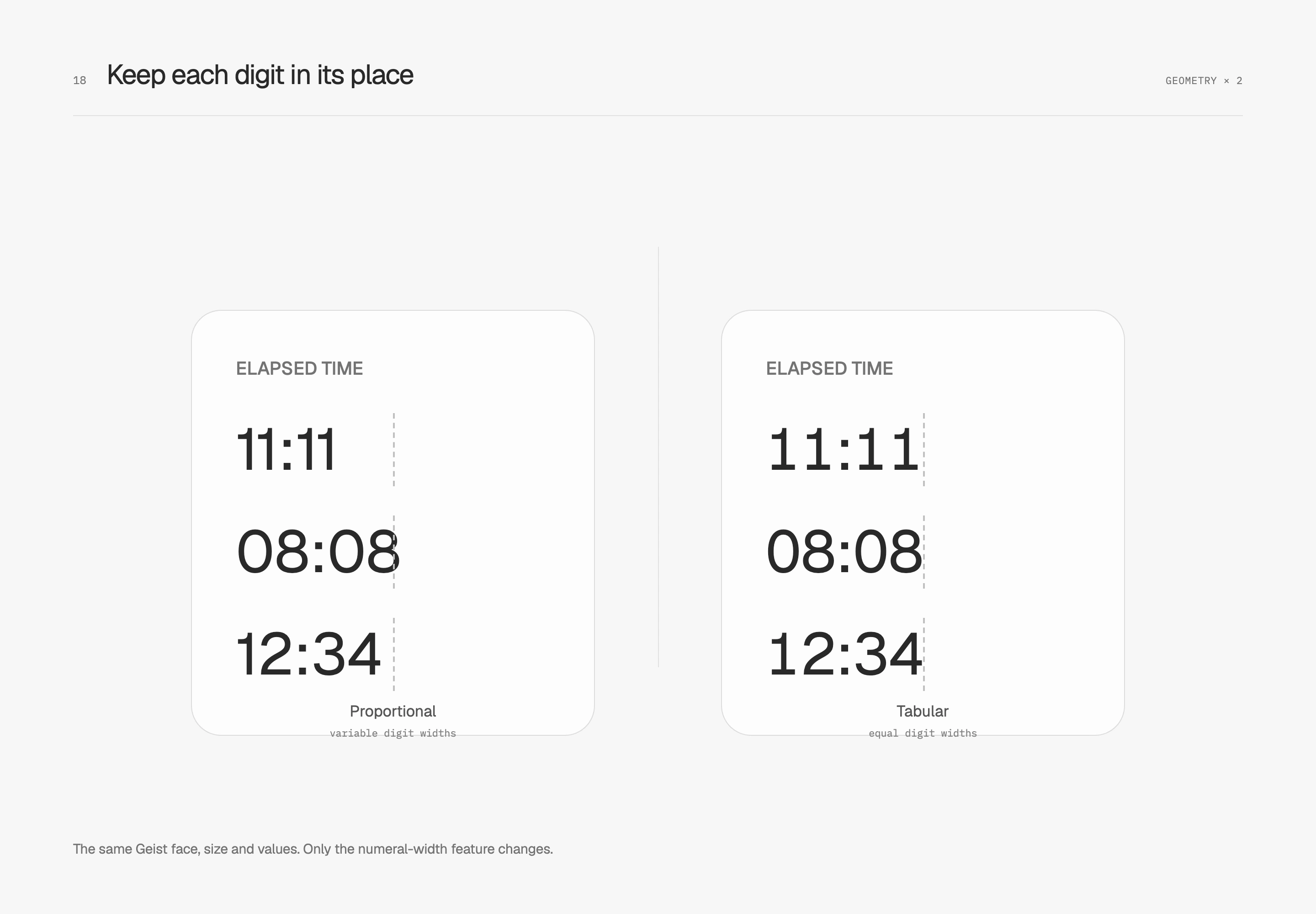
When a timer moves from 11:11 to 08:08, different glyph widths can change the weight of the whole string. Tabular figures give each digit equal width, useful for updating values, counters and numeric columns that need to be scanned.
Both sides use Geist with the same font size and content. Only the numeral feature changes from proportional to tabular. The small annotations use another monospace font; the main numeric comparison stays within the same typeface.
Reserve room for more digits
Tabular figures stabilize each digit, but going from 9 to 99 to 100 still adds characters. Both sides enable tabular figures; the right reserves three digits and right-aligns the value so the following description keeps its origin.
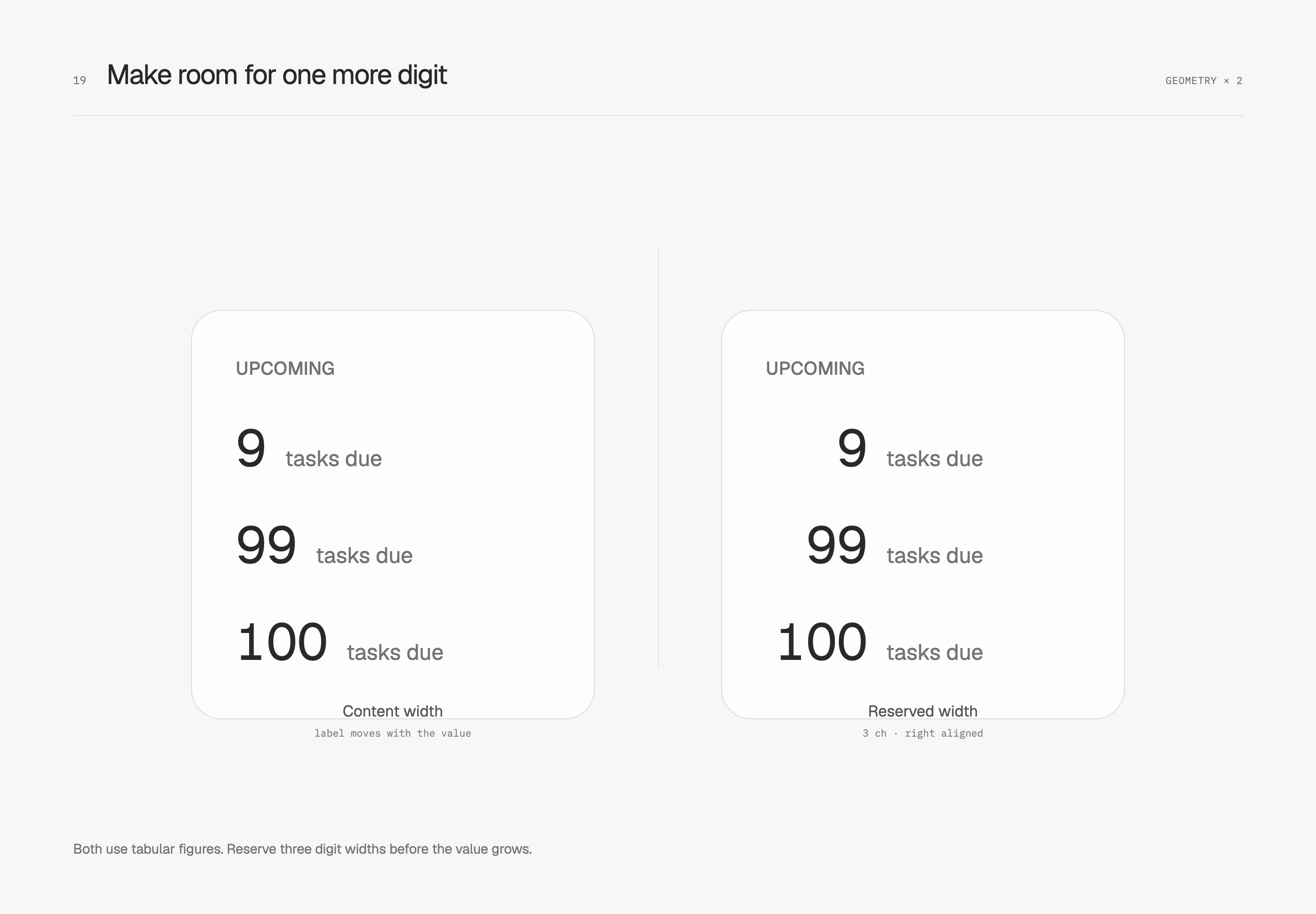
Three digits reflect this counter's expected range. Thousands separators, negative signs and larger values need new space; dates, countdowns and percentages each have their own longest format. I let numbers change within their reserved area while nearby text and actions stay settled.
Align amounts by the decimal point
For quick comparison within a money column, precision, digit widths and alignment need to work together. This study includes negative values, fixes precision at two decimal places, uses tabular figures and changes only alignment. Right alignment puts decimal points and units digits on shared vertical lines.
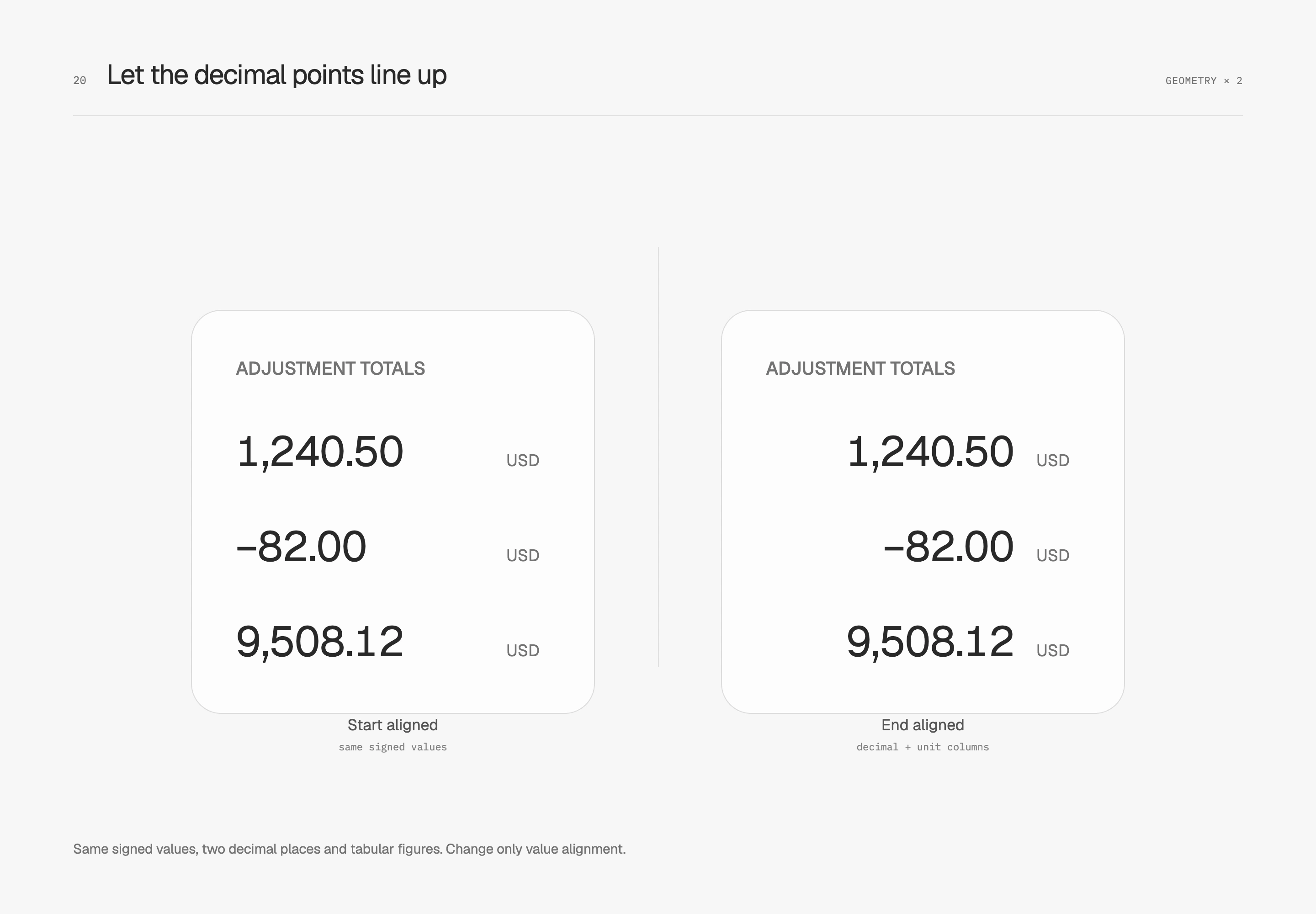
Units occupy a separate, quieter column at a fixed distance from the amounts. Matching precision allows the decimal points to align here. If a column must mix decimal precision, integer and fractional parts need separate arrangement. Keep the minus sign within the value; do not remove it for alignment. Tabular figures are a starting point, and the actual font's kerning can still affect the result. I check the same positive and negative amounts rather than only whether the feature is enabled.
After centering, inspect the visible shape
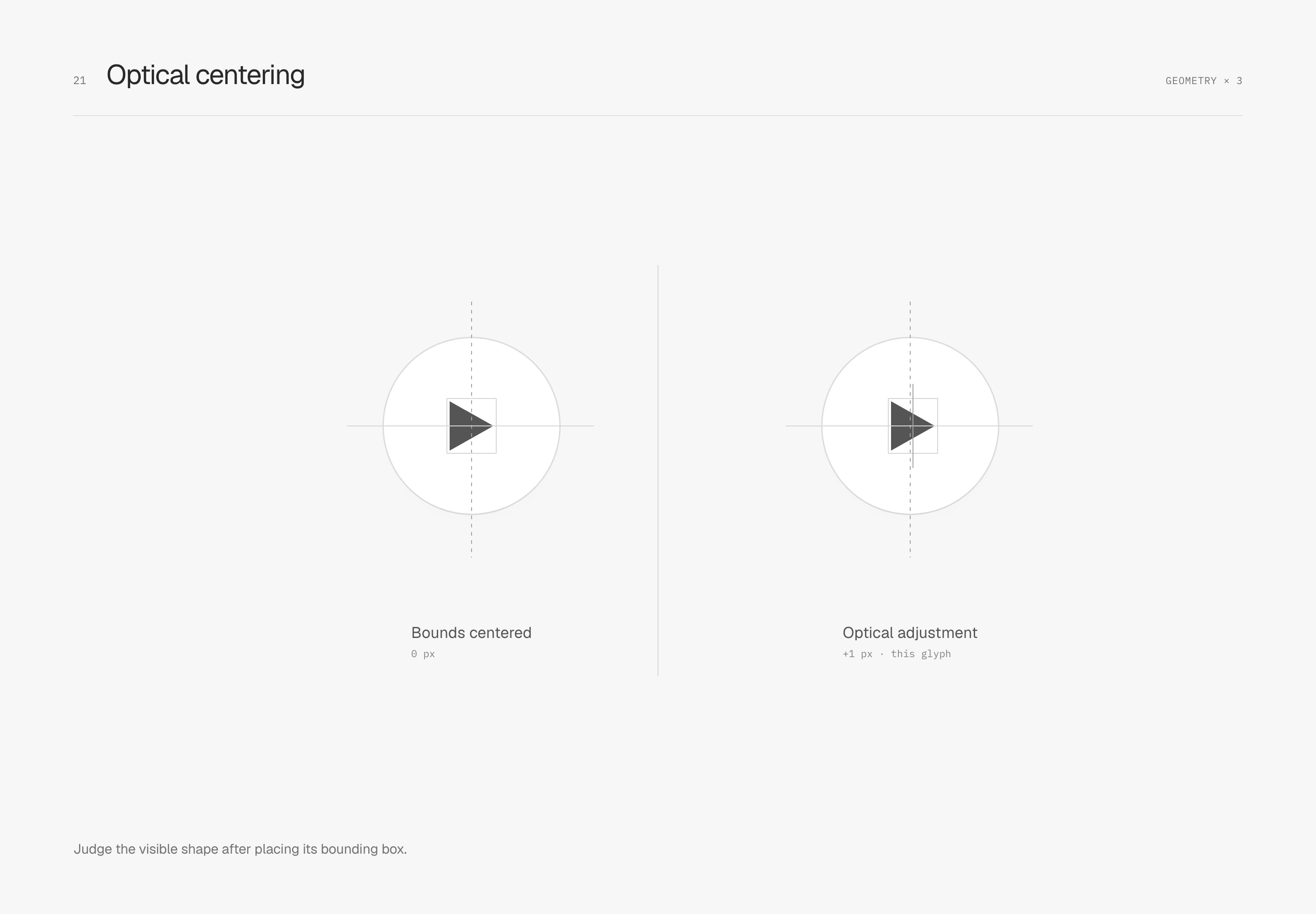
Optical centering considers the weight of the visible shape. A right-pointing triangle has more area on its left, so centering its bounding box may still make it appear left-heavy. Here the button remains fixed and the same triangle shifts right by 1 px. That value belongs to this triangle; another icon needs fresh judgment.
After centering the text box, inspect the letterforms
A text layout box includes space reserved above and below the visible letters. Even after flex centering, button text may appear slightly high or low. This study keeps Save, the typeface and line height identical. The left retains the line box; the right trims the top and bottom to cap height and baseline before placing it in a button of the same height.
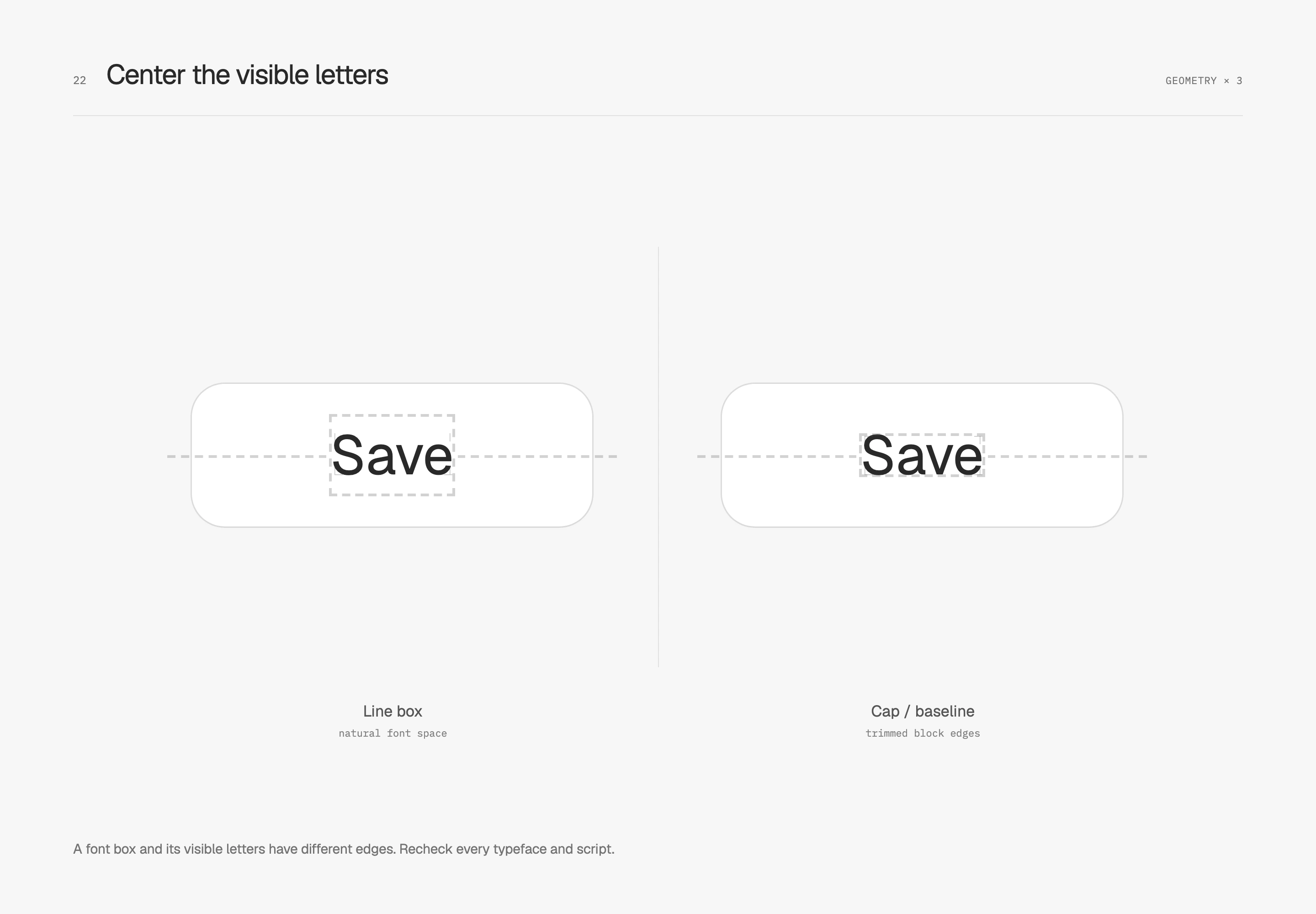
Text-box trimming lets this space be handled using font edges. The small corner marks and centerlines make the difference visible. In use, inspect ascenders, descenders and adjacent icons too. Traditional Chinese, kana and Korean need judgment against their own typefaces; English cap/baseline values cannot stand in for optical centering in every language. Unsupported environments retain the original text-box layout.
Tune icon-side padding to the visible weight
Once an arrow joins the text, the space around it contributes to the whole group's weight. This study fixes text, shape, gap and vertical padding. Only the icon-side horizontal padding changes from 16 px to 14 px, tightening the group slightly.
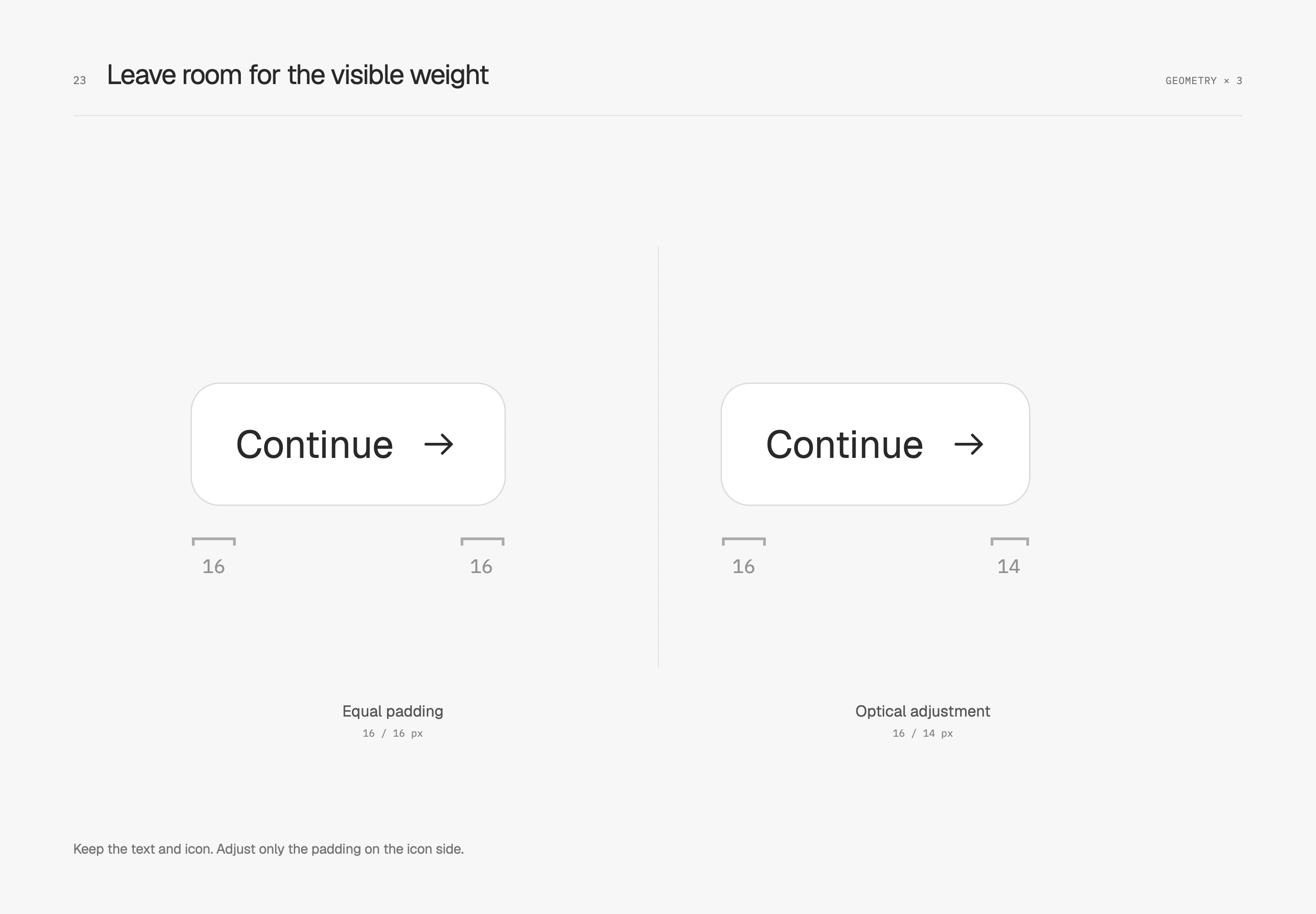
The 2 px adjustment belongs to this arrow and label. A filled icon, another typeface or an icon placed before the text requires a new look at the overall silhouette. If the icon is already offset within its own canvas, correcting the artwork first removes a layer of button-level compensation.
Reconsider stroke weight for small icons
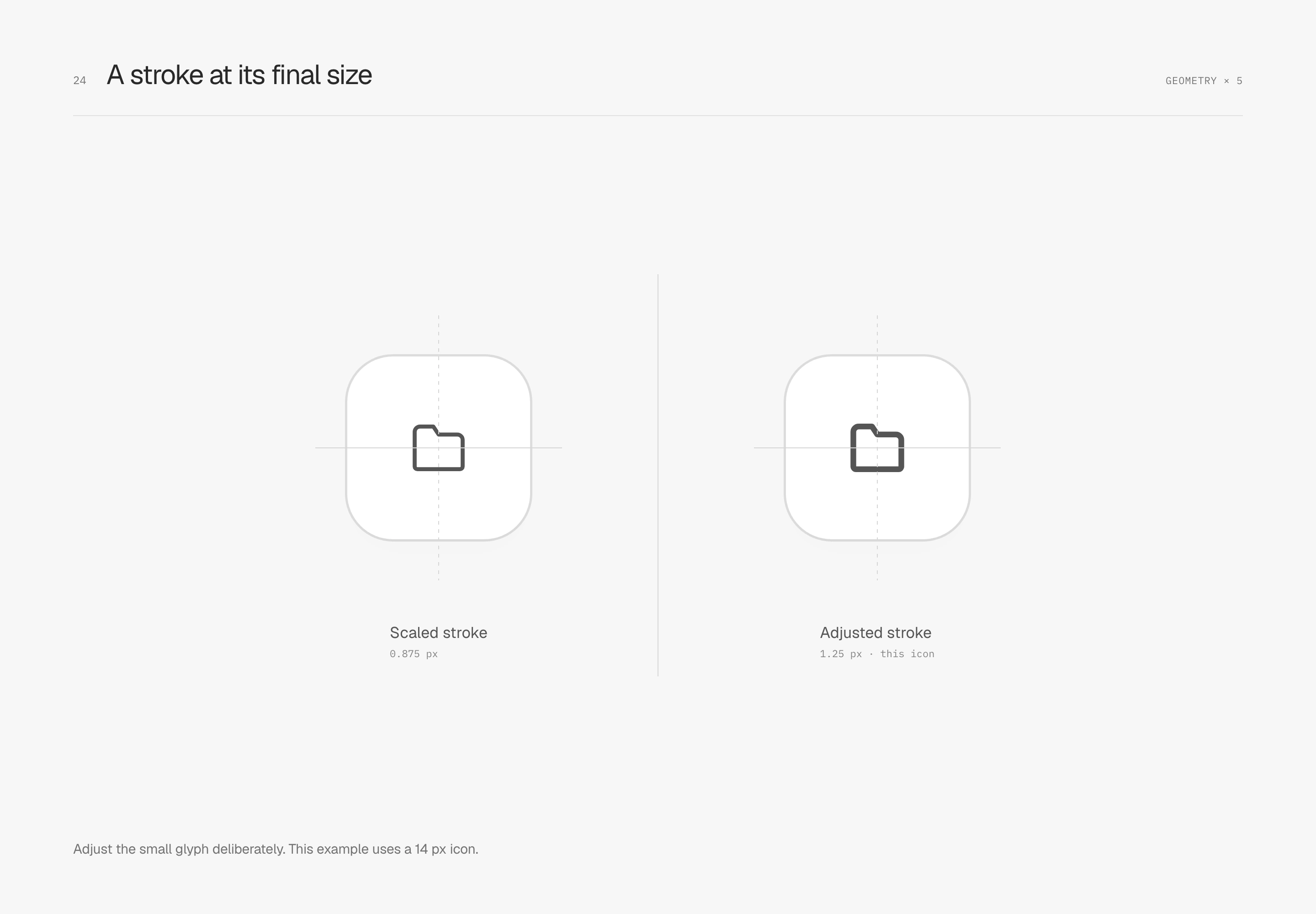
Stroke weight should not always scale with the entire icon. For this 14 px folder, the left proportionally reduces a 24 px original's 1.5 px stroke to 0.875 px. The right corrects it to 1.25 px. Shape dimensions remain unchanged; the final stroke is the variable.
At actual size, I inspect caps, corners, internal space and neighboring text together. The weight this icon needs may not suit a denser shape.
Give small labels their own tracking
Uppercase English labels often sit near numbers and headings. Crowded letters can turn small text into a heavy block. A little extra tracking can preserve a clearer rhythm.
This study keeps 10 px type, weight 500 and the same uppercase label, comparing only zero tracking with 0.05 em. Content beneath and its distance from the label remain fixed.
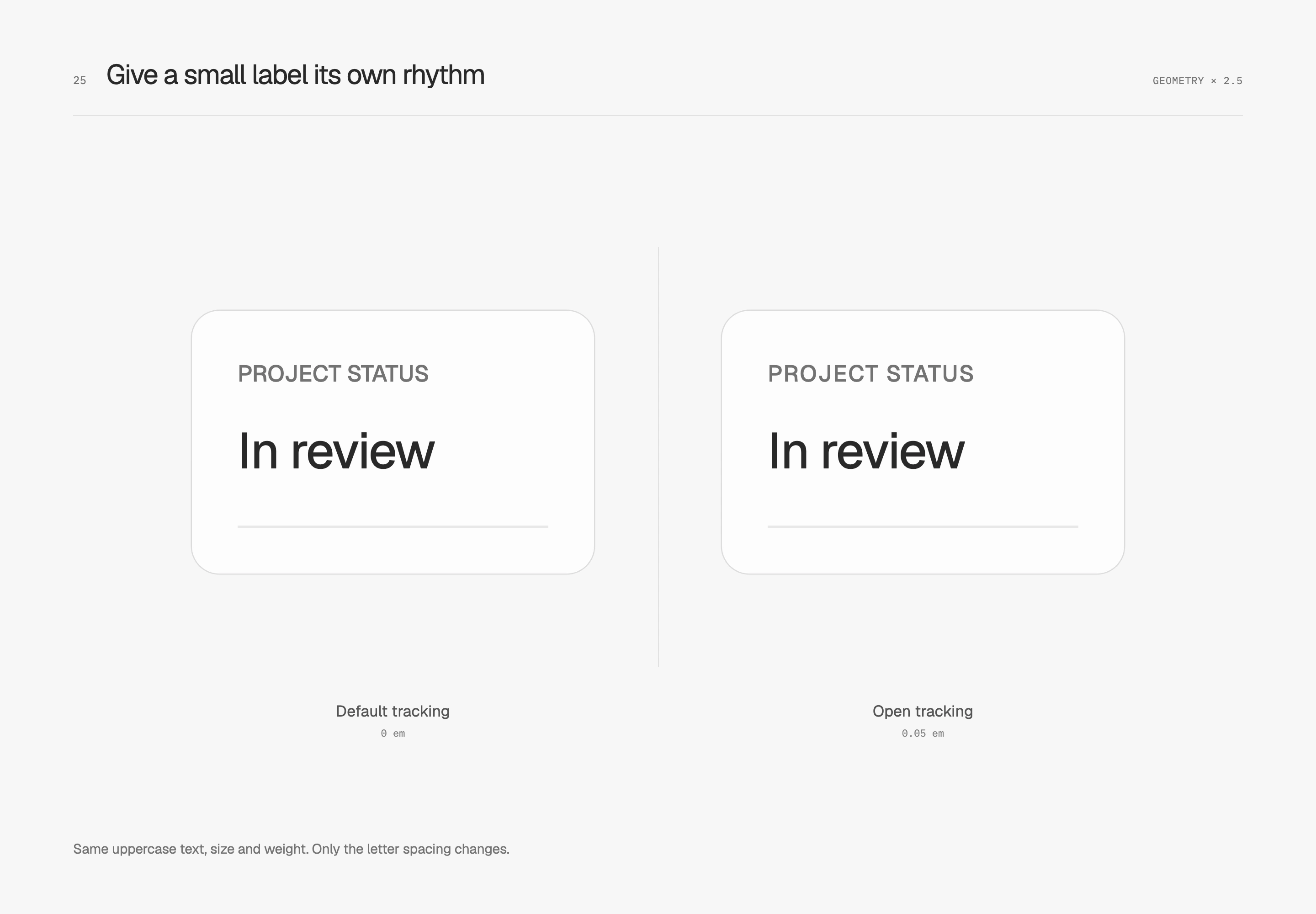
I judge tracking together with font size, weight and length. These uppercase labels benefit from some air, while small Traditional Chinese labels and body text have different visible densities. Each role needs its own weight, with the overall hierarchy kept simple.
Spacing, components and states
Arrange information along shared origins
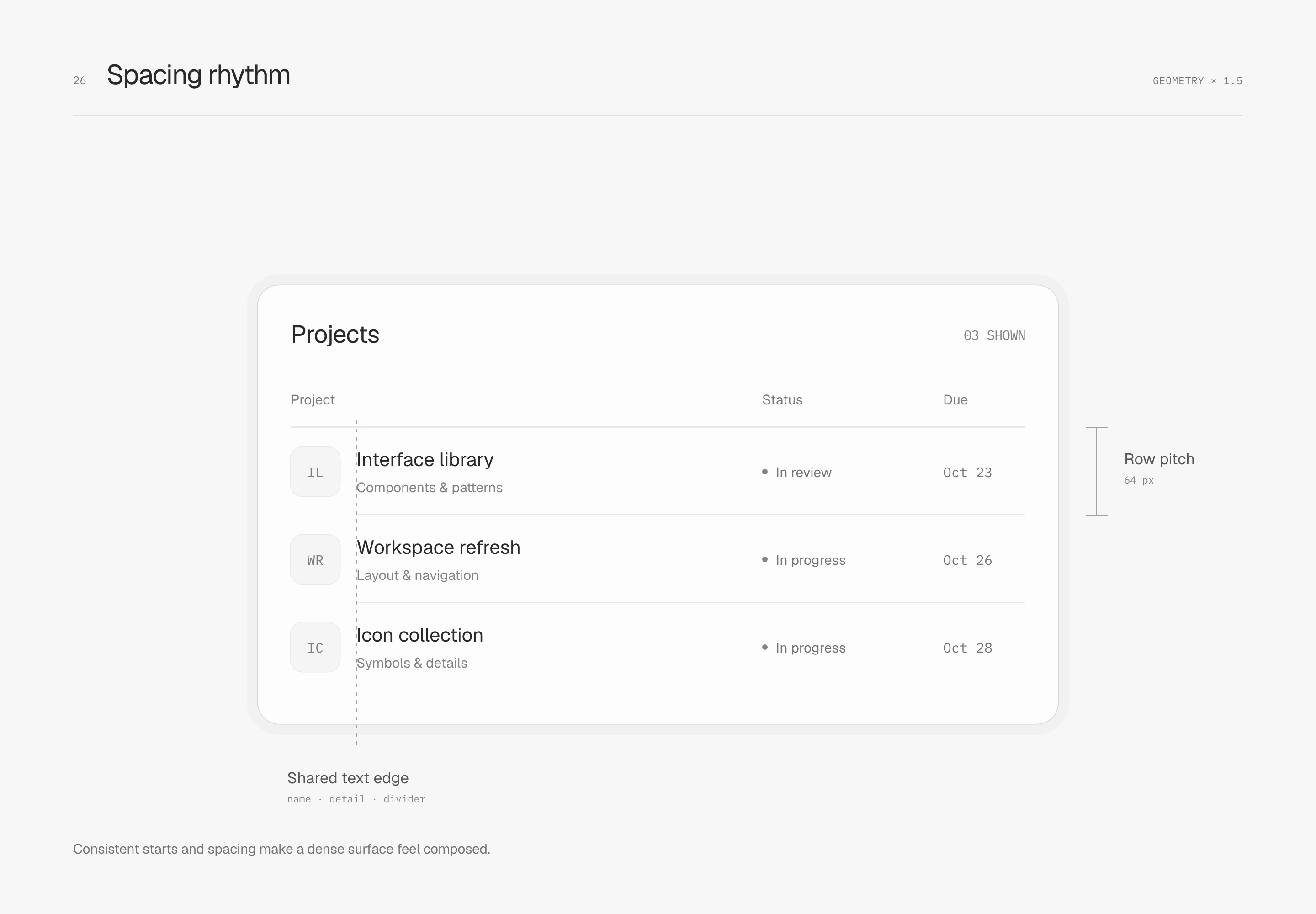
Spacing rhythm comes from repeated relationships. The illustrated rows are 64 px high, with 12 px between icon and text and 24 px of panel padding. Names, descriptions and dividers share a text origin; icons occupy their own area. The header first aligns with the origin of the content group to describe the column's scope.
Keep items close within groups and pause between them
Shared origins establish order; proximity makes relationships apparent. Both navigation examples retain text, row height and 8 px within-group spacing. Only the between-group gap grows from 8 px to 24 px, making Workspace and Personal easier to read as separate groups.
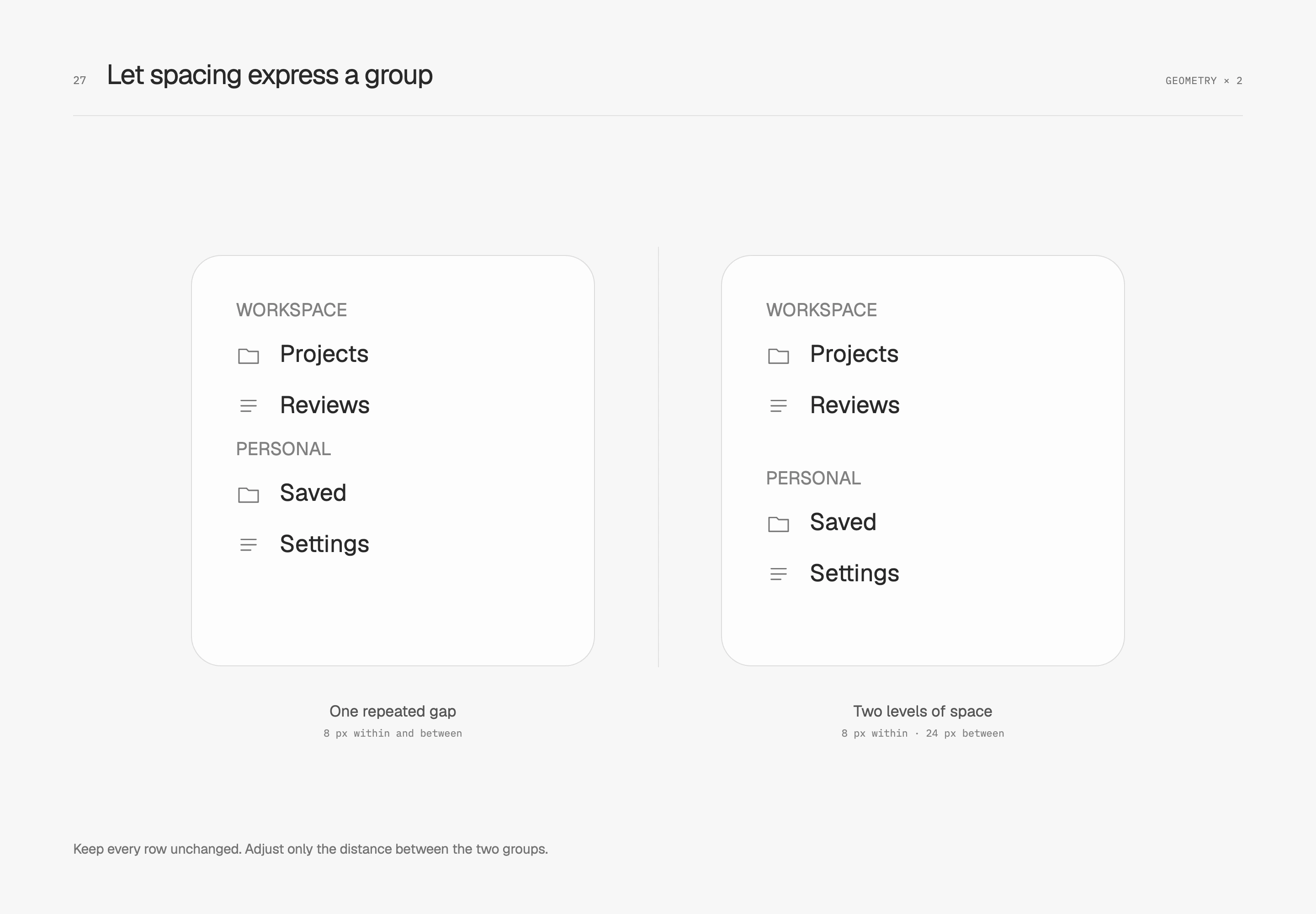
24 px is the pause for this content, not every navigation section. A workspace can remain compact while its groups stay recognizable. If a divider is needed, align it with the content origin too. I let spacing carry the relationship before deciding where another line is necessary.
Let the track and selection insert work together
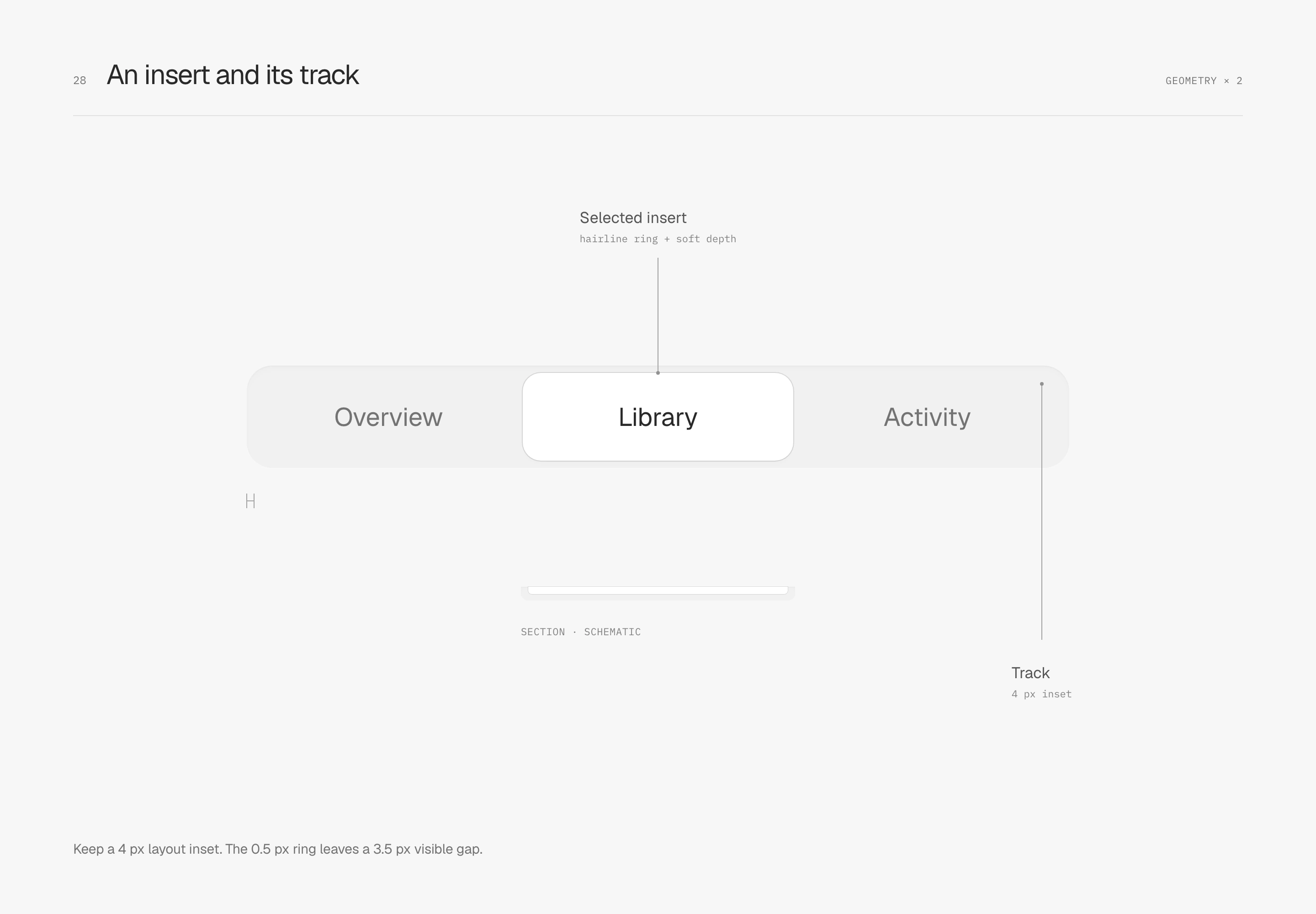
A segmented control keeps its track continuous while a white selection insert uses its own ring and short shadow to identify the current option. This specimen gives the track only a faint inset shadow. The white insert inherits the earlier contour and two depth layers, with no added inner light.
The track is R14 with 4 px padding; the insert is R10. As with the large panel, 4 px is a layout distance. Once the 0.5 px ring paints outward, about 3.5 px of gray remains visible along straight edges. I like the feeling of a part fitted into a track without raising it far above the surface.
Leave one seam within a shared control
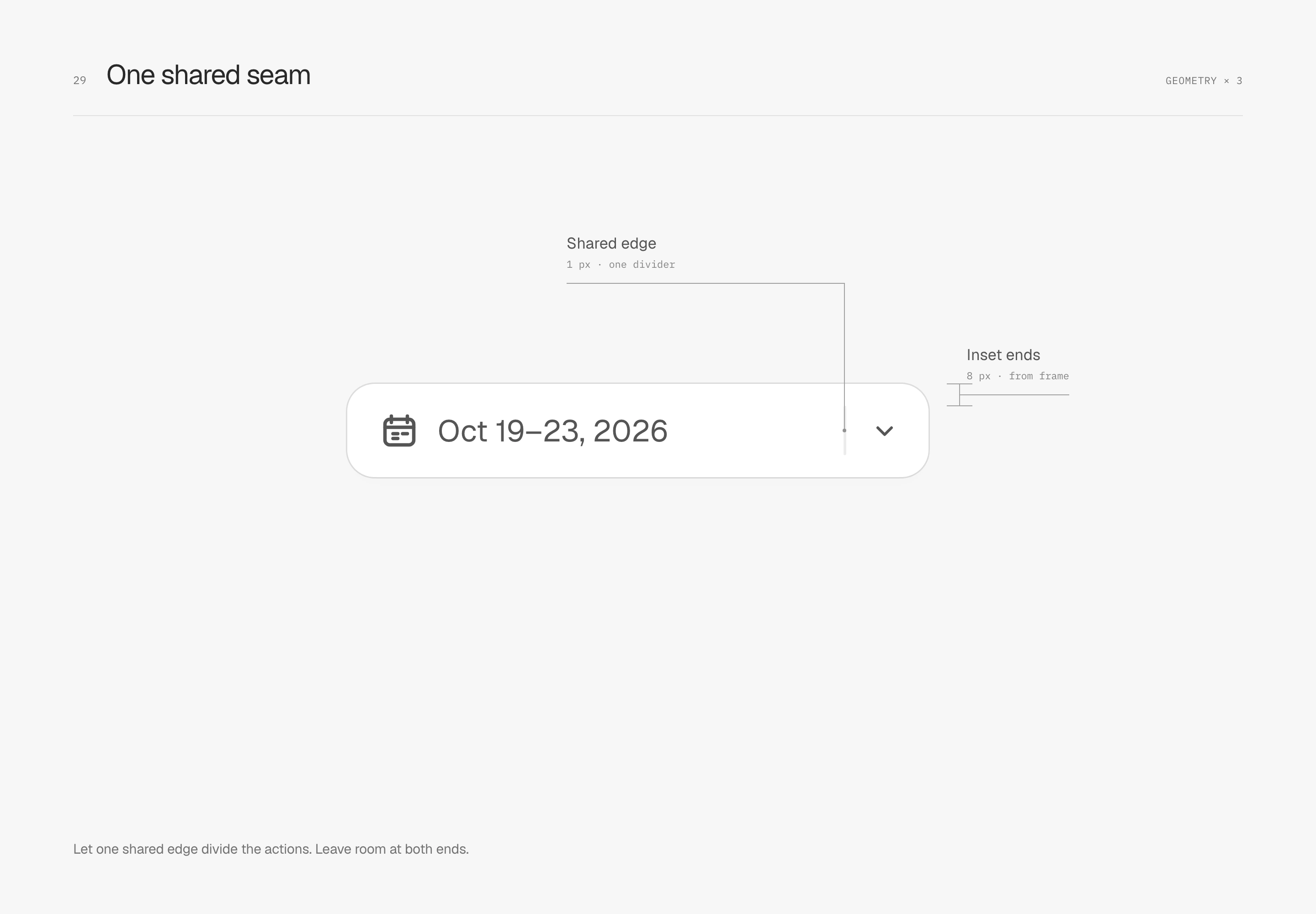
A shared seam places the date and arrow inside one outer shape, using a single 1 px internal divider rather than overlapping two separate contours at their join. The divider retreats 8 px from the top and bottom, with slightly rounded ends. It separates action areas without needing to reach the outer frame.
Keep content still when pressed
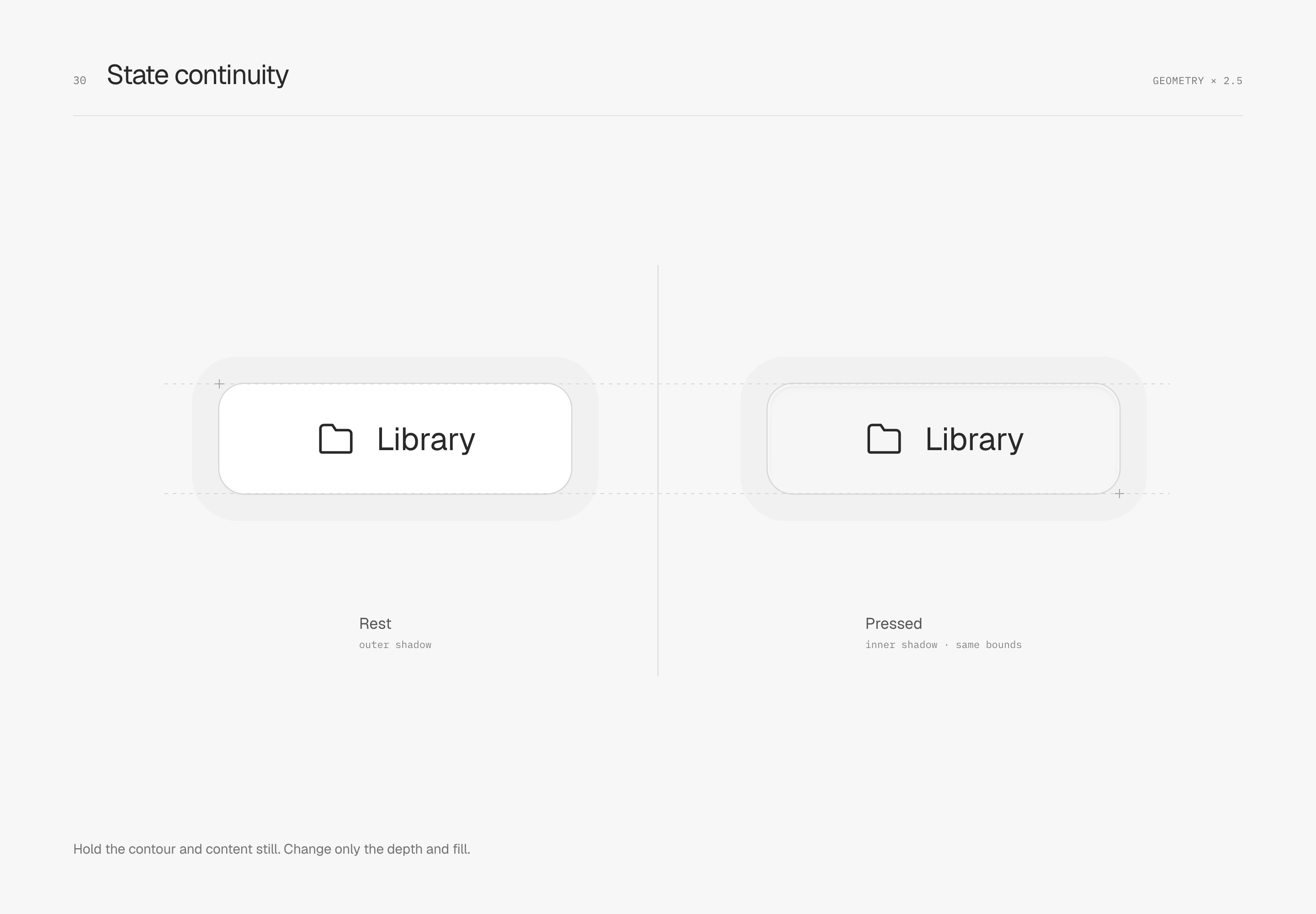
Persistent selection and the momentary pressed state have different jobs. Selection identifies the current position; pressing responds to the immediate action. The pressed specimen exchanges outer depth for a faint inner shadow and lowers white slightly to #F5F5F5. Ring, icon, text and overall component dimensions remain fixed.
A progress track has its own enclosure
A recessed track brings the same relationship to a smaller scale: a 6 px-high R3 outer track with 1 px padding holds a 4 px-high R2 fill. The 75% value uses the available width after padding is removed, leaving base color around the endpoints.
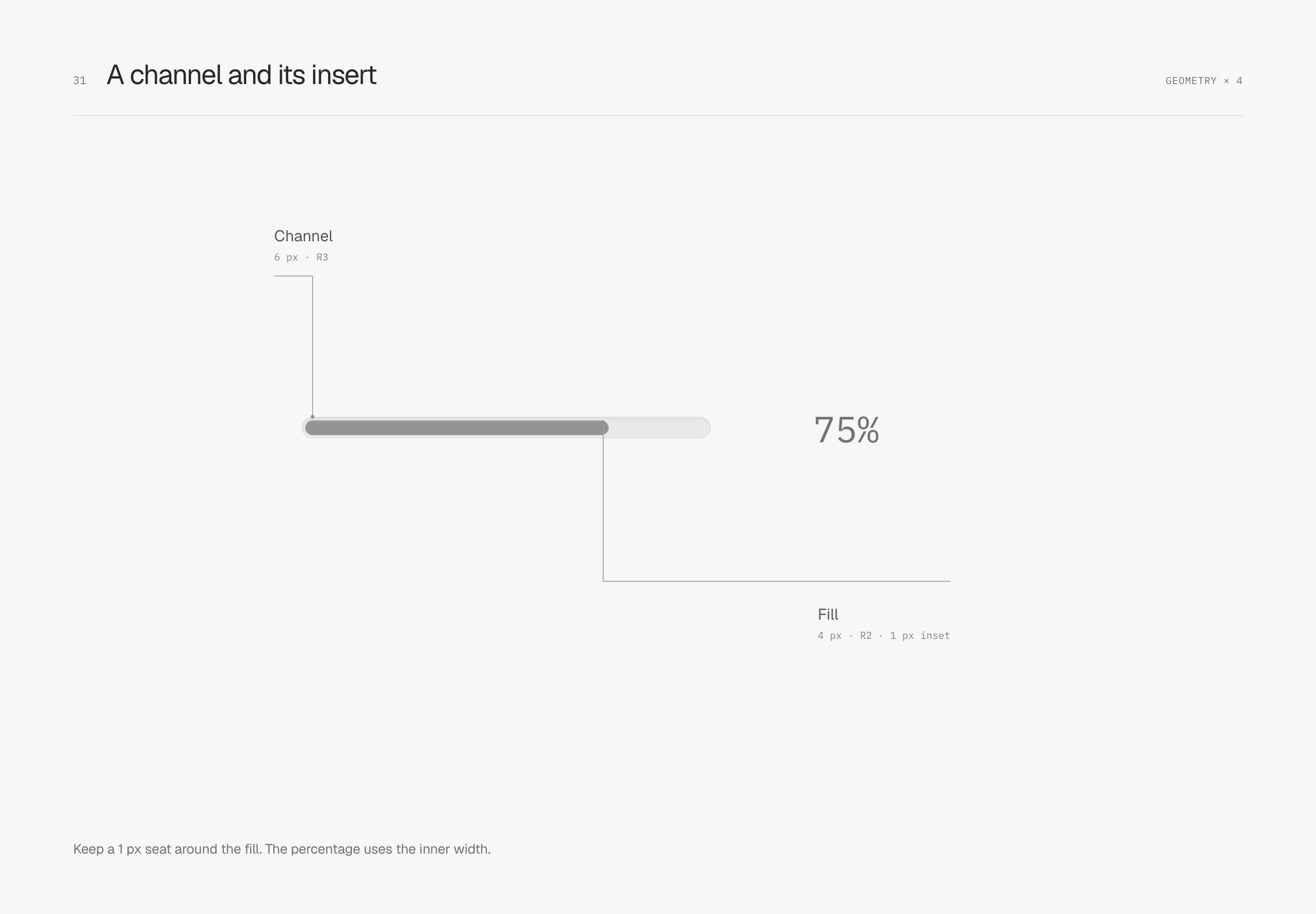
Only a short dark shadow remains along the track's upper inner edge, with a very faint material highlight on the fill. Its role is limited to this small part; it does not become a white inner light on every solid panel.
Give small icons an easy-to-use hit area
Visible icon size and hit area can be arranged separately. The close symbol stays 16 × 16 px while its button occupies 44 × 44 px, giving fingers and pointers room to land. The helper frame appears only in the diagram.
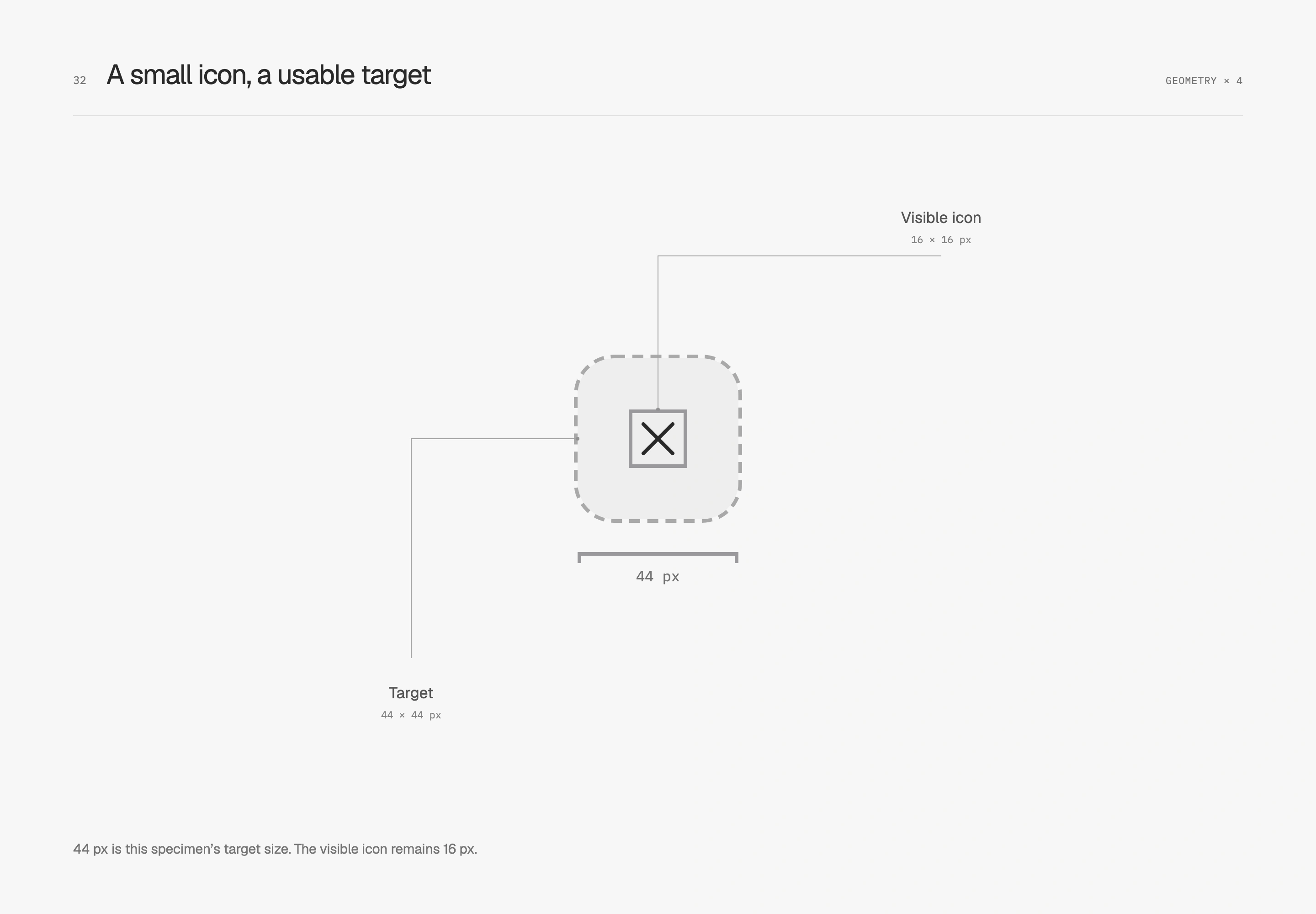
44 px is this specimen's choice. In a dense toolbar, inspect adjacent controls, spacing and hit areas together so they do not overlap. An icon may be small while still having reasonable interactive space around it.
Let focus stand out from a quiet surface
Keyboard focus identifies the control currently being operated and needs enough weight to be recognizable. Both buttons keep the same ring, fill and dimensions. The right adds a 2 px outline with a 3 px offset. The subtle surface edge continues to define shape; focus clearly marks position.
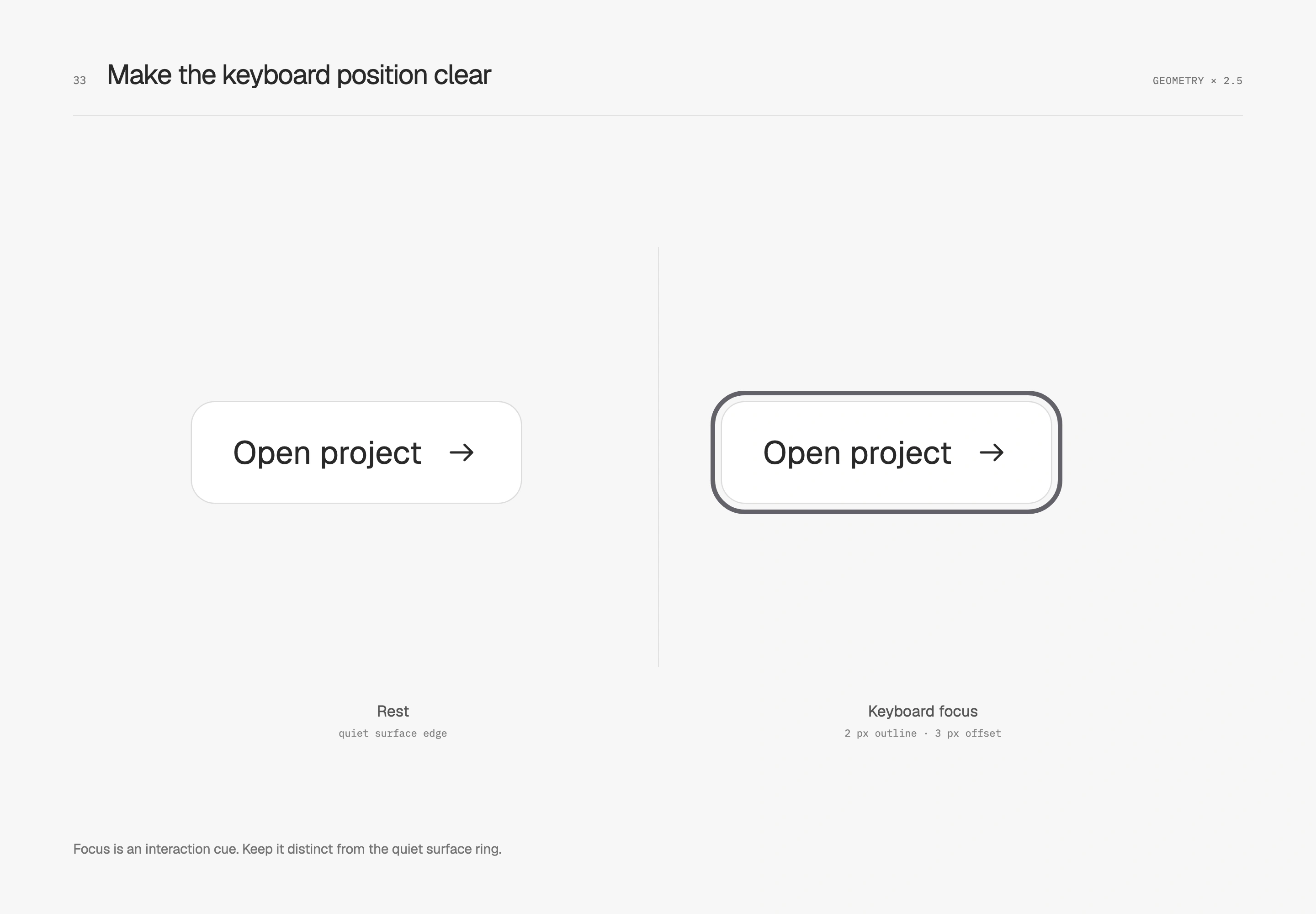
I like restrained surfaces and an immediately visible interaction position. Check the focus outline against surrounding colors, panel clipping and adjacent controls. Selection, pressing and focus have distinct jobs and can coexist.
Motion feedback
Connect icon states with a gentle transition
Moving from Save to Saved uses icon and text together to describe the result. This cross-fade changes only the opacity of two icons in the same cell. Button width and text position stay fixed. The left replaces the icon immediately; the right uses a 150 ms ease-out transition. Press either example button to send both sides to the same state.
I reserve this small motion for occasional state changes. Frequently switched tabs and actions repeated down a list need a more direct response, and the icon or text must clearly express the current state on its own. Press feedback follows the earlier surface and shadow treatment, leaving content in place.
Take the next action before the previous one finishes
A user can request collapse before the panel finishes opening. An interruptible transition turns toward the new state from its current position, keeping repeated interactions connected. Both examples use the same distance, 200 ms duration and easing. The left restarts from a specified origin each time; the right continues from its current position toward the new endpoint.
Toggle quickly during the transition and watch for a sudden positional jump. This study uses CSS transitions to follow state. Timeline animations can also handle interruption with additional playback control; the outcome that matters is whether interaction continues smoothly. With motion disabled, state text and static before-and-after comparisons remain available.
Match entrances and exits to the moment
An initial presentation can unfold the reading order slightly through groups of heading, description and actions. An exit can reduce travel and duration, handing attention to what comes next. I reserve that rhythm for moments suited to pausing and looking. Everyday toggles and repeated actions remain direct.
With reduced motion enabled, movement is removed while states stay clear. Both studies are user-triggered and begin at rest on first load, leaving readers to choose when to compare them.
Material boundaries
Give glass a specific place
I reserve a little glass for floating tools: a near-white fill at 72% opacity, 10 px backdrop blur, and clear foreground text and icons. The toolbar crosses the container's lower edge so that underlying tones can show through. Its placement avoids the main data rows and gives the material a real boundary to cross.
A 0.5 px neutral-dark ring at 6% opacity defines the glass, with only a softened hint of light inside. Three faint shadow layers connect the contact area to an outer 24 px blur, spreading the sense of suspension. This ring is lighter than on solid controls. A transparent surface already borrows background contrast without needing another dark frame.
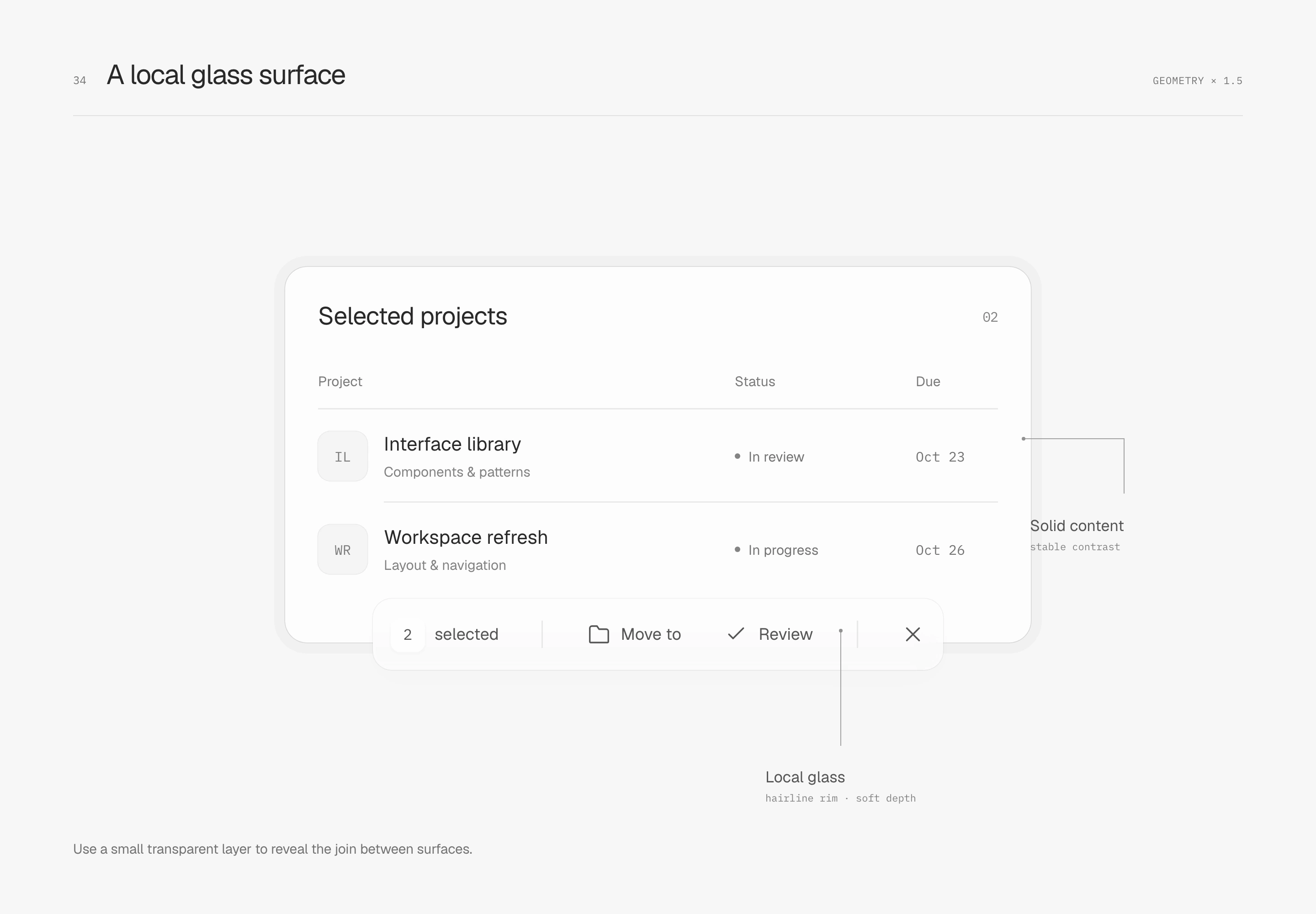
I inspect it over the background it actually crosses. On all-white backgrounds, only the contour may remain; busy content underneath can interfere with text. This study shows translucency and softening without simulating physical refraction.
Packaging these choices as Master Design
I have organized these details into Master Design, a design skill that can be installed in AI editing tools. Boundaries, geometry, images, typography, spacing, states, motion and materials load by topic. Each explains visible problems, mechanisms, conditions and verification. The repository also keeps the original diagram sources and working examples so the effects can be inspected in context.
By default, it preserves the project's brand, typefaces, framework and density. To use this article's restrained white treatment, explicitly select Aron preferences. Half-pixel contours and shadow values remain specimens that need judgment against the actual interface.
\x60\x60\x60sh npx skills add master-co/design --skill master-design \x60\x60\x60
After installing, ask the tool to “Use \x60$master-design\x60 to refine this interface, preserve its existing brand and density, and implement and verify affected states.” The skill keeps decisions and verification within the workflow; final quality still needs to be judged through real content and interaction.
A complete interface
Finally, return to a complete workspace. The refinement I value connects its details while keeping the whole interface clean and settled.