
Information can align perfectly while leaving readers unsure which items belong together or what a switch will affect. Composition needs to describe both placement and relationships.
I begin with shared origins and row height, then use settings and action panels to examine grouping, nearby explanations and emphasis. Space can carry part of the explanation.
This article has been reorganized and expanded from the original essay. Specimen values describe their particular conditions, not universal settings. For the series context and tools, see the overview.
Alignment and row height
Arrange information along shared origins
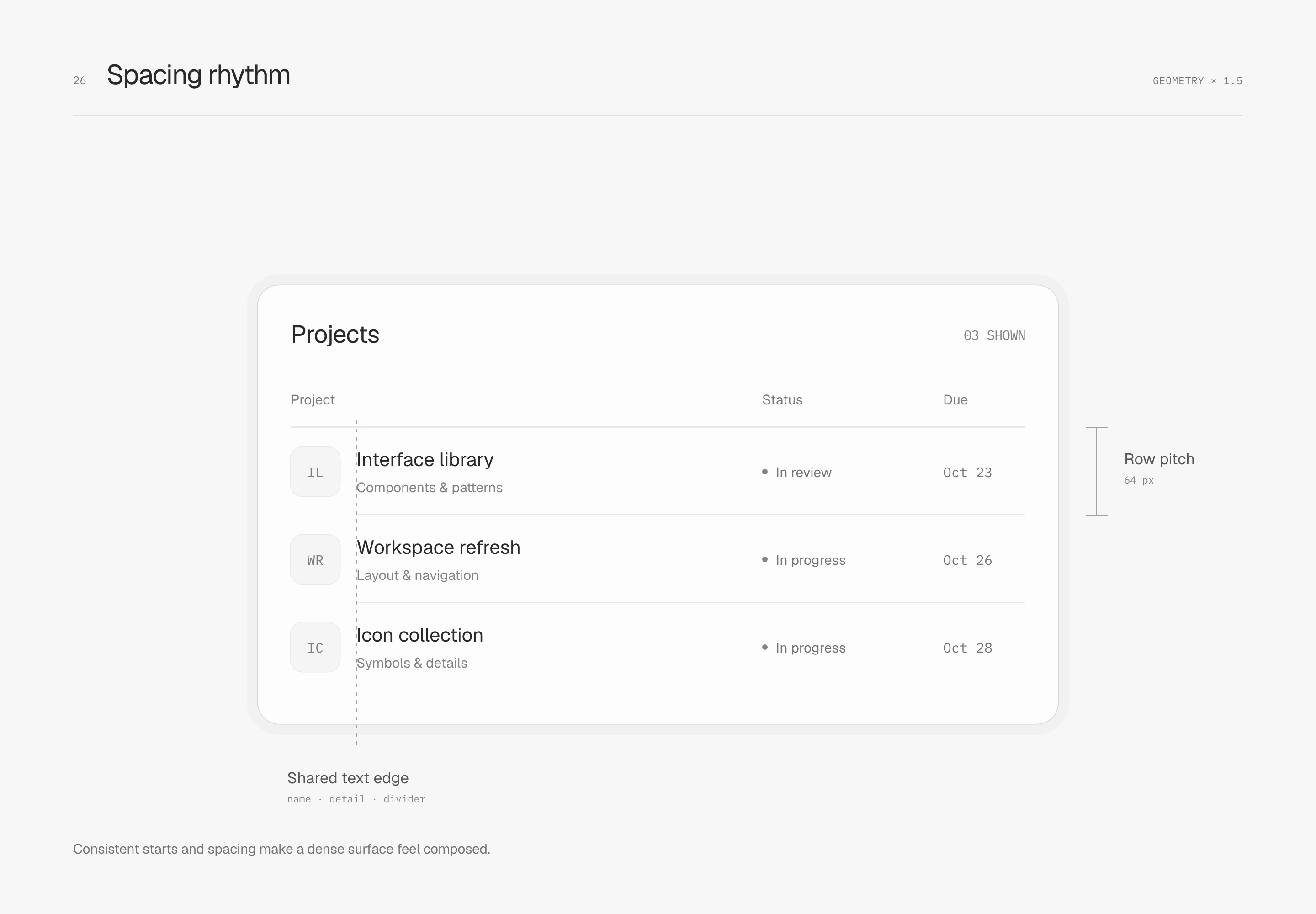
Spacing rhythm comes from repeated relationships. The illustrated rows are 64 px high, with 12 px between icon and text and 24 px of panel padding. Names, descriptions and dividers share a text origin; icons occupy their own area. The header first aligns with the origin of the content group to describe the column's scope.
Keep items close within groups and pause between them
Shared origins establish order; proximity makes relationships apparent. Both navigation examples retain text, row height and 8 px within-group spacing. Only the between-group gap grows from 8 px to 24 px, making Workspace and Personal easier to read as separate groups.
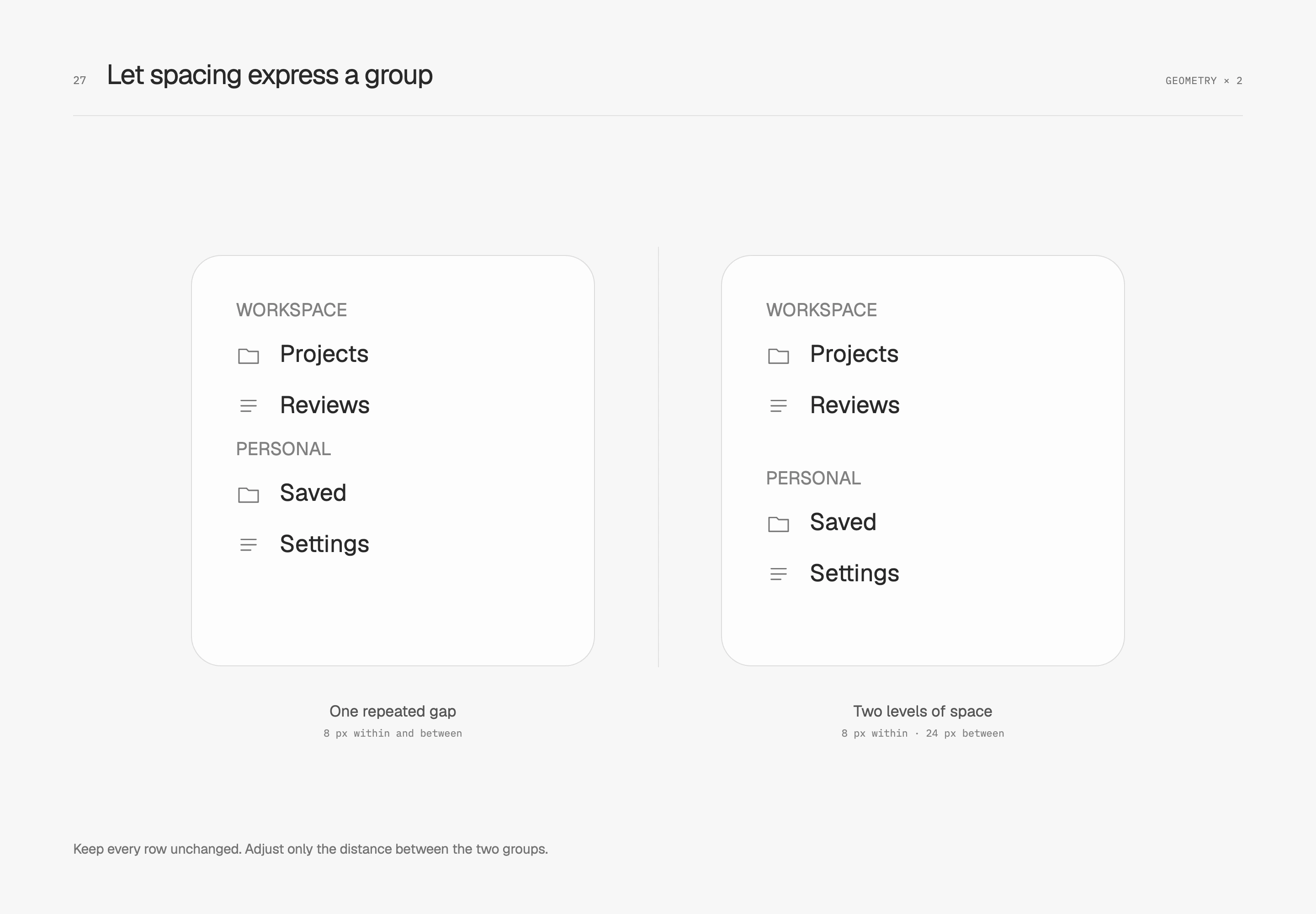
24 px is the pause for this content, not every navigation section. A workspace can remain compact while its groups stay recognizable. If a divider is needed, align it with the content origin too. I let spacing carry the relationship before deciding where another line is necessary.
Keep mixed-content rows in rhythm
A text line may be 24 px high while its avatar, badge or control is taller. Avatars and thumbnails have intrinsic dimensions; buttons, checkboxes, radios, switches, fields and selects may also carry padding or minimum target sizes. First identify which item is setting the row height.
I measure layout footprint, visible bounds and actionable bounds separately. Outlines, shadows and focus indicators can paint outside without increasing the row; physical borders, padding and component dimensions participate in layout. Baseline alignment chooses a reference line, optical alignment considers visible shapes, and vertical rhythm describes the relationship between successive rows.
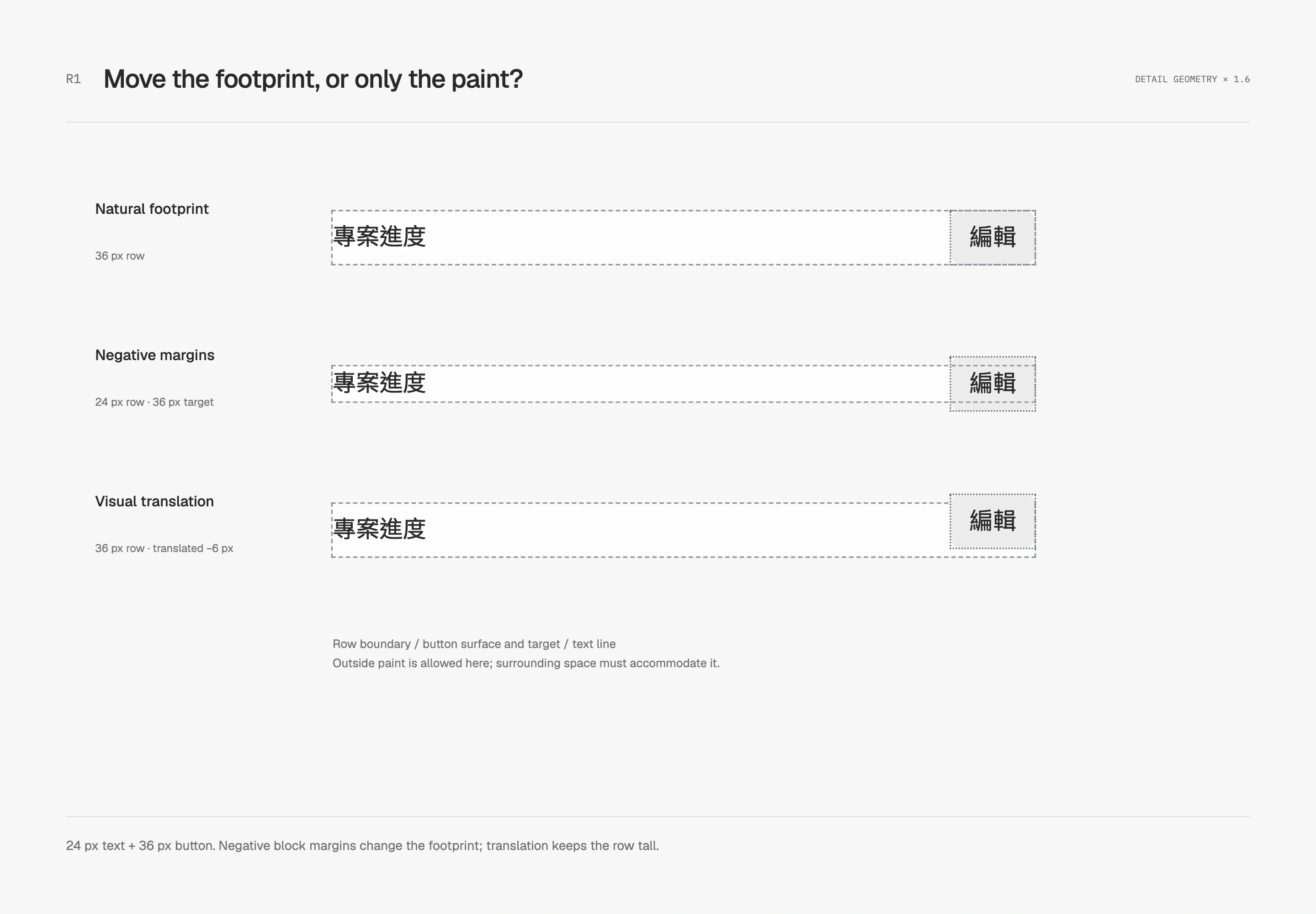
In this specimen, −6 px on each block margin lets a 36 px control contribute 24 px to a flex row while preserving its 36 px box and target. Negative-margin compensation describes the implementation; bleed describes controlled extension into surrounding whitespace. Radix’s ghost button uses a related treatment to offset its padding.
The amount belongs to that component and its available space. Establish the row’s role and density, choose sizes, inspect padding and alignment, then decide whether compensation helps. A larger avatar, two lines of copy or a larger touch target can call for a taller row or a different arrangement. Moving the control with a transform changes its painted position while leaving its original layout height in place. Extended targets must not cover adjacent rows.
Inspect table cells and inline line boxes separately
Tables often offer a more direct adjustment: the action cell’s padding. A 24 px text line with 8 px above and below makes a 40 px row. Put a 36 px control inside the same padding and the row becomes 52 px. Reducing only the action cell’s block padding to 2 px brings it back to 40 px with the control unchanged.
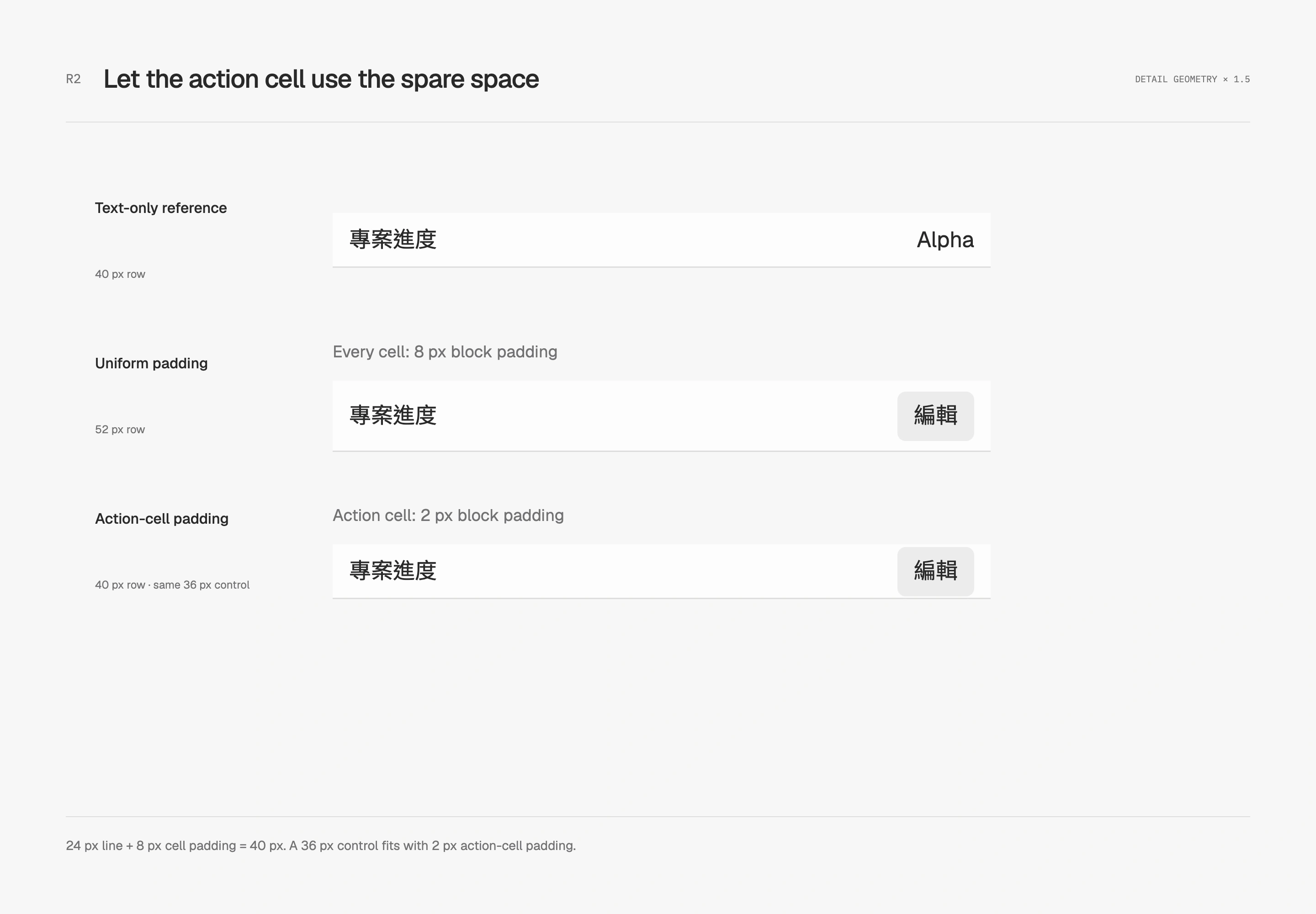
Native tables include cell content and alignment in row sizing. Setting a tr height cannot shrink taller contents. Subtracting a control’s margins may still leave baseline and line-box space, so the flex arithmetic does not transfer directly.
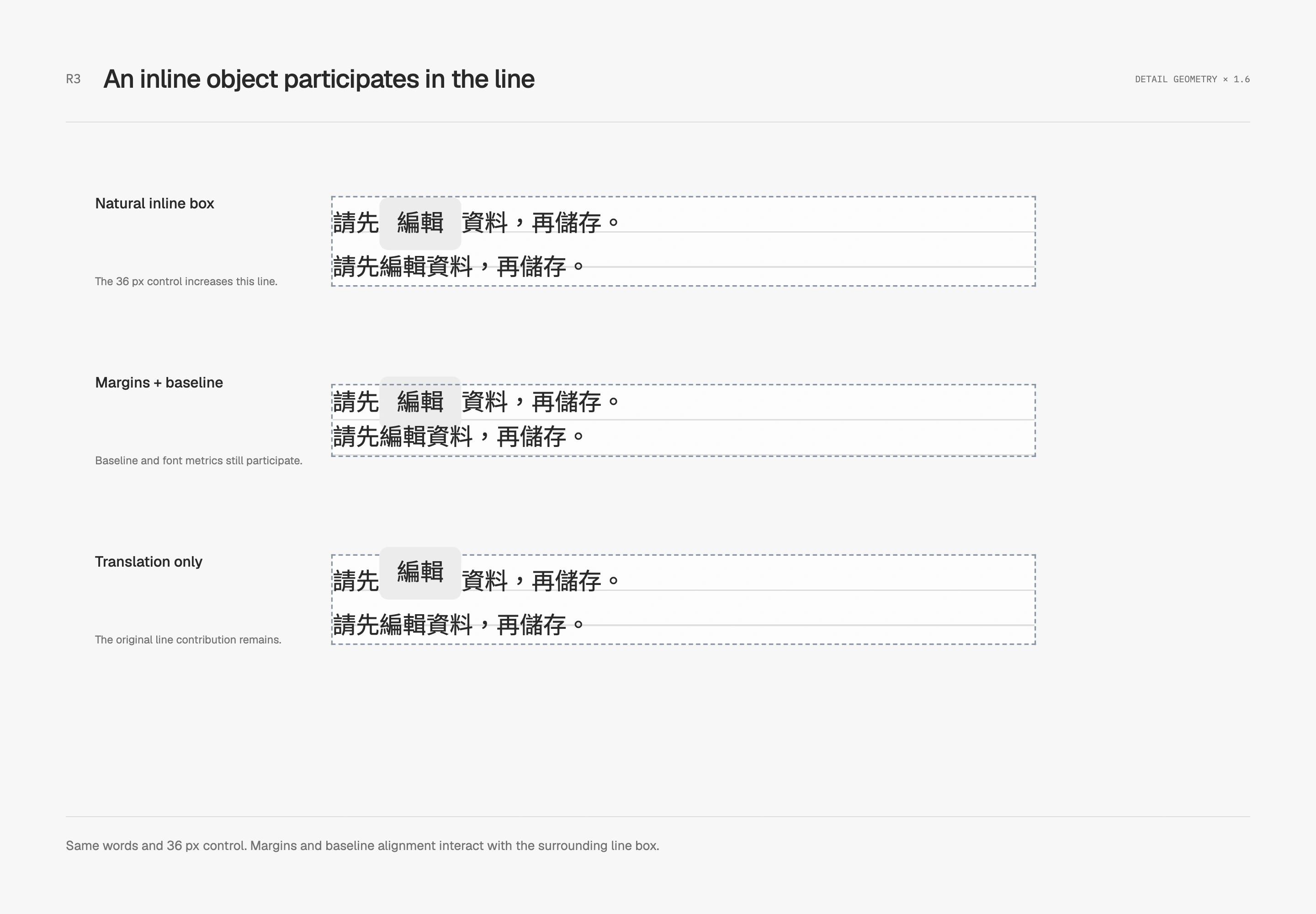
Inline images and icons can leave room below the baseline for descenders. Media outside a sentence can use block display in its own slot; genuine inline content needs its baseline checked. Code, superscripts and native controls have font and line-height defaults too. vertical-align: middle uses the surrounding font’s baseline and x-height rather than the row’s geometric center. Inspect the actual string, neighboring lines and keyboard focus.
The type and row study offers five-language samples, light/dark appearance, measure and text-size controls, plus working component specimens. It separates syntax support, actual measurements and optical judgment. Rows grow when enlarged text or targets need the room.
Making relationships visible
Let a boundary enclose one meaningful group
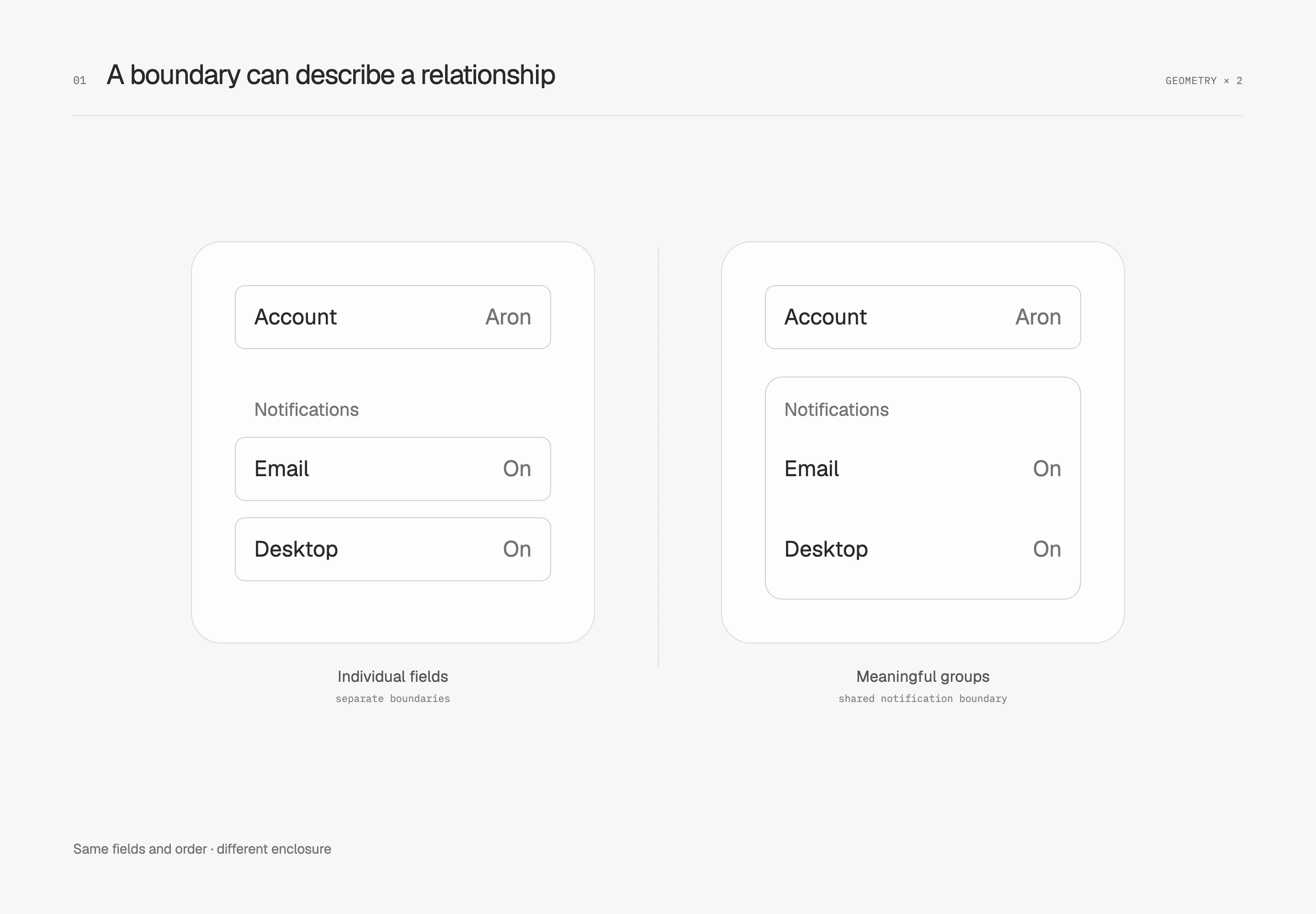
Giving every field its own card can make a form tidy without explaining how the fields relate. This comparison keeps the fields and order unchanged. On the right, notification preferences share one region while account information remains separate. The boundary now describes a group.
I start with headings and spacing, then decide whether a background or outline adds useful structure. Sharing a panel does not necessarily mean settings save together. If submission scopes differ, their buttons and explanations must say so; behavior should respect the relationship the boundary suggests.
Keep an explanation beside its subject
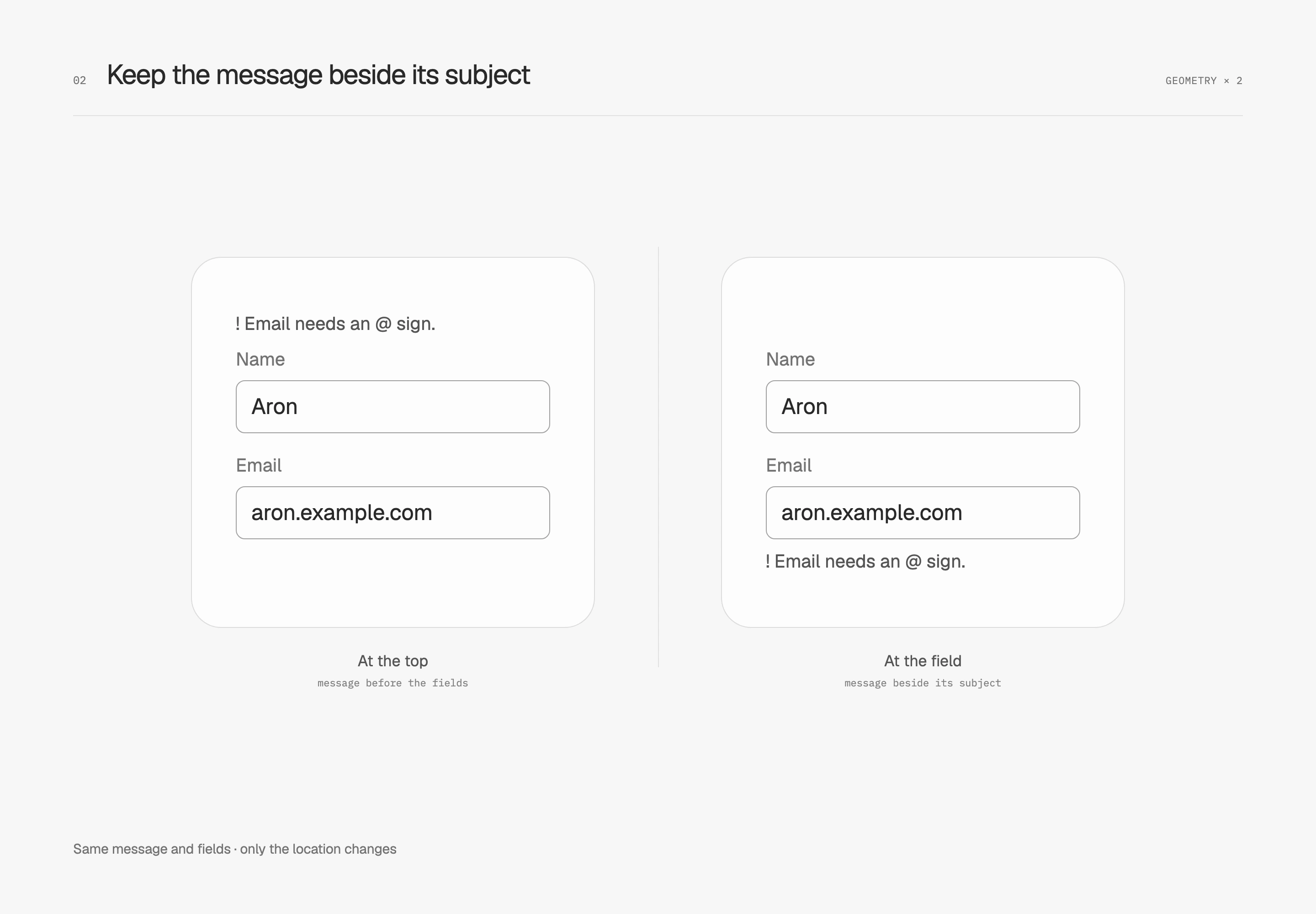
An error shown only at the top of a form makes readers carry the message back to the fields and find its subject. Here only the location changes: the same email-format error appears above the whole form or directly after the email field.
Nearby feedback explains a local problem. A long form can still provide an error summary with links at the top. These serve different purposes. Associate the message with its field programmatically as well as visually; W3C's form notification guidance covers both overall summaries and inline feedback.
Let the important information appear first
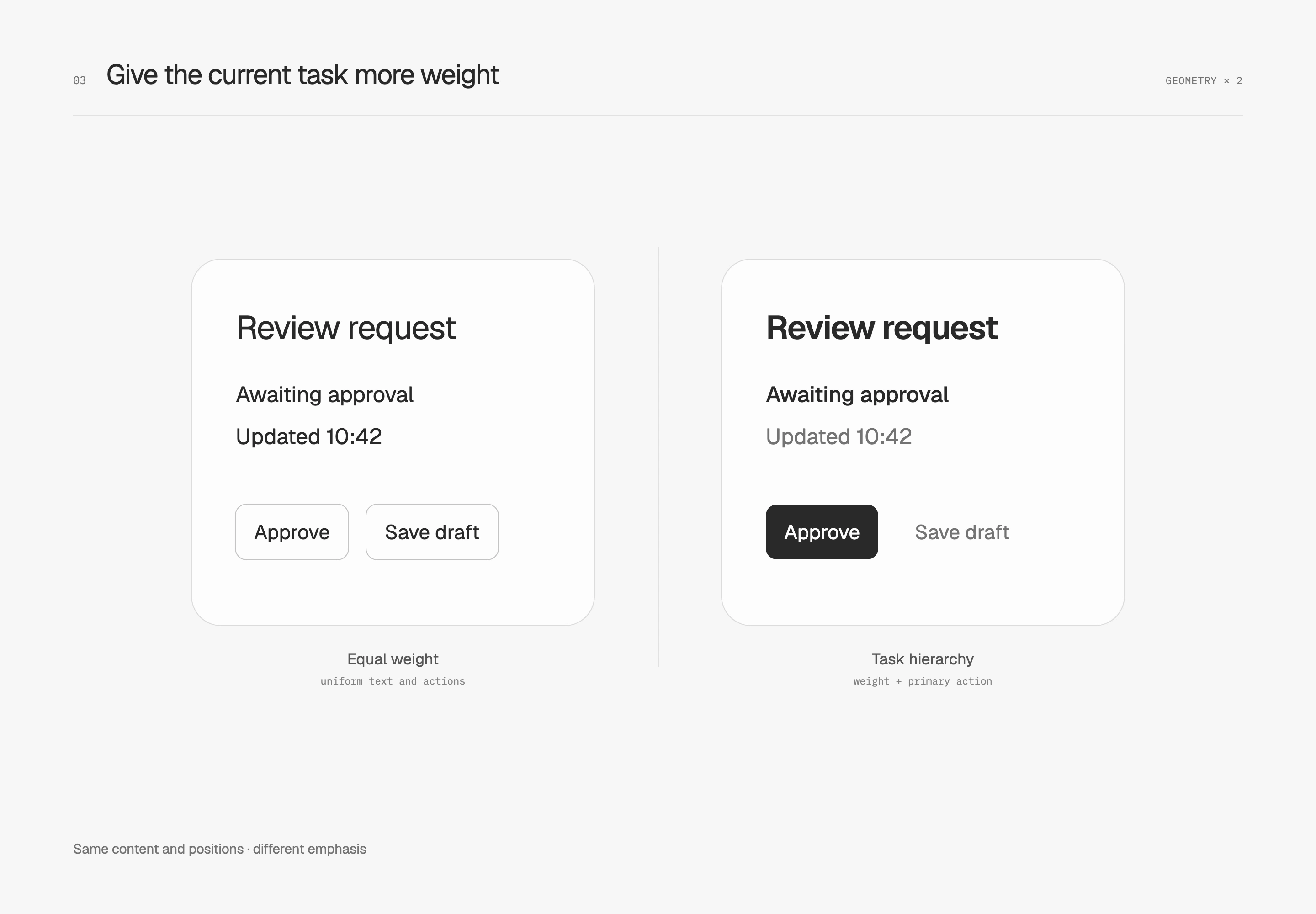
If the title, status, timestamp and every button have equal weight, readers must decide where to look first. These review panels contain identical content in identical positions. The right panel emphasizes the pending state and primary action while giving the timestamp and secondary action less weight.
I allocate emphasis around the current task rather than insisting on a single focal point across an entire page. Secondary text must remain readable. Errors, costs and the consequences of irreversible actions still need clear presentation even when they are not the main heading.
Place a control near what it affects
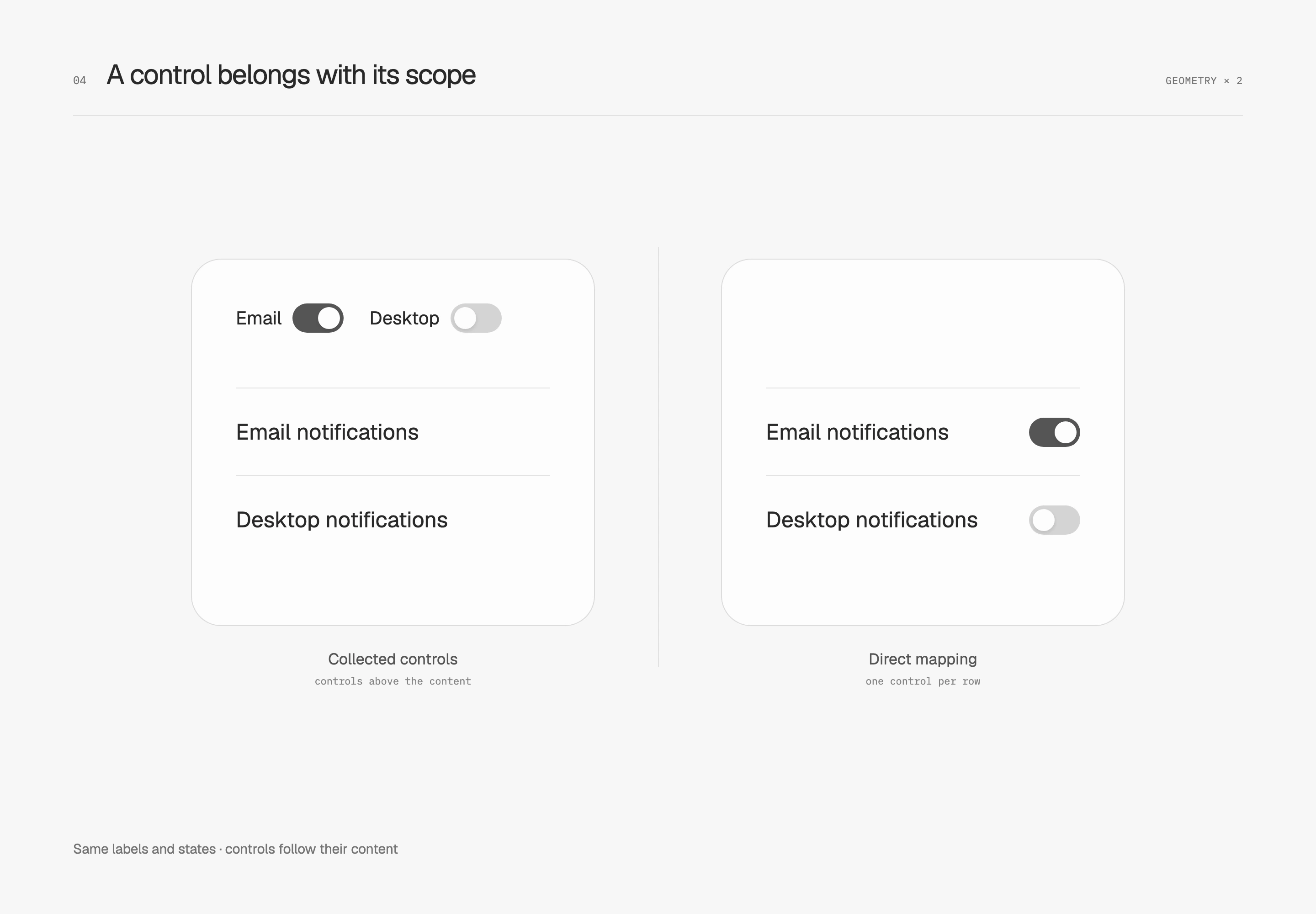
Collecting switches in the upper corner may look neat but can obscure which notification each one controls. This comparison preserves the names and number of switches. On the right, email and desktop notification switches return to their corresponding rows.
Position helps establish a mapping, while labels still describe the effect. A switch affecting the entire workspace belongs at workspace level with an explicit scope. On a narrow screen, each control should travel with its own content instead of drifting toward another row when columns wrap.
Collapse the detail and retain the choice
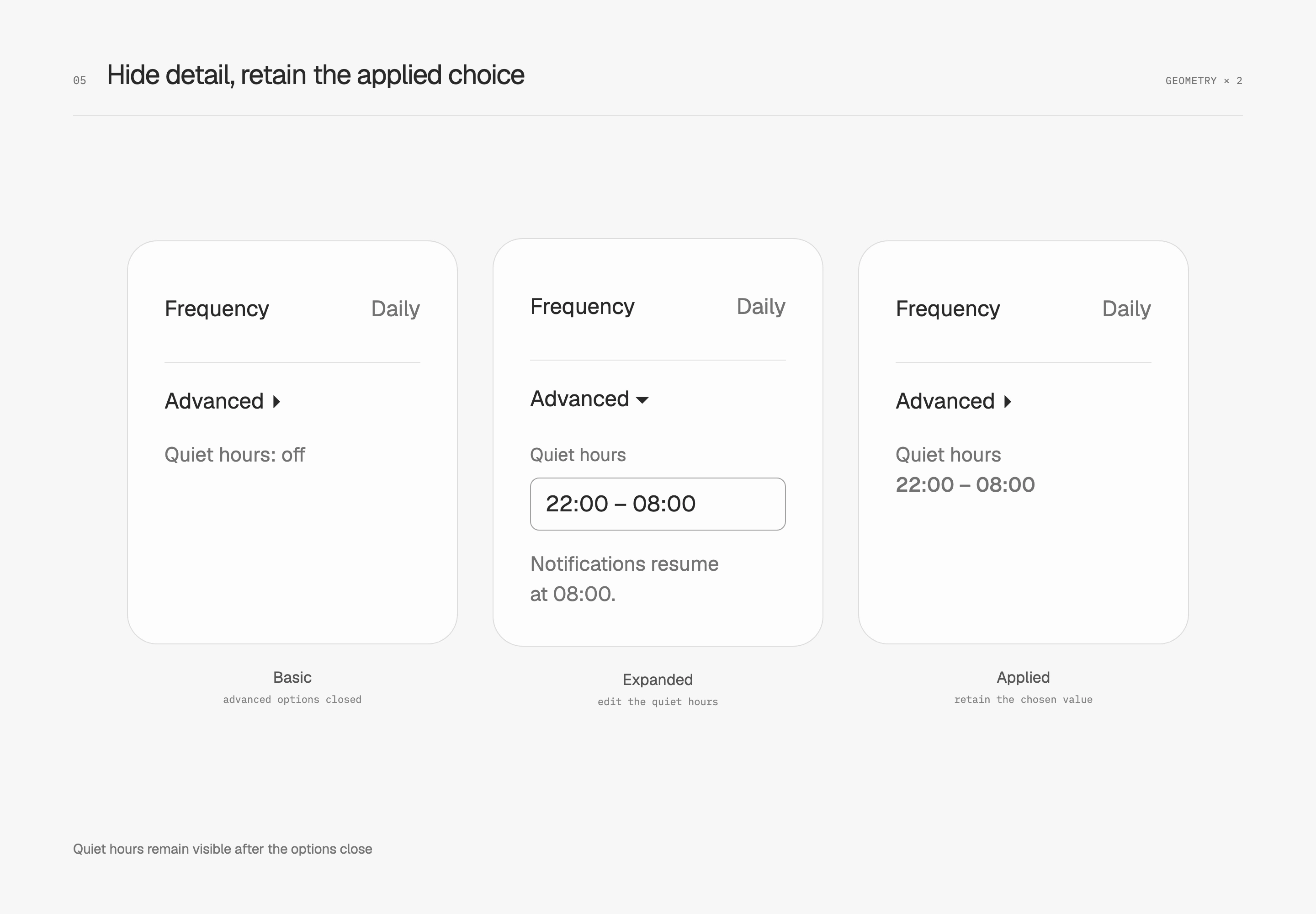
Advanced options need not remain open, but closing them should not conceal what is applied. These notification settings keep frequency in the main view. Expanding reveals quiet hours; closing retains a summary of the chosen hours. Required conditions and errors remain visible.
I put occasional adjustments in a secondary layer with a clear disclosure label. If everyone needs to expand it on every visit, the split probably needs revisiting. Progressive disclosure organizes information around need rather than making the screen as short as possible.
I want arrangement to explain what belongs together, which control affects which content, and what needs attention now. Spacing, regions, and emphasis establish those relationships first. Disclosure can then support reading instead of merely shortening the page.