Pressing a button, selecting an item and moving keyboard focus are different states. If all three use the same bright outline, people must guess which one they are seeing.
I want feedback to explain what happened and accept the next action before the previous one finishes. First come hit areas and states, followed by transitions and recognizable identity across changes.
This article has been reorganized and expanded from the original essay. Specimen values describe their particular conditions, not universal settings. For the series context and tools, see the overview.
Actions and states
Keep content still when pressed
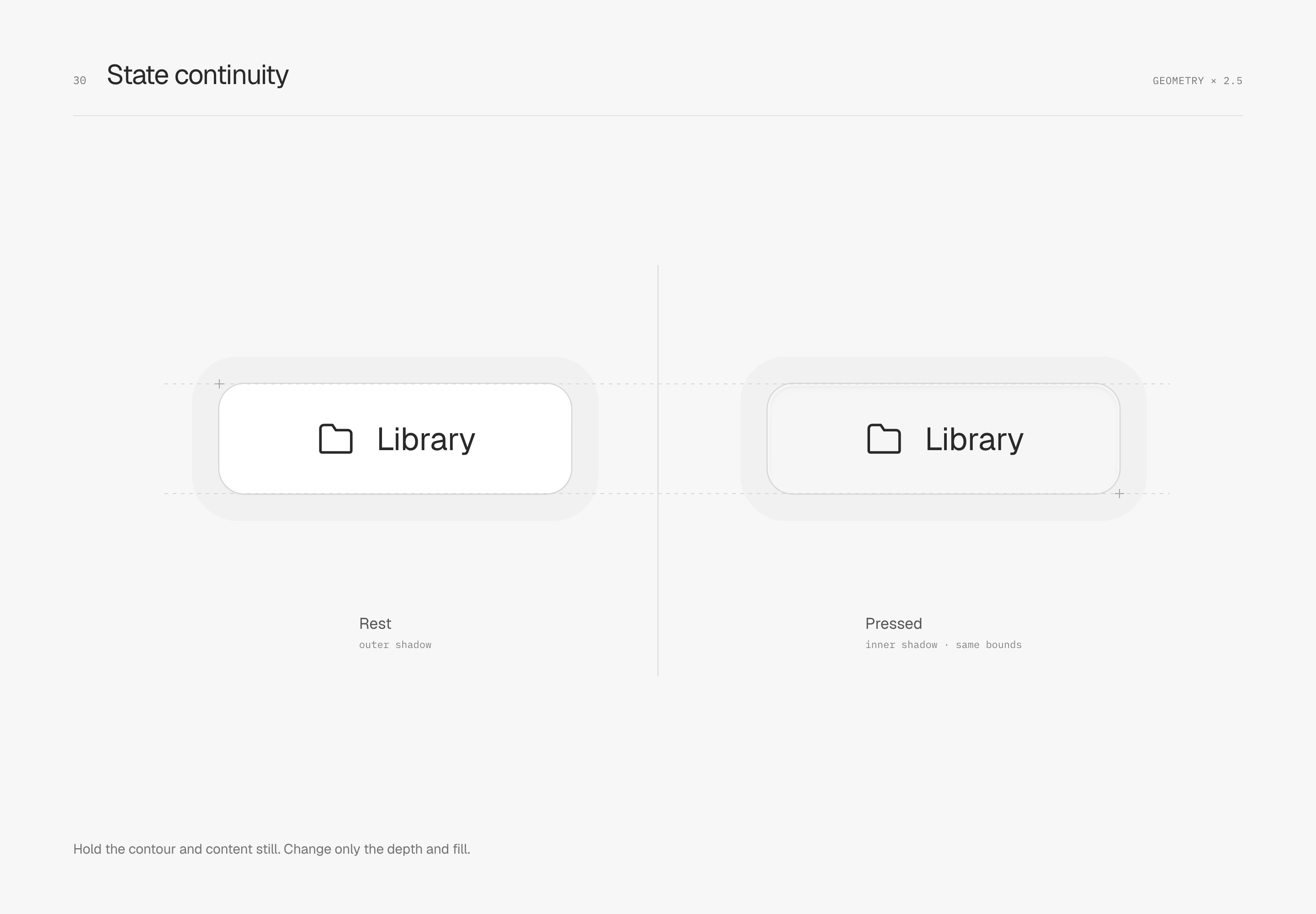
Persistent selection and the momentary pressed state have different jobs. Selection identifies the current position; pressing responds to the immediate action. The pressed specimen exchanges outer depth for a faint inner shadow and lowers white slightly to #F5F5F5. Ring, icon, text and overall component dimensions remain fixed.
Give small icons an easy-to-use hit area
Visible icon size and hit area can be arranged separately. The close symbol stays 16 × 16 px while its button occupies 44 × 44 px, giving fingers and pointers room to land. The helper frame appears only in the diagram.
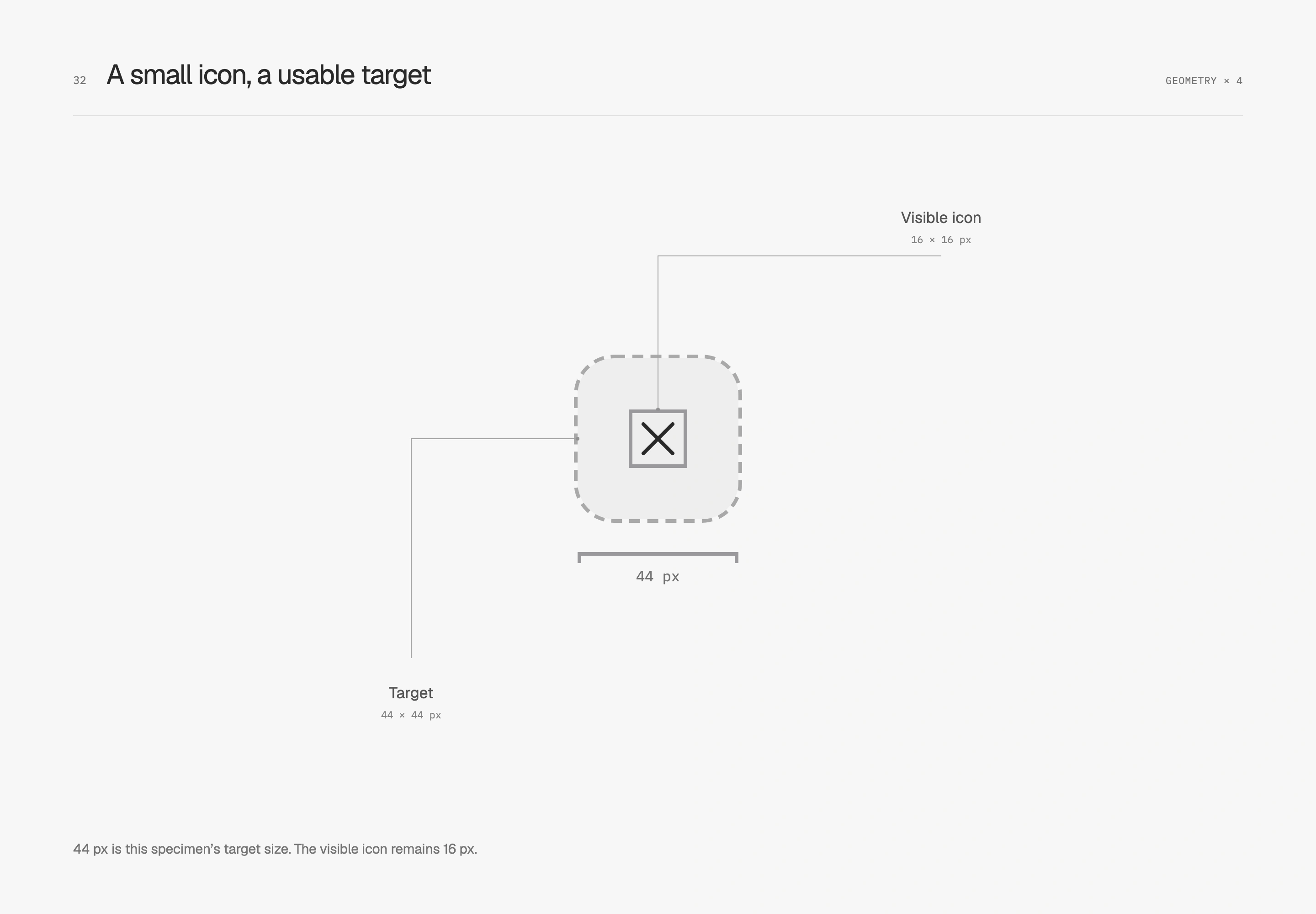
44 px is this specimen's choice. In a dense toolbar, inspect adjacent controls, spacing and hit areas together so they do not overlap. An icon may be small while still having reasonable interactive space around it.
Let focus stand out from a quiet surface
Keyboard focus identifies the control currently being operated and needs enough weight to be recognizable. Both buttons keep the same ring, fill and dimensions. The right adds a 2 px outline with a 3 px offset. The subtle surface edge continues to define shape; focus clearly marks position.
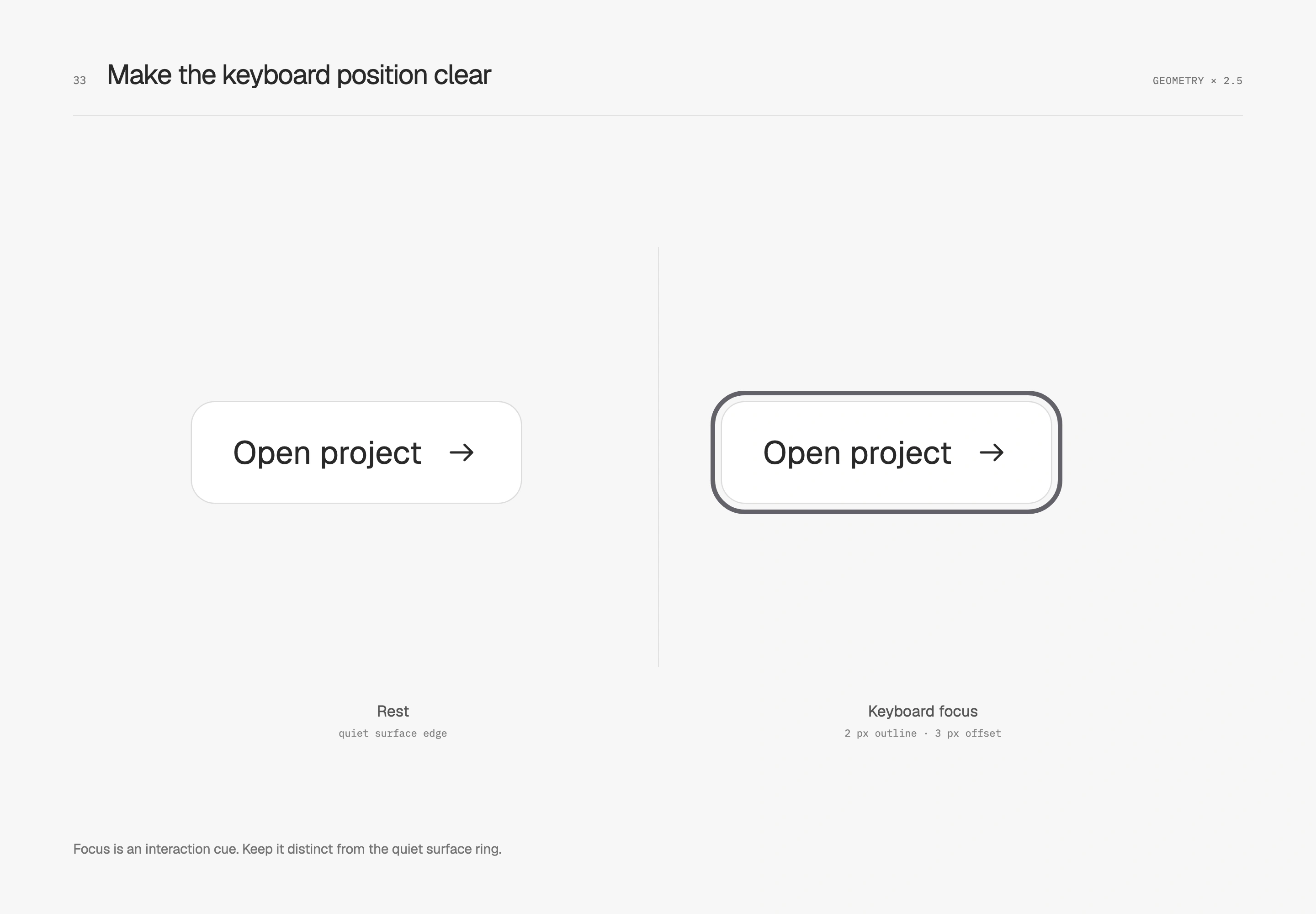
I like restrained surfaces and an immediately visible interaction position. Check the focus outline against surrounding colors, panel clipping and adjacent controls. Selection, pressing and focus have distinct jobs and can coexist.
Keep the meaning of each visual cue consistent
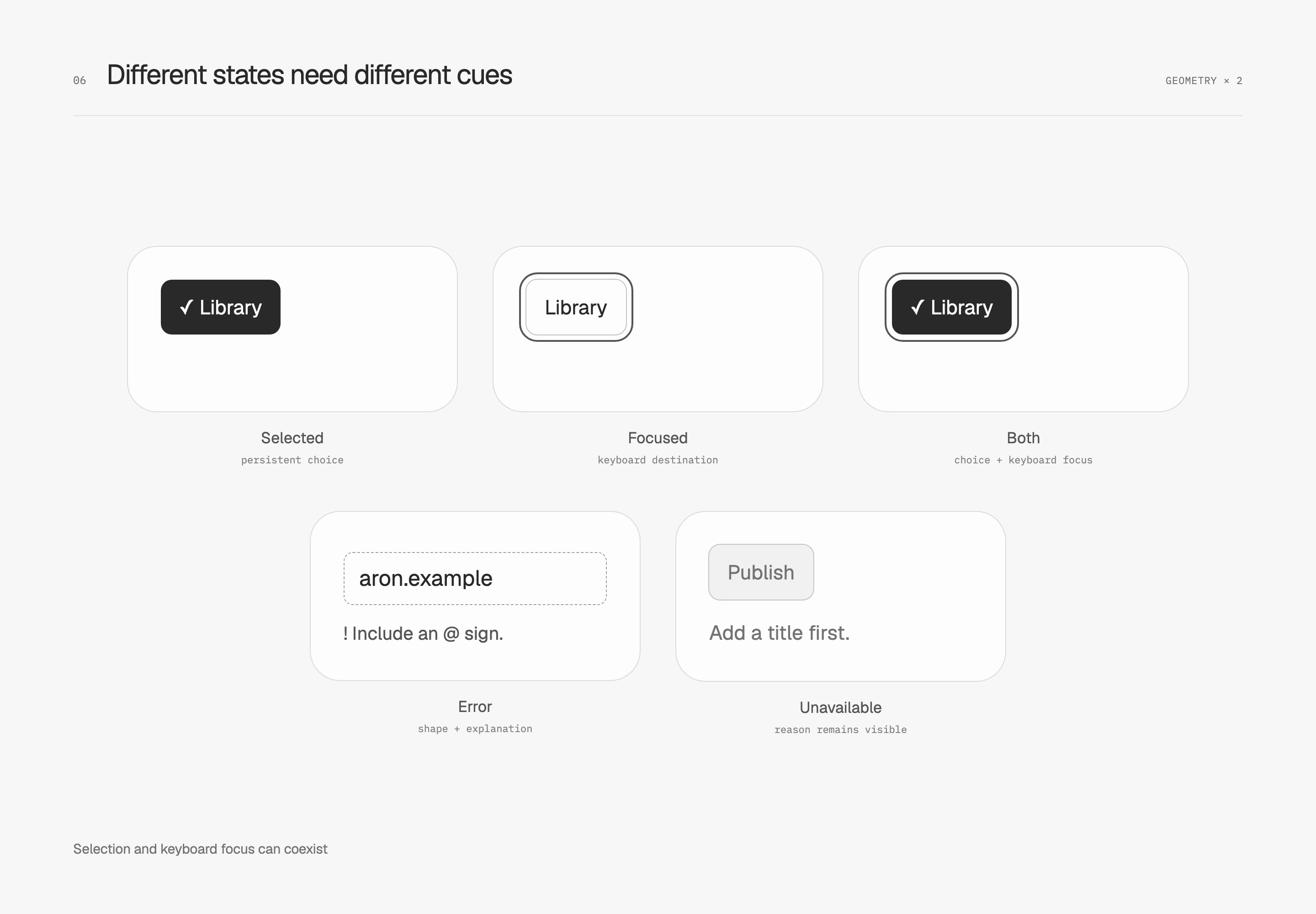
Selection records a persistent choice, focus locates keyboard interaction, and an error identifies something to fix. They can coexist. This specimen uses fill plus a checkmark for selection, an outer outline for focus and explicit text for errors. A selected item retains both cues when focused.
I carry this mapping across the interface and check whether it remains understandable without color. Important information cannot rely on a red–green distinction alone, as W3C's use-of-color guidance explains. An unavailable state should explain why instead of merely lowering opacity and leaving people to guess.
Connecting successive actions
Connect icon states with a gentle transition
Moving from Save to Saved uses icon and text together to describe the result. This cross-fade changes only the opacity of two icons in the same cell. Button width and text position stay fixed. The left replaces the icon immediately; the right uses a 150 ms ease-out transition. Press either example button to send both sides to the same state.
I reserve this small motion for occasional state changes. Frequently switched tabs and actions repeated down a list need a more direct response, and the icon or text must clearly express the current state on its own. Press feedback follows the earlier surface and shadow treatment, leaving content in place.
Take the next action before the previous one finishes
A user can request collapse before the panel finishes opening. An interruptible transition turns toward the new state from its current position, keeping repeated interactions connected. Both examples use the same distance, 200 ms duration and easing. The left restarts from a specified origin each time; the right continues from its current position toward the new endpoint.
Toggle quickly during the transition and watch for a sudden positional jump. This study uses CSS transitions to follow state. Timeline animations can also handle interruption with additional playback control; the outcome that matters is whether interaction continues smoothly. With motion disabled, state text and static before-and-after comparisons remain available.
Match entrances and exits to the moment
An initial presentation can unfold the reading order slightly through groups of heading, description and actions. An exit can reduce travel and duration, handing attention to what comes next. I reserve that rhythm for moments suited to pausing and looking. Everyday toggles and repeated actions remain direct.
With reduced motion enabled, movement is removed while states stay clear. Both studies are user-triggered and begin at rest on first load, leaving readers to choose when to compare them.
Keep recognition cues when the state changes
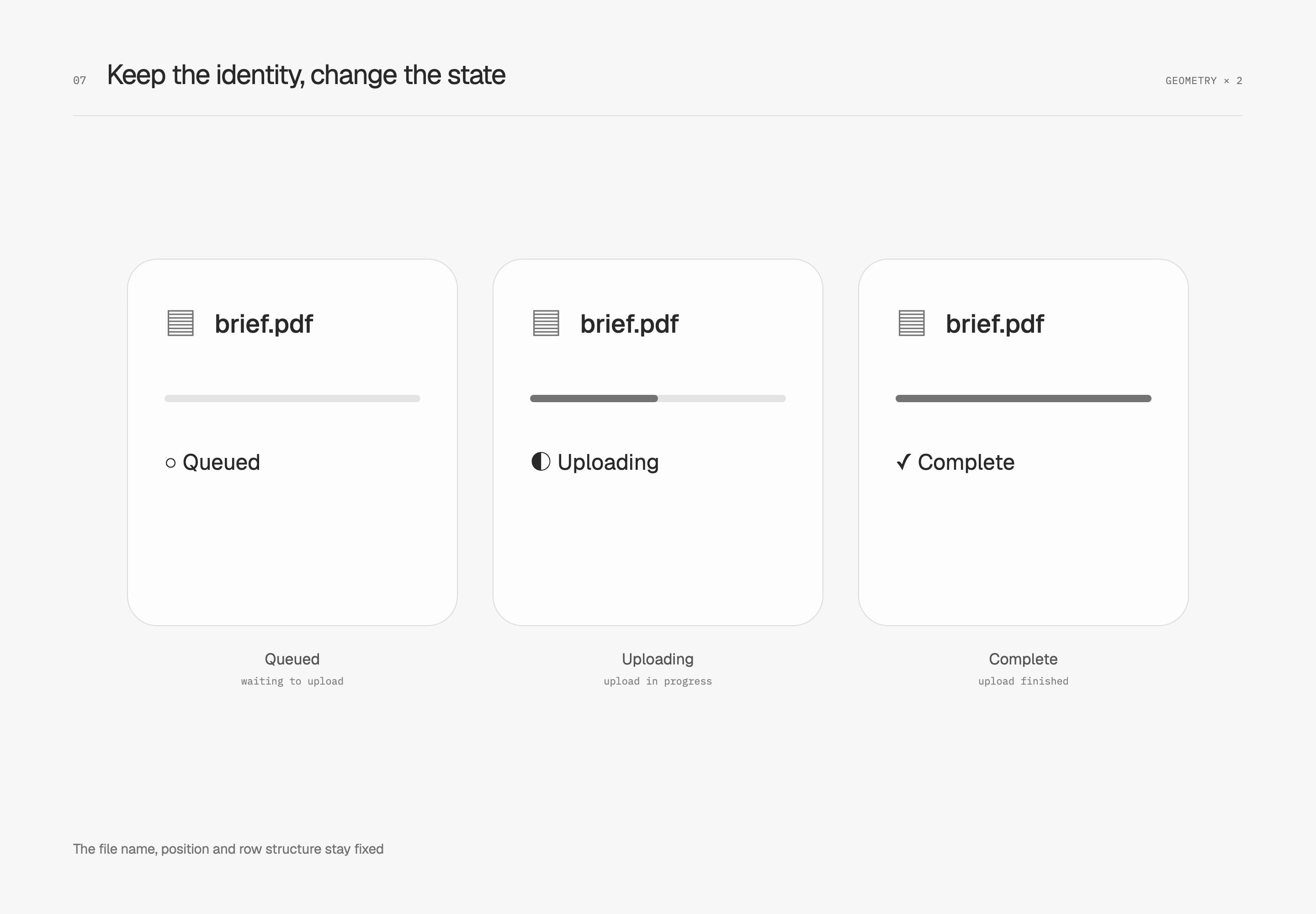
When a file moves from queued to uploading to complete, I preserve its name, position and row structure, changing only the status area. The same file retains its identity across all three stages. Readers can compare what changed without rediscovering it in a differently arranged success card.
Stability does not mean nothing may move. Sorting changes order and deletion removes an item; those actions need clear causes and outcomes. A background update, however, should avoid moving focus or rearranging the items someone is currently reading.
Feedback is complete when people can recognize the current state and continue confidently. From a press to an asynchronous update, identity, focus, and interruption need to remain understandable. Motion is one way to communicate them.